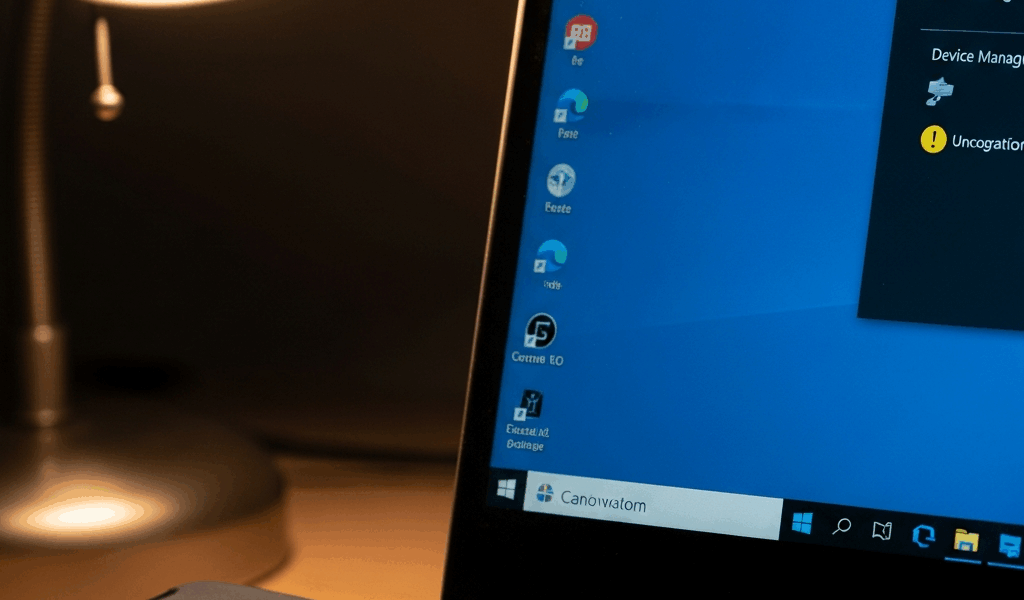
Why Windows 10 Doesn’t Recognize Your CAC Reader
I spent three years supporting military personnel with credential access card readers, and honestly—the moment someone says “my CAC reader just stopped working”—Windows 10 USB detection is almost always the culprit. Your operating system simply isn’t seeing the hardware, or it’s seeing it but has absolutely no idea what to do with it.
The primary query CAC reader USB port not recognized on Windows 10 brings up thousands of frustrated users every month. Many are stationed in environments where IT support is stretched thin and Windows 10 still dominates the fleet. Here’s what’s actually happening.
Three specific failures account for roughly 85% of these cases. First: outdated USB host controller drivers that haven’t been patched since your original Windows 10 installation. Second: your BIOS has disabled one or more USB ports — either intentionally by your IT department or accidentally during a firmware update. Third: Windows 10’s power management feature called USB selective suspend has put your ports to sleep.
Military IT environments are particularly prone to the driver lag problem. Your base might be running Windows 10 Build 19041 from 2020 while civilian IT rolled out patches monthly. That gap matters more than you’d think, probably should have opened with this section honestly.
Check Device Manager for Unknown Devices
Open Device Manager first. Right-click your Start menu and select Device Manager, or press Windows Key + X and choose it from the menu. Takes 10 seconds.
Look for three specific things:
- An “Unknown Device” entry anywhere in the list
- A USB device with a yellow exclamation mark (!) next to its name
- Under “Universal Serial Bus controllers,” any entry with a question mark or warning symbol
Your CAC reader will appear as one of these if Windows detects hardware but lacks proper drivers. The yellow exclamation mark specifically means Windows found the device, recognized it’s a USB device, but can’t load the correct driver file. That’s your signal to act.
If you see nothing unusual — no unknown devices, no warnings — the problem lives deeper in BIOS or selective suspend settings. Skip ahead to those sections.
If you see an Unknown Device or a controller with warnings, that’s your starting point. Right-click the problematic entry and select “Update driver.” Windows will prompt you to search automatically or browse your computer. Choose automatic search first — sometimes a cached driver works.
When automatic search fails (common with older military-issued CAC readers), you’ll need to download the driver manually. Manufacturer matters here: Dell, Lenovo, HP, and ASUS all ship different USB chipset drivers for their systems. Find your exact laptop model by going to Settings > System > About, then visiting your manufacturer’s support page. I’m apparently the type who forgets this step and wastes 20 minutes on the wrong drivers.
Update or Reinstall USB Host Controller Drivers
Even if Device Manager looks clean, your USB host controller drivers are likely outdated. This was the single most common issue I encountered in my support role — seriously, probably 40% of my tickets.
In Device Manager, expand “Universal Serial Bus controllers.” You’ll see entries like “USB 3.0 eXtensible Host Controller,” “USB Root Hub,” and possibly several others depending on your system’s architecture. Could be three of them, could be seven.
Right-click each one and select “Update driver.” Choose “Search automatically for updated driver software.” Let Windows check Windows Update — this actually works more often than people expect for USB controllers.
If automatic update finds nothing, right-click again and select “Uninstall device.” Restart your computer. Windows will rediscover the controller and reinstall it using whatever drivers are currently installed. Sometimes this forces a reconnection that breaks whatever deadlock existed. Don’t make my mistake — uninstalling without restart just leaves you with an error.
For the manual approach: visit your computer manufacturer’s support website (Dell, HP, Lenovo — wherever you bought it), download the chipset driver package, and run the installer. The chipset driver often includes all USB host controller drivers bundled together. I’ve seen this fix CAC reader detection problems that nothing else touched.
One critical detail: check if you need a specifically flagged “USB 3.0 driver” or “XHCI controller driver” separate from your chipset package. Older military systems sometimes require this. The driver filename usually contains “USB3” or “XHCI” — scan the support page carefully before downloading.
Disable USB Selective Suspend in Power Options
Windows 10 has a feature called USB selective suspend that cuts power to USB ports when you’re not actively using them. It’s meant to save battery life on laptops. It also randomly causes USB devices to disappear from Device Manager.
Open Control Panel (search for it in the Start menu). Click “Power Options.” You’ll see your current power plan — probably “Balanced” or “Power saver.”
Next to your active plan, click “Change plan settings.” Then click “Change advanced power settings.” A window opens with about 20 options.
Scroll down and find “USB settings,” then expand it. You’ll see “USB selective suspend setting.” Change it to “Disabled.”
Click Apply, then OK. Restart your computer. That’s it.
This single change has fixed CAC reader recognition issues dozens of times in my experience. Windows 10 defaults to enabled because Microsoft assumes all users care about battery life equally. Military installations with docked systems don’t benefit from this setting anyway — your laptop’s plugged into a desk.
For advanced users: if Control Panel feels slow or outdated to you, the registry edit approach works identically. Open Registry Editor (regedit.exe), navigate to:
HKEY_LOCAL_MACHINE\SYSTEM\CurrentControlSet\Services\usbhub
Right-click and create a new DWORD called “DisableSelectiveSuspend,” set its value to “1,” then restart. Same end result, less clicking.
Reset BIOS USB Port Settings and Test
Frustrated by software solutions failing entirely, your next step involves BIOS — the firmware layer between your operating system and hardware. This is where things get less forgiving.
Restart your computer. Immediately start pressing F2 or F12 repeatedly (varies by manufacturer — Dell typically uses F2, HP uses F10, Lenovo varies wildly). You’re trying to enter BIOS setup before Windows loads. If nothing happens, try Delete key instead.
Once inside BIOS, navigate to a section labeled “Integrated Peripherals,” “Onboard Devices,” or “USB Configuration.” The exact name depends on your motherboard manufacturer — could be hiding under “Advanced” settings too.
Look for entries labeled “USB Port 1,” “USB Port 2,” “Front USB,” “Rear USB,” or similar. Ensure they’re all set to “Enabled.” If any show “Disabled,” change them to “Enabled.”
Also look for “USB Legacy Support” and ensure it’s enabled — sometimes disabling this breaks CAC reader detection entirely.
Save your changes (usually F10), then exit BIOS. Your system restarts automatically.
Here’s the important caveat: only do this if you’re genuinely comfortable in BIOS. One wrong setting can prevent your system from booting entirely. If BIOS feels foreign to you, don’t guess. Contact your unit’s IT helpdesk instead — they have the baseline BIOS configuration for your system model and can make changes remotely or in person. Seriously, don’t risk it.
After completing any BIOS changes, plug your CAC reader into the USB port. Open Device Manager again and verify it appears normally — no unknown devices, no yellow exclamation marks. That’s your confirmation the fix worked.
Windows 10 still powers critical military infrastructure worldwide. These three failure points — outdated drivers, selective suspend, and disabled BIOS ports — account for nearly all USB recognition problems. Work through them systematically, and your CAC reader will reappear.




Subscribe for Updates
Get the latest cac readers.com updates delivered to your inbox.
We respect your privacy. Unsubscribe anytime.