Why Your CAC Reader Shows Up But the Software Ignores It
CAC reader troubleshooting has gotten complicated with all the conflicting advice flying around.
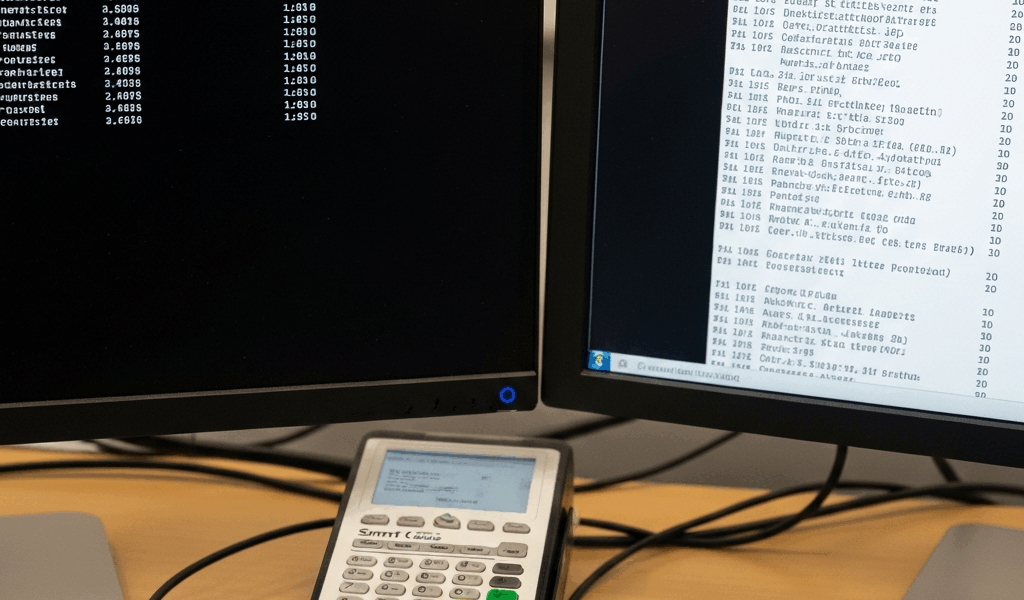
Here’s the maddening part: Device Manager shows the reader as completely healthy. No yellow exclamation marks. No unknown devices. The USB hardware is there, identified, drivers loaded. Yet ActivClient — or 90Meter, or whatever middleware your command runs — stares back at you completely blank. No reader detected.
But what is actually happening here? In essence, it’s a communication breakdown between two separate systems. But it’s much more than that. Windows hardware recognition and DoD middleware recognition are two completely different conversations happening at two completely different layers. Your OS sees the physical device at the USB level — that’s step one, and it’s working fine. The CAC middleware, though, needs the reader to respond in a very specific way. It needs certain services enabled. It needs the driver exposing the right interfaces. It needs the Smart Card service actively listening. Hardware working does not equal software working. Those are not the same thing.
Frustrated by this exact problem during my first government contract, I reinstalled drivers for four solid hours before someone told me the Smart Card service had been quietly disabled by a Windows Update. Once that service was running again, ActivClient saw the reader instantly. Four hours. Gone.
The middleware hunts for a PC/SC — Personal Computer/Smart Card — compliant interface. Your reader might expose that interface perfectly. But if the Windows Smart Card service isn’t running to broker that conversation, the CAC software sees nothing. Think of it as a working phone line with nobody picking up on the other end. That’s what makes this problem so endearing to us IT people — it looks solved from every angle except the one that actually matters.
So, without further ado, let’s dive in.
Check the Smart Card Service Is Running
Probably should have opened with this section, honestly. Most cases die right here.
Open Services.msc. Press the Windows key, type “services.msc,” hit Enter. You’re looking for the entry labeled “Smart Card.”
Click it. Check three things:
- Status: Should show “Running”
- Startup type: Should be set to “Automatic”
- Log On As: Should be “Local System”
If Status shows “Stopped,” right-click the Smart Card service and hit “Start.” If Startup type reads “Manual” or “Disabled,” right-click, open “Properties,” and switch it to “Automatic.” Click “Apply,” then “OK.” Restart the machine after that to confirm the service actually sticks.
Now — if the Smart Card service keeps stopping on its own after restarts, that’s a deeper issue. Corrupt registry entries or conflicting Group Policy settings on domain machines will do this. Open Event Viewer, go to Windows Logs > System, and look for error messages tied to the Smart Card service crashing. Repeated failures there mean you need a registry fix or a Group Policy adjustment — not something you can handle locally. Document those errors and hand them to your IT help desk with that information attached.
But most of the time? Enabling the Smart Card service solves it immediately. Try your CAC software right after and see what happens.
Reinstall the PC/SC Driver and Middleware in the Right Order
First, you should uninstall everything completely — at least if the Smart Card service was already running and your reader is still invisible to the software. The problem is almost certainly that your driver and middleware are out of sync. Windows Update has a habit of silently replacing your reader driver with a generic version that doesn’t properly expose the PC/SC interface. It does this in the background without asking. Don’t make my mistake of jumping straight to reinstalling middleware without addressing the driver first — I lost two days that way.
Here’s the correct order. Do not skip steps or reverse this.
- Uninstall your CAC middleware first. ActivClient, 90Meter, OpenSC — whatever is running. Control Panel > Programs and Features. Find it, uninstall it, restart when prompted.
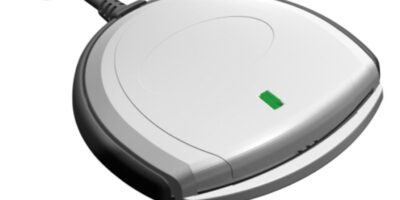
- Uninstall the reader driver. Device Manager > expand Smart Card Readers > right-click your specific reader — something like “SCR3310 v2.0” or “Identiv uTrust 3700 F” — and select “Uninstall device.” Check the box for “Delete the driver software for this device.” Restart.
- Reinstall the reader driver. Go directly to the manufacturer’s website — Identiv, Gemalto, HID, Reiner SCT, Athena, whoever made yours — and pull the latest driver for your exact reader model and Windows version. Install it. Restart.
- Reinstall your CAC middleware. Grab the latest version from your command’s IT portal or the official DoD source. Install it. Restart.
Order matters here. Middleware tries to register itself with the driver during installation. If the driver isn’t already in place, that registration doesn’t happen correctly — and you end up back where you started. I’m apparently someone who learned this the hard way with an Identiv reader and ActivClient 10.x, and doing it in the right sequence fixed it completely while skipping that sequence cost me two days of confusion. Don’t make my mistake.
After the final restart, open your CAC software. The reader should appear.
If it still doesn’t, Windows Update may have already replaced your driver again — it moves fast. Go to Device Manager, find your reader, right-click it, open “Properties,” click the “Driver” tab, and check the date. If it looks newer than when you installed it ten minutes ago, Windows Update did exactly that. Fix it by going to Device Manager > View > Devices by connection, locate your reader’s USB hub, right-click > Properties > Driver tab > disable automatic driver updates. Then reinstall the reader driver manually one more time.
Test With a Different CAC Middleware Tool
OpenSC might be the best option here, as this stage of troubleshooting requires isolating whether the problem lives in the hardware stack or inside ActivClient specifically. That is because OpenSC is free, open-source, and completely independent of proprietary middleware — it tests whether your reader and card are actually functional on their own terms.
Download OpenSC from https://github.com/OpenSC/OpenSC/releases. Install it. Open Command Prompt as Administrator and run:
opensc-tool.exe -l
This lists every detected reader on the system.
If your reader shows up in that list, the hardware and driver are working correctly. The problem is ActivClient — or whatever middleware is deployed — failing to recognize the driver configuration. Try uninstalling ActivClient completely, reinstalling fresh from the latest version for your Windows OS. A corrupted ActivClient install will sometimes cache old driver settings and ignore new hardware entirely. Wipe it and start clean.
If OpenSC also shows nothing, the issue is lower in the stack. Driver installation failed, Smart Card service still isn’t running, or the reader hardware itself is giving up. Go back and verify both: Smart Card service status, driver installation confirmed in Device Manager.
Still Not Working — When to Replace the Reader or Contact Your Help Desk
After all of this, your reader should be recognized. Occasionally it won’t be — and that usually means actual hardware failure or an incompatibility too specific for local troubleshooting to touch.
While you won’t need a whole lab setup, you will need a handful of things to figure out where exactly the failure lives. Test your card on another machine if you can get access to one. If that machine’s CAC software picks up your card, your card is fine and your reader is the problem. If no machine recognizes the card, the card itself may be damaged. If your card works on another reader but not your own — even after a full driver and middleware reinstall — the reader has failed and needs replacement.
Some older CAC readers also don’t support newer CAC card chip generations. This new card standard took off several years later and eventually evolved into the PIV chip configuration that government organizations issue today. If your command recently rolled out new PIV or CAC card batches, check your reader’s specifications against the card’s chip generation. A reader from 2014 may simply not speak the right language.
Contact your command’s IT help desk with everything documented: which steps you tried, the OpenSC output if you ran it, and whether the card works on another machine. That information cuts their diagnostic time significantly — and your replacement or fix happens faster because of it.
The odds are heavily in your favor that this resolved at the Smart Card service step or the driver reinstall. Most cases do.

Subscribe for Updates
Get the latest cac readers.com updates delivered to your inbox.
We respect your privacy. Unsubscribe anytime.