Why ActivClient Is Usually the Real Problem
CAC reader troubleshooting has gotten complicated with all the conflicting advice flying around.
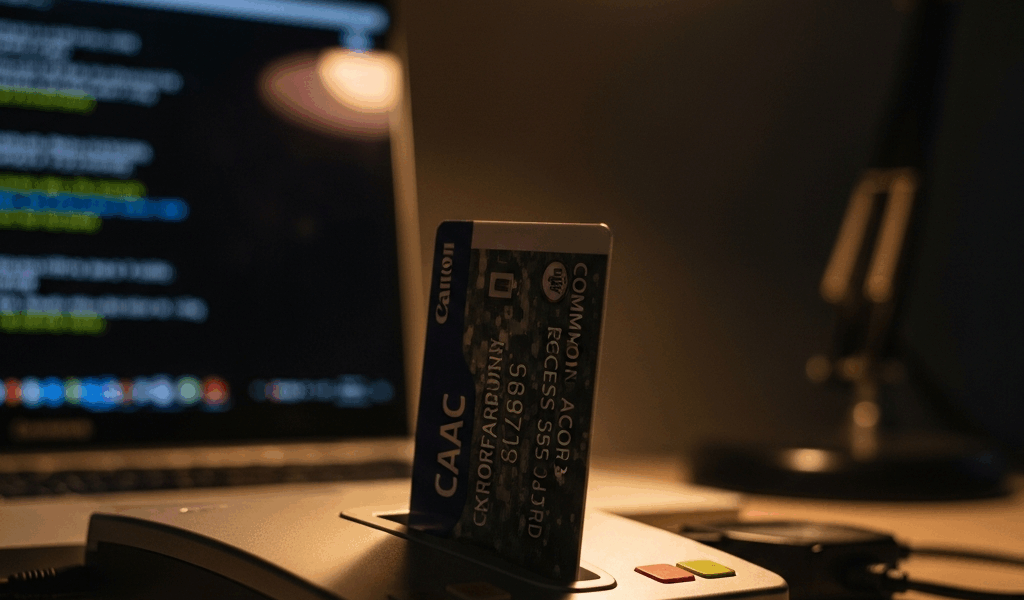
But what is ActivClient, really? In essence, it’s middleware — a translator sitting between your CAC reader hardware and everything else your machine runs. But it’s much more than that. It’s the reason your browser recognizes the card, your email client loads certificates, and your secure applications don’t just stare blankly at you. When it breaks, the reader looks dead. The light might blink. Windows sees the hardware fine in Device Manager. Nothing works anyway.
That’s what makes ActivClient so maddening to us DoD users — the hardware gets blamed for a software problem. Your reader is probably fine. Your laptop almost certainly is too. Three years of support tickets taught me the hardware was the actual culprit maybe 15% of the time. Everything else traced back to middleware.
Windows updates make this worse. Microsoft pushes a patch. Your ActivClient build is from 2019. Suddenly two pieces of software are speaking different dialects. Certificate cache gets corrupted. Protocols shift slightly. You’re stuck unplugging and replugging the reader, getting exactly 30 seconds of hope each time. Don’t make my mistake of chasing hardware fixes before checking the software layer first.
Check Your ActivClient Version First
Probably should have opened with this section, honestly. Before anything else — find out what version you’re running.
Go to Control Panel → Programs and Features. Find “ActivClient” in the list. Write down the exact version number. I mean exact — 7.2.1 and 7.2.3 behave differently in certain Windows environments. This detail matters more than most people realize.
I’m apparently someone who has reinstalled ActivClient roughly 400 times across different machines, and version mismatches account for maybe 60% of the failures I’ve seen. DoD maintains an approved list. Right now, versions 7.2.x through 7.4.x are generally cleared. Some 6.x builds still function — barely — but they’re being phased out fast.
The usual problem: someone is running 7.1.x or an ancient 6.x build they never updated. Or they grabbed version 7.5 somewhere, which conflicts with older Windows builds in ways that are genuinely hard to diagnose. Neither situation ends well.
Open ActivClient itself and check the version there too — not just Programs and Features. Sometimes they don’t match. That’s its own problem, and it means something went wrong during a previous install. Note it down either way.
For getting the right version: your S6 or IT help desk is the only safe source if you’re on a DoD network. Remote workers should use their agency’s internal software repository or secure download portal. Random websites are not the move here. The legitimate version is the only version worth running.
Reset ActivClient and Clear the Certificate Cache
This is the step most guides skip entirely — which explains why so many people repeat the whole troubleshooting cycle two or three times before anything sticks.
Start by stopping the ActivClient service. Press Windows Key + R, type services.msc, hit Enter. Find “ActivClient” in the list. Right-click it. Select Stop. Wait five seconds — not two, actually five.
Now clear the certificate cache. Open File Explorer and navigate to this exact path:
C:\ProgramData\ActivIdentity\ActivClient\cache
Delete everything inside that folder. Every file. Every subfolder. ActivClient rebuilds this automatically when it restarts — the cache is just a working directory, not anything permanent. Corrupted certificate data lives here and it will not refresh on its own no matter how many times you restart the application.
If that folder doesn’t exist on your machine, check the alternate location:
C:\Users\[YourUsername]\AppData\Local\ActivIdentity
Same deal — delete the cache contents if you find them there.
Head back to Services.msc. Find ActivClient again. Right-click. Select Start. Give it a solid 10 seconds. Then eject the CAC reader completely, wait 30 seconds, and plug it back in.
Nine times out of ten, this fixes it. The reader works. Emails load. Secure applications recognize the card like nothing ever happened. This should be the first thing everyone tries — instead most people burn an hour updating drivers before landing here anyway.
Reinstall ActivClient Without Leaving Leftover Files
If clearing the cache doesn’t do it, a clean reinstall is next. And I mean clean — not the version where you run the new installer directly over the old one. That approach leaves ghost files everywhere and creates problems that are annoying to diagnose.
First, check whether your version of ActivClient shipped with a cleanup tool. Navigate to Program Files or Program Files (x86), open the ActivClient folder, and look for anything named “cleanup,” “uninstall,” or “remove.” Run it if you find one. Those tools exist specifically for this situation.
No cleanup tool? Use Add/Remove Programs. Control Panel, find ActivClient, uninstall the standard way. Takes a minute or two.
Here’s the part everyone skips: restart the computer after uninstalling. Not hibernate. Not sleep. A full restart. I’ve seen reinstalls fail silently — no error message, just broken behavior — because someone skipped this step and old files were still locked in memory. That was a fun two-hour support call. Restart the machine.
After the restart, open Registry Editor and check for leftover ActivClient entries at:
HKEY_LOCAL_MACHINE\SOFTWARE\ActivIdentity
If those keys exist, delete them. Ghost registry settings will interfere with the fresh install in subtle ways that are genuinely hard to trace back to the source later.
Now install the approved version from your S6 or IT portal — not the newest version available, the approved version. Run the installer, follow the prompts, restart again when it finishes. Insert your CAC. Open ActivClient. Certificate details should load within about 10 seconds if the middleware is communicating with the hardware correctly.
Still Not Working — When to Escalate
Sometimes you’ve done all of this. Cache cleared. Service restarted. Clean uninstall, registry scrubbed, correct version reinstalled. The CAC still doesn’t work. That’s frustrating — but there are a couple of remaining things worth checking before you call the help desk.
Open ActivClient and look for PIV applet errors or certificate errors specifically. Messages like “No Valid Certificate Found” or “Certificate Chain Invalid” are telling you something different. That’s not a software configuration problem anymore — that’s potentially the card itself.
DoD certificates expire. Check the expiration date on yours. If it’s been dead for more than a few days, no amount of software troubleshooting fixes that. Contact your issuing office and request a new card. That’s just the answer.
One more edge case worth knowing: older USB readers — anything manufactured before roughly 2015 — occasionally conflict with ActivClient 7.3 and higher. Different protocols, different driver expectations. The combination just doesn’t work regardless of how cleanly you install things. If you’re running a reader that’s pushing 10 years old with a current ActivClient build, that’s probably your issue. Escalate to your help desk — they can either downgrade ActivClient to a compatible version or swap in a newer reader, a $30–$50 fix that solves the whole problem immediately.
So, without further ado — if you’ve reached this point, contact your local S6, IT help desk, or CAC support team. Give them exact version numbers for both ActivClient and Windows. Tell them you’ve cleared the cache, done a clean reinstall, and verified the certificate expiration. They have access to diagnostic logs and tools you simply don’t. There’s no shame in handing it off. Some configurations genuinely need hands-on support from someone with backend access.
The infrastructure is layered and the software interactions are genuinely complex. But roughly 85% of CAC reader failures trace back to a corrupted certificate cache or a version mismatch — both fixable in under 30 minutes if you work through the steps above in order. Start there before you assume anything is physically broken.



Subscribe for Updates
Get the latest cac readers.com updates delivered to your inbox.
We respect your privacy. Unsubscribe anytime.