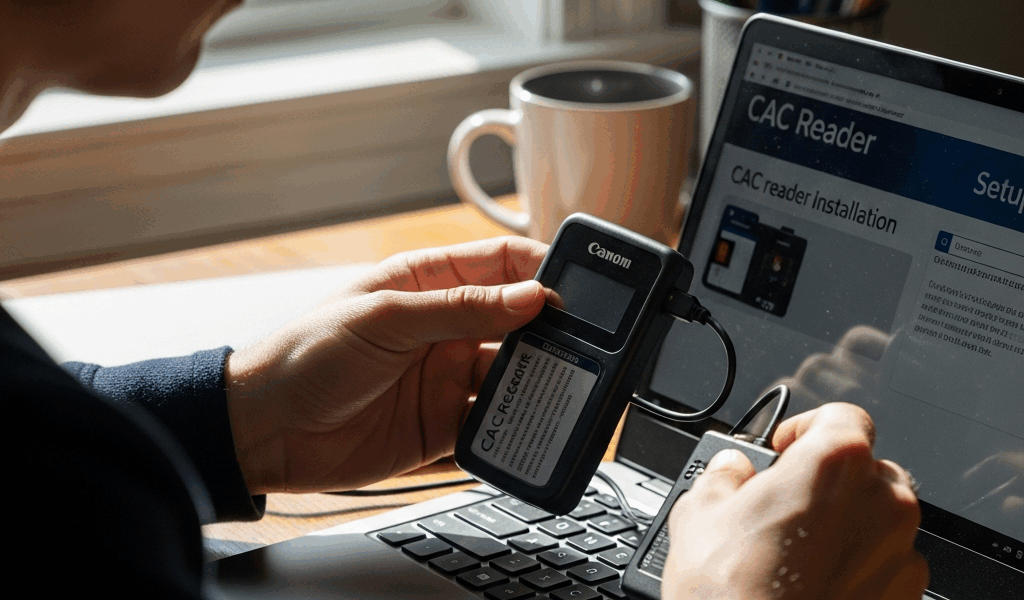
CAC Reader on Chromebook — Does It Work and How to Set It Up
CAC readers and Chromebooks have gotten complicated with all the conflicting advice flying around. I spent three years supporting IT infrastructure at a forward operating base where half the staff had been issued Chromebooks by their command — and the other half were practically begging to swap them out for Windows laptops. That experience taught me more about Chrome OS smart card limitations than I ever wanted to know. So let me save you the two hours of forum-diving and tell you what actually works, what doesn’t, and when you should just accept that the Chromebook isn’t the right tool for your DoD access needs.
Chrome OS does have a built-in smart card API — Google added it specifically for enterprise environments. That’s the good news. The bad news is that the Department of Defense’s web infrastructure wasn’t exactly built with Chromebook compatibility in mind. The gap between “Chrome OS technically supports smart cards” and “you can actually authenticate into MilConnect without wanting to throw your laptop” is a wide one. A genuinely wide one.
Can You Use a CAC Reader on Chromebook?
Yes. But the limitations matter a lot depending on your job. Chrome OS has supported smart card authentication through the Smart Card Connector app since around 2018, and for government-issued Chromebooks enrolled in a managed domain, your organization’s admin has often already pre-configured this. For personal Chromebooks, you’ll need to set it up yourself — and there are a few moving parts involved.
Here’s what the basic hardware and software stack looks like when it actually works:
- A USB-A or USB-C CAC reader — the SCR3310 from SCM Microsystems runs about $28 on Amazon and is one of the most widely compatible readers I’ve tested on Chrome OS
- The Smart Card Connector app installed from the Chrome Web Store (free, published by Google)
- The CSSI PIV middleware app, also free on the Web Store
- DoD certificates loaded into the Chrome certificate store — this is the step most guides skip over, and honestly, it’s the one that trips people up the most
Once that stack is in place, Chrome OS can read the smart card, authenticate the certificate, and pass credentials to web applications. The operative phrase there is “web applications.” Chrome OS doesn’t run native Windows executables — and that matters enormously for DoD users because several tools in the military ecosystem aren’t web apps at all. They’re desktop applications that assume a Windows environment from the ground up.
Frustrated by repeated authentication failures on his new Chromebook, a Navy logistics officer I supported spent a full afternoon installing every middleware app he could find before we figured out his command’s portal required a specific version of Internet Explorer rendering that Chrome simply cannot replicate. Not a driver problem. Not a certificate problem. An architecture problem — and there’s no patching your way around that.
The DoD’s certificate infrastructure adds another layer of complexity. You need the DoD Root CA certificates and intermediate certificates installed in Chrome’s certificate authority store. The official source is the DoD Cyber Exchange at public.cyber.mil. Download the certificate bundle, then import it through Chrome Settings → Privacy and Security → Security → Manage Certificates. Don’t skip this. Authentication will fail silently without it, and you’ll spend an hour convinced it’s a hardware problem when it isn’t.
What Works and What Does Not
Probably should have opened with this section, honestly. Because before you spend any time on setup, you need to know whether the sites you actually need will function at all.
Sites That Generally Work
Outlook Web Access — OWA on the .mil webmail portal — works reasonably well once your CAC reader is configured and your certificates are installed. I’ve used it myself on a Samsung Chromebook Pro (the 2017 model, 12.3 inch, around $550 at the time) without major issues. Web-based email is Chrome’s native territory. It renders fast, the CAC authentication prompt appears when it should, and you can read and send official email without much drama.
The TRICARE online portal at tricare.mil supports CAC authentication in Chrome and works acceptably on Chromebook. Appointment scheduling, referral requests, benefit verification — all of it functions through the browser-based interface without requiring anything exotic.
MilConnect at milconnect.dmdc.osd.mil works for most functions. Benefits management, dependency updates, contact information — accessible with a properly configured CAC reader on Chromebook. Not perfect, but functional enough for regular use.
CAC-authenticated access to some Defense Health Agency portals and DCPDS — the civilian HR system — also works in a browser context.
Sites That Require Windows or Mac
Defense Travel System — DTS — is the big one. DTS has notoriously bad compatibility with non-Windows browsers. It leans on legacy ActiveX components in older configurations and has a genuinely painful relationship with Chrome even on Windows. On a Chromebook, expect broken page rendering, authentication loops, and missing UI elements. Some commands have moved to a newer DTS interface that’s slightly better, but I wouldn’t count on it working reliably without testing your specific installation first.
LeaveWeb is another problem child. It uses Java-based components on many installations and requires specific certificate configurations that Chrome OS handles poorly. Some installations have moved away from Java — but without knowing exactly which version your command runs, assume it won’t work on Chromebook until proven otherwise. Don’t make my mistake of assuming the newer interface means better compatibility.
iPERMS, the personnel records system, is hit or miss. The document upload function specifically tends to break in ways that aren’t obvious until you’re mid-process.
AHLTA — the military’s clinical health records system — is a Java thick-client application. It does not run on Chromebook. Full stop.
Any application that requires locally installed CAC middleware like ActivClient won’t work on Chrome OS. ActivClient doesn’t make a Chrome OS version, and there’s no workaround for applications that require it at the local machine level.
The Citrix Workaround
But what is the Citrix approach, exactly? In essence, it’s running a full Windows desktop on a server and streaming it to your Chromebook. But it’s much more than that — it’s genuinely how many commands have kept Chrome OS deployments functional for real government work.
Citrix Workspace is available as a Chrome OS app, and it works. What Citrix does is run a Windows desktop environment on a server and stream it to your Chromebook as a virtual session. You’re interacting with a real Windows environment — complete with ActivClient, Internet Explorer mode if needed, and all the DoD desktop software — through your Chromebook’s screen. The device becomes a window into infrastructure that actually supports everything.
The CAC reader configuration for Citrix on Chromebook requires a specific setup. Here’s what you need to do:
- Install Citrix Workspace from the Chrome Web Store or the Chromebook’s app ecosystem
- In Citrix Workspace settings, enable smart card passthrough — this allows the physical CAC reader connected to your Chromebook to authenticate to the remote Windows session
- Connect your CAC reader before launching the Citrix session, not after — this matters more than it should
- When the Windows virtual desktop loads, it should recognize the CAC through the passthrough and prompt for your PIN
Smart card passthrough in Citrix isn’t enabled by default on all deployments. Your organization’s Citrix administrator controls this at the policy level. If it’s not working, the issue is likely a group policy setting on the server side — not your Chromebook configuration. Open a ticket. Specifically ask whether “Smart Card Passthrough” is enabled in the Citrix policy for your user group. That exact phrasing helps.
I’ve seen this work cleanly at Army commands running Citrix Virtual Apps and Desktops on Windows Server 2019. The latency is real — you notice it when typing, especially on slow connections — but for DTS, LeaveWeb, and other legacy systems, it gets the job done in a way nothing else on Chrome OS does.
The SCR3310 reader I mentioned earlier plays well with Citrix passthrough. Some cheaper no-name readers have USB descriptor issues that confuse the passthrough layer entirely. Spend the $28. The Identiv uTrust 3700F is another solid option at around $35 — it’s newer, handles the PIV applet cleanly, and I’ve had zero issues with it on Chrome OS in Citrix sessions over about eighteen months of regular use.
One more thing — plug the CAC reader directly into the Chromebook. Don’t route it through a USB hub if you can avoid it. Hubs introduce enumeration delays that sometimes cause Citrix to miss the smart card on session launch, and then you’re re-plugging and reconnecting and losing twenty minutes you didn’t have.
When You Need a Different Device
Honest assessment time. There are situations where a Chromebook simply isn’t adequate for DoD work, and trying to force it to work costs more in time and frustration than it saves in device cost.
If your job requires any of the following, get a Windows machine:
- Regular use of DTS for travel vouchers and authorizations
- AHLTA or other clinical applications
- Any application that explicitly requires ActivClient
- SIPR access — Chromebooks aren’t approved for classified networks and no workaround changes that
- Defense acquisition tools like FPDS or specific contract writing systems built on Windows infrastructure
- Video teleconferencing systems that require Windows-specific codecs or plugins
Windows might be the best option for full DoD access, as the complete range of military and DoD civilian work requires ActivClient support at the local machine level. That is because most legacy DoD applications were written assuming a Windows environment and have never been meaningfully updated to accommodate anything else. Windows 10 or 11, ActivClient 7.x or later, the DoD certificate bundle installed, and a compliant CAC reader. The HID Omnikey 3121 is a government-standard reader that appears on most approved product lists — runs about $45.
Mac is a middle-ground option. macOS supports smart card authentication natively through its built-in smart card framework, and many DoD web portals work in Safari or Chrome on Mac. But macOS has its own compatibility gaps — some Windows-only tools still won’t run, and ActivClient on Mac has historically lagged behind the Windows version when new features roll out.
That’s what makes the Chromebook endearing to us field-environment types — it’s light, boots fast, and is genuinely hard to infect with malware. Real advantages when you’re operating somewhere that a full Windows laptop feels excessive. But the person who issued you the Chromebook and the person who designed the DoD’s application stack weren’t communicating with each other, and you end up living in that gap every single day.
First, you should push for Citrix back-end infrastructure from day one — at least if your command is seriously considering a Chromebook deployment. Don’t let it be an afterthought. The Chromebooks are cheap. The Citrix licensing isn’t — but it’s the thing that makes the deployment actually functional for government use. Without it, you’re buying frustration at scale and calling it modernization.
This new landscape of Chrome OS enterprise support has evolved over several years and eventually turned into something the cautious IT professional knows and tolerates today — better than it was in 2018, still not where it needs to be for heavy DoD use. Google continues to invest in enterprise smart card support. DoD continues its long, slow migration toward modern web architectures. Those two trajectories will eventually meet somewhere useful. Right now, check your specific tools against the compatibility reality above before you commit to a Chrome OS environment for any DoD role that goes beyond basic web access.

Subscribe for Updates
Get the latest cac readers.com updates delivered to your inbox.
We respect your privacy. Unsubscribe anytime.