
An authentication freeze can occur at the reader, card communication or application stage. A driver’s age alone does not prove it is defective. Record the exact message and the step where the process stops before changing software.
Separate the stages
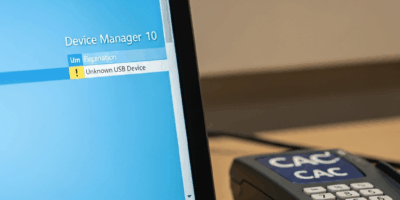
- Reader detection: check Device Manager’s Smart card readers entry and its reported status.
- Card communication: note whether the reader stops responding, the card is removed, or the error occurs when inserting it.
- Application or certificate processing: record the affected site or application and whether the failure happens before or after certificate selection.
Collect evidence for support
Microsoft documents smart-card events that can identify communication failures. An event alone does not prove failed hardware: interruption by card or reader removal can also explain an error. Match the event time to the actual freeze.
For a managed DoD computer, give IT the reader model, Windows version, exact error and event details. Use approved updates for the exact device. Do not delete certificates, disable protections or replace middleware indiscriminately as a first response.
The goal is a reproducible description: “Reader remains visible; authentication freezes after certificate selection in this application.” That is more useful than treating every stalled sign-in as the same driver problem.
Reference: Microsoft smart-card troubleshooting.
Reference: Microsoft smart-card event reference.



Subscribe for Updates
Get the latest cac readers.com updates delivered to your inbox.
We respect your privacy. Unsubscribe anytime.