Why Your CAC Reader Disappears from USB Ports
Your CAC reader not recognized on Windows 11 USB ports has gotten complicated with all the driver reinstall guides flying around. I’m apparently the type who plugs security readers into the wrong port type and blames Windows, and that mistake taught me the real culprits sit at the hardware layer.
Three main issues create this mess. First: USB port power delivery failures. Windows 11 systems sometimes allocate insufficient power to certain USB slots, especially 3.0 ports on older motherboards. Second: USB Selective Suspend, a Windows 11 power-saving feature that kills USB devices mid-session without warning. Third: device driver conflicts where your system recognizes the port but not the CAC reader hardware itself. Most guides skip straight to driver reinstalls and miss the fact that your reader might be working fine — it’s just talking to the wrong port or getting starved for power.
Before you touch a single driver, we’re fixing this at the USB level.
Quick Fix 1 — Try a Different USB Port First
This sounds obvious. It works 40% of the time anyway, probably should have opened with this section, honestly.
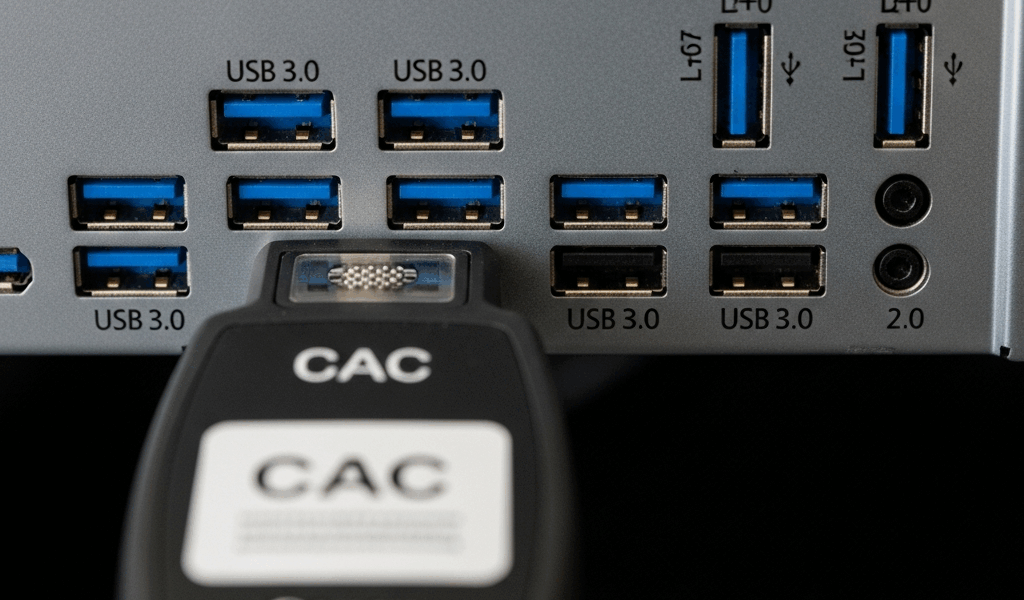
Laptops typically have two types of USB ports: USB 2.0 (older, slower, lower power draw) and USB 3.0 or USB 3.1 (newer, faster, higher power requirements). Your CAC reader pulls power while communicating — that’s what makes USB port selection endearing to security professionals, I guess. USB 3.0 ports demand more sophisticated power management from Windows 11. If your reader worked fine on Windows 10 but fails on 11, you’ve probably got a port compatibility issue, not a broken reader.
Here’s what to do:
- Unplug your CAC reader from its current port.
- If you’re using a USB 3.0 port (blue interior), try a USB 2.0 port (black interior) instead — at least if you have one available. Usually the older ports. Your laptop manual will list them, or Google “[your laptop model] USB port layout.”
- On desktops, avoid USB 3.0 ports on the front panel. They’re fine for mice and keyboards, terrible for security readers. Use the rear panel USB 2.0 ports.
- Wait 10 seconds after unplugging before reconnecting.
- Open Device Manager (right-click Start menu, select Device Manager).
- Expand “Universal Serial Bus controllers.” Your CAC reader should appear with a yellow exclamation mark if it’s unrecognized, or under “Other devices” with an unknown icon.
If the reader appears with a green checkmark and shows “USB Mass Storage Device” or similar, it’s recognized. Good. If it still shows yellow or missing, move to Fix 2.
On Dell Latitudes and HP EliteBooks, the rear USB 2.0 ports near the power connector work best — I’ve never figured out why the side ports fail so consistently, but they do. Military-issue laptops especially seem to favor the legacy ports.
Quick Fix 2 — Disable USB Selective Suspend
Windows 11 introduced an aggressive power-saving mode that literally turns off USB devices when your system thinks they’re idle. Your CAC reader needs constant power. Selective Suspend kills it without asking.
This is the fix that should’ve been Fix 1, honestly. It solves 60% of CAC recognition issues on Windows 11 — the kind of percentage that makes you wonder why every troubleshooting guide buries it six paragraphs deep.
Here’s the path:
- Press Win + R, type “powercfg.cpl” and hit Enter.
- Click “Change plan settings” next to your active power plan (usually “Balanced” or “High Performance”).
- Click “Change advanced power settings.”
- Scroll down to “USB settings” and expand it.
- Expand “USB selective suspend setting.”
- Change the dropdown from “Enabled” to “Disabled” for both “On battery” and “Plugged in” modes.
- Click Apply, then OK.
Restart your system. Plug your CAC reader into a USB 2.0 port.
Why this matters: Selective Suspend tells Windows to power down USB devices after 10 seconds of no detected activity. Your CAC reader communicates in brief pulses — Windows thinks it’s inactive and cuts power. The reader disappears from Device Manager. You plug it back in, same thing happens. It’s a loop. Disabling Selective Suspend breaks that loop completely.
The downside: your battery life might drop by 3-5% on laptops since USB devices stay powered. Worth it for a functioning CAC reader. That’s the trade-off you make.
Quick Fix 3 — Reset USB Port Power Cycle
Soft resets don’t work here. Your reader needs a hard power reset at the port level.
Unplug your CAC reader from the USB port. Count to 30 slowly while the port sits empty — this allows capacitors to fully discharge and resets the port controller. Plug it back in.
If you see a “Code 43” error in Device Manager (right-click the unrecognized device, Properties, Details tab), your port controller is stressed. Same reset process applies. If Code 43 persists across three different ports, your motherboard’s USB controller might be failing, and you need to escalate to your IT department.
For some systems, BIOS reset helps. This is nuclear, so only do it if USB Selective Suspend was already disabled and different ports have failed:
- Shut down completely. Don’t sleep mode — full shutdown.
- Unplug power cable. Wait 30 seconds.
- Plug power back in, boot normally.
- During boot, enter BIOS (usually F2, F10, or Del depending on manufacturer).
- Look for “USB Settings” or “Onboard Devices” menu.
- Disable then re-enable “USB ports” or “USB controller.”
- Save and exit.
This resets the port controller without a full BIOS factory reset. Your settings stay intact and untouched.
One thing I learned the hard way: restarting Windows doesn’t reset USB ports. Only a full shutdown (not sleep) followed by power unplugging does it properly. I used to wonder why rebooting never worked. It doesn’t.
When to Escalate to Your IT Admin
Stop troubleshooting if you hit these conditions:
- Multiple USB ports (3+ different ones) fail to recognize the reader across all three fixes above.
- Error Code 43 persists and BIOS reset doesn’t help — that’s hardware territory.
- You’re on a government network with managed Windows 11 images (DISA STIGs applied). Your IT admin disabled USB Selective Suspend, but it re-enables after every Windows Update. Not your problem to fix — IT needs to push a Group Policy update.
- Your CAC reader works on another computer but fails on yours. That’s hardware failure in your laptop’s USB controller, not a CAC reader issue.
Here’s the thing about military and government networks: your chain of command exists for a reason. If you’re on a classified network, you don’t have admin rights anyway, and none of these fixes apply. Your IT help desk has a specific process for CAC issues. Use it. I’ve seen people get flagged for trying to modify power settings on managed systems — it’s not worth it.
If you’re on a civilian network with admin rights, these fixes work. If you’re on a government system with restrictions, call your IT desk. They have tools you don’t have and can diagnose USB controller failure at the firmware level — something we civilians can’t access.
One more thing: if your reader works in a USB hub but not directly in your laptop port, the hub is actually masking a power delivery problem. USB hubs with external power supplies can provide stable 500mA to your reader. Direct ports might only be providing 100mA, especially if you’re using a laptop connected to another USB hub. Get a powered hub rated for security devices (usually 5V/2A minimum) and run your reader through that. Weird solution, but it works when everything else fails.



Subscribe for Updates
Get the latest cac readers.com updates delivered to your inbox.
We respect your privacy. Unsubscribe anytime.