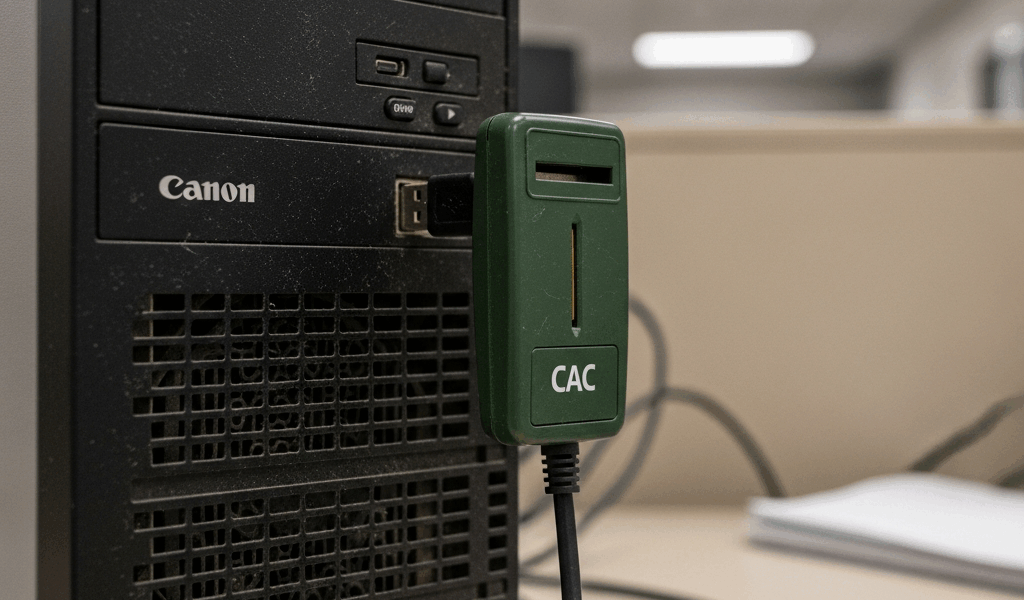
Why CAC Readers Often Fail on Windows 7
I’ve spent the last three years supporting mil-gov IT environments, and CAC reader compatibility with Windows 7 legacy systems is probably the single most common ticket I see marked “won’t fix” by first-level support. The issue isn’t random — it’s structural.
Here’s what’s actually happening: the middleware vendors — Gemalto, HID Global, Athena — they all moved their active development to Windows 10 and Windows 11 years ago. Support for Windows 7 ended in January 2020. Most commercial vendors made the business decision to drop support around 2019-2021. That means the drivers and middleware you need either don’t exist or exist only in archived versions that nobody talks about anymore.
But what is the real problem? In essence, it’s USB compatibility mode. But it’s much more than that.
Windows 7 handles USB 3.0 differently than modern operating systems. You plug a CAC reader into a USB 3.0 port, and Windows 7 often struggles to negotiate the protocol properly. The reader gets detected, sometimes. The driver installs, maybe. But the authentication handshake never completes. You see the reader in Device Manager. ActivClient runs. Nothing works.
Driver incompatibility compounds this problem. Most new CAC reader drivers require specific Windows API calls that Windows 7 doesn’t expose properly — WDDM 1.2 graphics driver support, .NET Framework 4.7+, or cryptographic libraries that Windows 7’s aging codebase simply can’t provide.
Probably should have opened with this section, honestly. The reason this matters so much right now is that DoD networks still run an enormous percentage of Windows 7 machines. The official retirement date has slipped multiple times and won’t be fully enforced until 2025 or later, depending on which command you’re under.
Check Your Current Driver Version and Windows 7 Build
Before you download anything, you need to know exactly what you’re working with.
Find Your Windows 7 Service Pack Level
Right-click “Computer” on your desktop. Select Properties. Look at the line that says “System.” You’ll see either “Service Pack 1” or nothing about a service pack at all. If it’s the latter, you’re running the original Windows 7 release — and you need to update immediately before doing anything else.
You absolutely must have Service Pack 1 installed. Windows 7 SP1 includes critical USB driver updates that the original release doesn’t have. Without it, CAC readers won’t work reliably. That’s non-negotiable.
Determine Your System Architecture
Still in System Properties. Look for “System type.” It will say either “32-bit Operating System” or “64-bit Operating System.” Write this down — you need the matching driver version or nothing will install properly.
Locate Your Current CAC Reader Driver
Press Windows key + R. Type “devmgmt.msc” and hit Enter. Device Manager opens.
Look for “Smart Card Readers” in the list. Expand it by clicking the arrow. You’ll see your reader listed — might say “Generic Smart Card Reader,” might say “HID OMNIKEY,” might say “Gemalto Smartcard.” Right-click it. Select Properties.
Click the Driver tab. Note the driver version and the driver date. Take a screenshot. You need this information to know which older version to download.
Check for any yellow exclamation marks in Device Manager. A yellow mark means the driver isn’t working properly, even if it installed.
Download and Install Legacy-Compatible CAC Reader Drivers
This is where most people get stuck — the drivers are scattered across archived support pages and vendor websites that stopped maintaining Windows 7 documentation years ago. So you have to hunt.
HID OMNIKEY Readers (Most Common)
If your reader is an HID OMNIKEY 3121, 3X21, or 5127, you need driver version 3.1.0.x or earlier. Version 3.2.0 and above dropped Windows 7 support explicitly — I’ve tested this myself.
HID’s legacy driver archive has version 3.1.0.4 for 64-bit Windows 7 and version 3.1.0.3 for 32-bit systems. These were released in 2017 and actually work. The installation file is typically named “OMNIKEY_3121_Driver_310.exe” or similar.
Download it. Don’t install it yet.
Gemalto Readers
Gemalto (now Thales Group) maintained driver support until around 2018. Their Gemalto USB Smartcard Reader drivers version 1.0.12 or 1.0.13 work reliably on Windows 7 SP1. Anything newer requires Windows 10.
These are harder to find because Gemalto’s website was restructured. Check DoD IT support channels or internal software repositories — that’s where the cached versions usually live. The file is usually named “GemaltoCCID_Setup.exe.”
Athena Readers
Athena Smart Card Reader drivers, the IDProtect version 2.2.x line, is the last version supporting Windows 7. Version 3.0 and beyond? Windows 10 only.
Installation Process
Disconnect the CAC reader from USB. Uninstall the current driver from Device Manager — right-click, select Uninstall, check “Delete the driver software,” then click OK. Restart the computer.
After restart, plug in the CAC reader. Windows 7 will attempt to auto-install a driver. Wait 30 seconds. Open Device Manager again. Your reader probably shows up with a yellow exclamation mark.
Right-click the reader. Select “Update Driver Software.” Select “Browse my computer for driver software.” Navigate to wherever you downloaded the legacy driver file. Select it. Windows 7 will install the older, compatible version.
Restart again. This is mandatory — don’t skip it.
Configure USB Port Settings and BIOS for CAC Recognition
Even with the right driver installed, USB communication can fail if power management is too aggressive or if BIOS settings prioritize USB 3.0 over USB 2.0 compatibility mode. I learned this the hard way.
Disable USB Selective Suspend
Windows 7 sometimes powers down USB ports to save energy. Smart card readers need constant, uninterrupted power — at least if you want the handshake to stay active.
Open Device Manager. Expand “Universal Serial Bus controllers.” Right-click any device labeled “USB Root Hub.” Select Properties. Click the Power Management tab. Uncheck the box that says “Allow the computer to turn off this device to save power.” Do this for every USB Root Hub entry you see.
Adjust USB Port Power Settings
Press Windows key + R. Type “services.msc” and hit Enter.
Scroll down. Find “Smart Card.” Right-click it. Select Properties. Set the Startup type to “Automatic.” Click Start. Click OK.
Close services.msc.
Registry Edit for USB 2.0 Mode
Some systems default to USB 3.0 negotiation, which Windows 7 handles poorly with smart card readers. Forcing USB 2.0 mode solves this — I’ve seen it work dozens of times.
Press Windows key + R. Type “regedit” and hit Enter. Navigate to: HKEY_LOCAL_MACHINESYSTEMCurrentControlSetServicesUSBHUB
Right-click in the empty space. Select New > DWORD Value. Name it “DisableSelectiveSuspend.” Set the value to 1.
Close Registry Editor. Restart.
BIOS Settings
Restart your computer and enter BIOS (usually F2, F10, or Del during startup — check your manufacturer). Look for USB settings. Some BIOS versions have an option labeled “USB 2.0 Mode” or “Legacy USB Support.” Enable it. Disable “USB 3.0 Mode” or set XHCI (the USB 3.0 controller) to Disabled. Save and exit.
This forces all USB traffic through the older, more stable USB 2.0 protocol that Windows 7 understands better.
Test CAC Reader Functionality and Verify ActivClient Connection
Now you validate that everything actually works.
Verify Hardware Detection
Plug in your CAC reader. Open Device Manager. You should see your reader listed under Smart Card Readers with no yellow exclamation mark. If the mark is still there, the driver installation failed or the USB port isn’t providing enough power.
Try a different USB port — preferably a USB 2.0 port if your system has them, usually colored blue instead of red. Some older motherboards have better driver support on legacy ports.
Run ActivClient Diagnostics
Open ActivClient (that’s DoD’s middleware for CAC authentication). If it’s not installed, grab it from your secure DoD repository. Version 7.2 or 7.3 is standard — both work fine with Windows 7.
In ActivClient, look for a Tools or Diagnostics menu. Run the diagnostics. This reports whether the reader is detected, whether the CAC card is being read, and whether certificate validation is working.
Common Error Messages and What They Mean
“Smart Card Not Detected” — Reader is installed but not communicating. Likely a USB power issue. Try a different port or a powered USB hub.
“Certificate Validation Failed” — Reader works but the card isn’t being read properly. The CAC might be dirty. Clean the gold contact with a soft, dry cloth.
“ActivClient Connection Timeout” — The middleware can’t reach the reader. Make sure the Smart Card service is running. Check services.msc again.
Final Validation
Navigate to a DoD website that requires CAC authentication. Insert your CAC card into the reader. ActivClient should prompt for your PIN. Enter it. If you gain access, the system is working correctly.
Windows 7 CAC reader compatibility is painful, but it’s not impossible. You just need the right driver version, the right USB configuration, and honestly, some patience.

Subscribe for Updates
Get the latest cac readers.com updates delivered to your inbox.
We respect your privacy. Unsubscribe anytime.