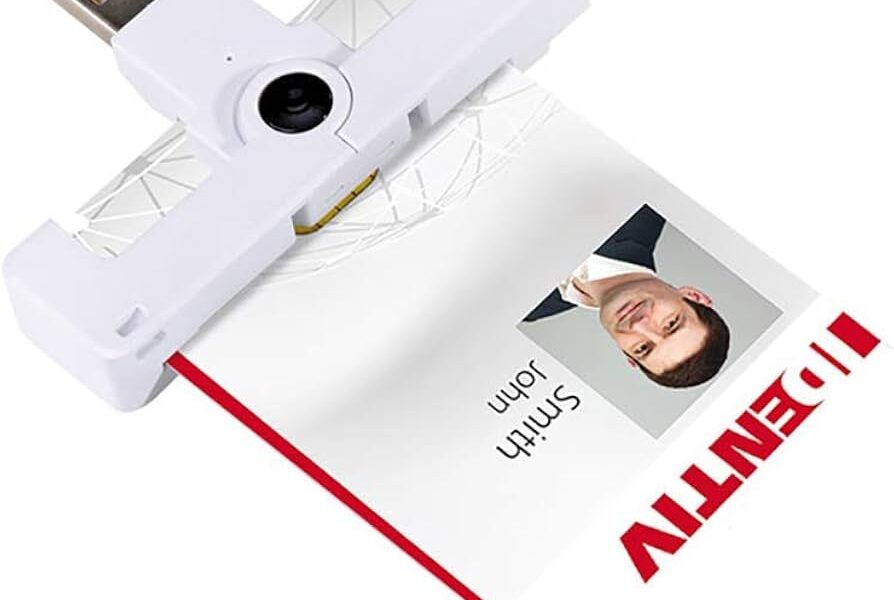
A CAC reader lets a computer communicate with the certificates on a Common Access Card, but the reader alone does not provide access. For home use, you need a valid CAC, a compatible contact smart-card reader, an operating system that recognizes it, any middleware your organization requires, current DoD trust certificates, and authorization for the site you are opening.
If this is your first reader, choose a USB CCID-compatible model with the connector already on your computer. Then test the setup in layers: reader detected, card detected, certificates visible, and finally the authorized website. That sequence prevents needless driver downloads and makes failures much easier to diagnose.
First-reader checklist
- Ask your organization whether it supplies or requires a particular reader.
- Match USB-A or USB-C to the computer.
- Look for USB CCID and contact smart-card support.
- Verify the exact operating-system version, not merely “PC” or “Mac.”
- Use only official organizational guidance for middleware and DoD certificates.
- Never enter a CAC PIN into a shopping page, ordinary web form, or unexpected prompt.
What is a CAC reader?
A CAC reader is a hardware interface between a contact smart card and a computer or supported mobile device. The CAC contains public-key infrastructure certificates used for identity authentication and, where authorized, signing or encryption. The reader supplies the physical and electrical connection; the operating system and approved software expose the card to an application or website.
This distinction matters. A powered reader can still fail to see the card, and a computer that sees the certificates can still be denied by a website because of certificate selection, account permissions, network restrictions, or service availability.
What you need to use a CAC at home
The DoD Cyber Exchange getting-started guidance identifies three core items: a CAC, a card reader, and middleware when the operating system or organization requires it. It also advises checking your organization’s remote-use policy and working with your component when obtaining a reader.
- A current CAC: the card must be valid and its certificates must be usable.
- A compatible reader: usually a wired USB contact reader for a laptop or desktop.
- A supported device and OS: managed systems may restrict external hardware or software.
- Approved software: requirements differ by operating system, card generation, browser, and organization.
- Current trust certificates: obtain DoD roots and intermediates only through the official Cyber Exchange or an approved organizational package.
- Service authorization: possessing a CAC does not grant access to every DoD application.
How to choose your first CAC reader
1. Start with your organization’s instructions
An agency, service, unit, contractor, or application owner can impose requirements beyond ordinary hardware compatibility. Ask whether a reader is issued, whether personal devices are permitted, and whether a specific remote-access method is required. Local policy overrides a retailer’s compatibility claim.
2. Match the connector
USB-A is the larger rectangular connector. USB-C is smaller and reversible. A native connection eliminates an adapter as a failure point. If a dock or adapter is unavoidable, verify that it supports data—not only charging—and test the reader directly when troubleshooting.
3. Prefer standards-based contact readers
For a conventional CAC, look for a contact smart-card slot plus USB CCID and PC/SC support. Microsoft says compatible readers and drivers should support Plug and Play, while Apple documents native support for USB CCID class-compliant readers and PIV cards on current platforms. These standards improve the likelihood of OS recognition but do not guarantee access to a particular application.
4. Verify the exact model and current OS
Do not rely on a listing that says only “military compatible.” Check the manufacturer’s support page for the exact part number and your Windows, macOS, or Linux version. Similar model names can use different connectors or chipsets, and old inventory may outlive its vendor support.
5. Treat marketing claims carefully
- TAA compliant concerns federal procurement and country-of-origin rules; it is not universal DoD approval.
- Military-grade is meaningless without an identified test standard.
- Plug and play may describe reader detection, not certificates, browser configuration, or website authorization.
- No middleware needed cannot be promised across every OS, CAC, and organization.
For current models and connector choices, use our USB-A and USB-C CAC reader comparison.
How to set up a CAC reader at home
Step 1: Update through approved channels
Install normal operating-system and browser updates before adding hardware. On a government-furnished or managed computer, follow its update process and do not install unauthorized software.
Step 2: Connect the reader directly
Connect the empty reader to a native USB port. Let the operating system complete device detection. Avoid downloading a driver from an aggregator or opening an installer included on an unknown marketplace disc. If a vendor component is actually required, obtain it from the reader manufacturer, your computer manufacturer, Windows Update, or your organization.
Step 3: Confirm reader detection
- Windows: open Device Manager and check Smart card readers. Microsoft documents smart-card readers as Plug and Play devices, though some models still require a vendor driver.
- macOS: confirm the USB device appears in System Information. Apple provides built-in PIV and USB CCID support on current macOS versions through CryptoTokenKit.
- Linux: distribution packages, PC/SC services, a CCID driver, and browser configuration may be required. Follow the current DoD Cyber Exchange Linux guidance.
Step 4: Insert the CAC and check card detection
Insert the card in the orientation shown on the reader. A light indicates power or activity, not successful authentication. The operating system should recognize a smart card and make its certificates available. Do not clean the chip with liquids or repeatedly remove it during an active authentication prompt.
Step 5: Install only required middleware and trust certificates
The Cyber Exchange explains that middleware connects certificates on the CAC to public-key-enabled applications. Whether you need an additional package depends on the OS and organization. Do not assume every Windows 11 or Mac setup needs legacy ActivClient software.
If your approved instructions require DoD root and intermediate certificates, obtain them from the official Cyber Exchange. Never install certificate bundles from file-sharing sites, marketplace sellers, or pop-ups. Installing roots is also not a universal cure for a reader that the operating system cannot detect.
Step 6: Test an authorized official service
Open the browser or app specified by the service owner and visit the official address directly. Select the certificate type the service requests. If certificates are visible but only one site fails, the reader is probably working; the remaining issue may be browser state, account authorization, network policy, or the service itself.
Windows, Mac, and mobile differences
Windows 10 and Windows 11
Windows has built-in smart-card infrastructure and can obtain compatible components through Plug and Play and Windows Update. Reader hardware and the smart card are separate devices in the diagnostic path. If Windows sees the reader but not the card, reinstalling the browser will not solve that layer.
macOS
Apple’s deployment guidance says macOS 10.15 and later provides native PIV support and supports USB CCID class-compliant readers without additional software for supported functions. Your organization or destination application may still require configuration. Do not install obsolete token software merely because an old guide recommends it.
Phones and tablets
A USB-C port does not guarantee desktop-style CAC access. Hardware power, OS support, the reader, the application, and organizational approval all matter. Apple documents PIV smart-card support for newer iPhone and iPad versions, but some desktop readers require a powered hub. Android support varies by device and application. Start with the approved workflow rather than buying a mobile reader on speculation.
How to tell which layer is failing
| What you observe | Likely layer | Next check |
|---|---|---|
| No device event when connected | Port, cable, adapter, power, or reader | Connect directly to another approved port |
| USB device appears, but not as a smart-card reader | Driver or unsupported model | Check the exact model’s official support page |
| Reader appears, but inserting the CAC changes nothing | Card seating, chip, slot, or smart-card service | Test one known-good card/reader combination |
| Certificates appear, but one site fails | Browser, account, network, or service | Test another authorized official service |
| Every service rejects the CAC | Certificate, trust, PIN, card, or account | Record the exact error and contact official support |
For a complete decision tree, follow our safe CAC reader troubleshooting guide. If Windows specifically will not install the device, use the Windows 11 driver-installation guide.
CAC security rules at home
- Know your organization’s policy before using a personal computer.
- Use only official government or organizational login addresses.
- Enter the PIN only into the expected trusted authentication prompt.
- Do not share the PIN, export private keys, or post certificate screenshots containing identity data.
- Stop guessing if the PIN is uncertain; repeated attempts can lock the card.
- Do not bypass certificate warnings or disable antivirus, Secure Boot, or browser validation.
- Remove the CAC when it is not needed and protect it as an identity credential.
- Report a lost card or suspicious prompt through official channels.
Frequently asked questions
Can I use a CAC reader on my home computer?
Often, yes, when your organization permits personal-device access and the destination service supports it. The Cyber Exchange publishes home-configuration guidance, but your organization’s policy and the individual service still control.
Does any smart-card reader work with a CAC?
No. It needs compatible contact-card protocols, a supported driver path, and the correct physical connector. Payment, magnetic-stripe, or contactless-only readers are not substitutes for a CAC contact reader.
Do I need software for a CAC reader?
Sometimes. Current operating systems include substantial smart-card support, but middleware, trust certificates, or browser configuration may still be required. Follow the current Cyber Exchange and organization-specific instructions.
Why does my CAC reader show zero problems but the website rejects me?
Hardware detection is only the first layer. Certificate selection, trust, browser state, network restrictions, account authorization, and service outages can all prevent login after the reader is working.
Should I buy USB-A or USB-C?
Choose the connector your primary computer has natively. The smart-card function can be similar; the connector mainly affects physical compatibility and whether an adapter is needed.
Official references
- DoD Cyber Exchange: Getting Started
- DoD Common Access Card: reader requirements and developer resources
- Microsoft: Smart Card Reader Devices Design Guide
- Apple: Introduction to smart-card integration
Compatibility and official guidance checked August 2026. Your organization, device manufacturer, and destination service remain authoritative.

Subscribe for Updates
Get the latest cac readers.com updates delivered to your inbox.
We respect your privacy. Unsubscribe anytime.