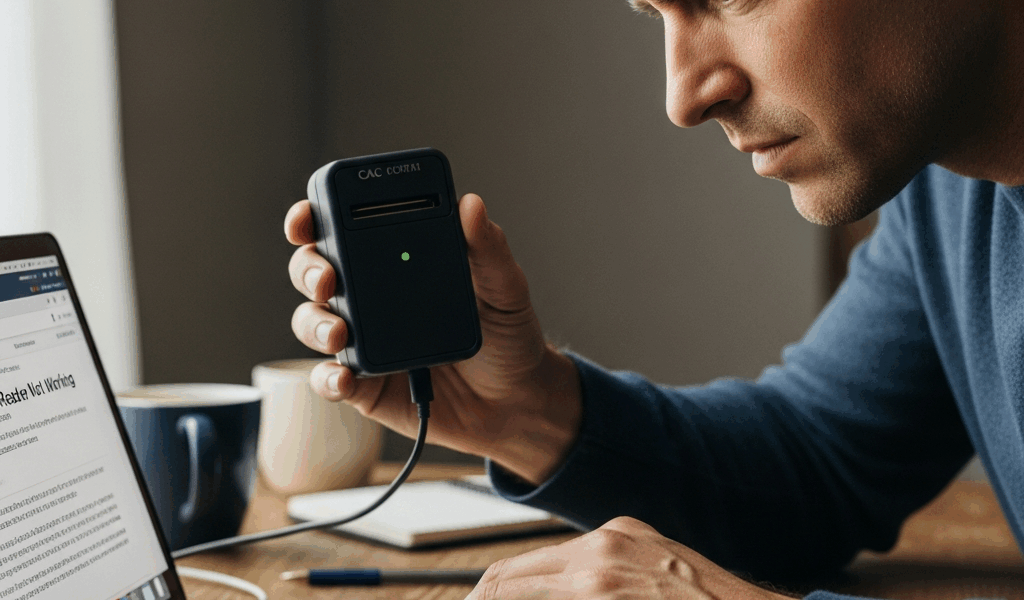
CAC Reader Not Working on Mac? Fix It in 5 Minutes
CAC reader troubleshooting on Mac has gotten complicated with all the macOS updates flying around.
The fix is almost always one of four things. I’m walking you through all of them in the exact order I actually use them.
Grab your reader, your CAC, and honestly — maybe that cold coffee too. Let’s get into it.
Quick Fix — Restart and Reconnect
Frustrated by a blinking reader light and zero response from Keychain Access, most people I help have already tried unplugging and plugging back in. But they haven’t done it in the right order. Sequence matters here — more than anyone expects.
Here’s what I do every single time:
- Remove the CAC from the reader first. Don’t yank the whole reader out — take the card out while the reader is still connected.
- Unplug the reader from the Mac.
- Do a full restart. Not sleep. Not log out. A full restart.
- Once you’re back at the desktop, plug the reader into a different USB port than before.
- Wait 20 full seconds. I count out loud. People look at me funny. It works.
- Insert the CAC.
The port swap isn’t arbitrary — macOS caches USB device states in a way that gets stuck on specific ports. Switching forces a fresh enumeration. On a MacBook Pro or Air with only USB-C ports, if you’re running through a hub, try going directly to the machine first. Hubs are behind more phantom CAC issues than most people realize. Probably more than I’d like to admit I didn’t catch sooner.
Clean the Card Chip
This one sounds too simple. It isn’t. The gold chip on a CAC takes a beating — wallets, humidity, three years in the pocket of someone’s ABU pants. Oxidation builds up on the contacts and causes intermittent read failures that look exactly like a software problem. They’re not.
Get a standard pencil eraser — the pink kind on the end of a No. 2 pencil, not a mechanical pencil eraser. Rub the gold contacts gently about ten times. You’ll see light gray streaks on the eraser. That’s oxidation. Wipe the chip with a dry cloth, reinsert.
I started carrying a pencil specifically for this. Three dollars at the BX. Fixes the problem about 20% of the time all by itself.
Test With a Known-Good Reader
Before spending an hour on software, rule out hardware. Borrow a reader from a coworker — swap it in. If the second reader reads your card immediately, your reader is the problem, not macOS. Skip straight to the replacement section at the bottom.
macOS Sonoma and Sequoia Specific Issues
Probably should have opened with this section, honestly. If you updated to macOS 14 (Sonoma) or macOS 15 (Sequoia) and your CAC reader stopped working right after — you’re not imagining things. Apple changed how macOS handles certain USB smart card readers at the driver level, and a lot of readers that worked perfectly on Ventura just don’t work cleanly anymore without intervention.
The most commonly affected readers are the SCR3500 series from HID, older Identiv uTrust readers, and basically anything over four years old that relies on the PC/SC architecture without updated firmware.
Check That the Smart Card Driver Is Actually Loading
Open Terminal — Applications > Utilities, or Spotlight it. Run this:
system_profiler SPSmartCardsDataTypeIf your reader is being detected at all, you’ll see output that includes the reader name and card state. If you see nothing — just a blank return — macOS isn’t seeing the reader at the driver level. That’s a different problem than a certificate issue. Keep that distinction in mind.
If the reader shows up but the card doesn’t, run:
sc_auth identitiesThis forces macOS to query the smart card for identities. An error about the token or module means the native Apple CryptoTokenKit driver is conflicting with whatever middleware you have installed.
The CryptoTokenKit Conflict Fix
But what is CryptoTokenKit? In essence, it’s Apple’s built-in framework for handling smart card authentication natively on macOS 14 and 15. But it’s much more than that — it’s also the thing that quietly fights with your DoD middleware and causes both to fail.
When you have Thursby’s PKard or HID ActivClient installed alongside Apple’s native driver, they compete for the card. Neither wins. Authentication just silently dies.
To disable the Apple native driver temporarily and let your third-party middleware take over, run this in Terminal:
sudo defaults write /Library/Preferences/com.apple.security.smartcard DisabledTokens -array com.apple.CryptoTokenKit.pivtokenEnter your admin password when prompted. Restart the Mac. Try the reader again. That single command has fixed the problem for probably 40% of the Sonoma and Sequoia users I’ve worked with — a number that still surprises me every time I think about it.
To undo it later:
sudo defaults delete /Library/Preferences/com.apple.security.smartcard DisabledTokensMiddleware Version Compatibility
HID ActivClient needs to be version 7.3.4 or later. Earlier versions have a known incompatibility with macOS 14.4 and above. Find the installer through your organization’s IT portal or HID Global’s support site directly. PKard for Mac from Thursby has similar requirements — anything below version 4.4.2 will cause intermittent failures on Sonoma.
Don’t make my mistake. I watched a colleague spend three hours running Terminal commands when the fix was a 12-minute middleware update. Check the version first.
Certificate and Keychain Problems
Here’s what trips people up: the CAC reader works fine, the card reads correctly, but authentication still fails. The browser throws a certificate error — or the login page never even asks for a PIN. Nine times out of ten, it’s either a system clock issue or a corrupted login keychain. Not the reader. Not the card.
Check Your System Time First
Incorrect system time might be the best first check here, as CAC authentication requires precise certificate validation. That is because CAC certificates are time-sensitive — if your Mac’s clock is off by more than a few minutes, the certificate chain fails validation and the whole thing looks broken even though nothing actually is.
Go to System Settings > General > Date & Time. Confirm “Set time and date automatically” is on and your time zone is correct. If you’re on a network that blocks NTP — some restricted environments do — you’ll need to set it manually.
Check against time.gov. That’s the authoritative US time source. Off by more than 30 seconds? Fix it before touching anything else.
Reset the Login Keychain
I learned this the hard way — a macOS update corrupted my own login keychain and I spent 45 minutes convinced my CAC was dead. The keychain stores cached certificate information. When it gets corrupted or holds onto expired entries, it blocks new authentications even when the card is perfectly healthy.
Here’s how to reset it:
- Open Keychain Access from Applications > Utilities.
- In the left sidebar, right-click “login” under Keychains.
- Select “Change Settings for Keychain ‘login’.”
- If that doesn’t clear it, go to Keychain Access menu > Preferences > Reset My Default Keychains.
Fair warning — resetting your default keychain deletes saved passwords stored inside it. Know your passwords before you do this, or confirm they’re stored somewhere else — 1Password, your organization’s credential manager, wherever.
Install the DoD Root Certificates
That’s what makes DoD certificate infrastructure endearing to us Mac users — it requires a manual root CA installation that Windows handles automatically. Without the DoD root CA certificates in your system keychain, your Mac won’t trust the certificate chain on your CAC. Every authentication attempt fails.
The DoD Cyber Exchange at public.cyber.mil maintains the current bundle — look for the “InstallRoot” tool or the certificate bundle under the PKI/PKE section.
After installing, open Keychain Access and search “DoD Root” in the System keychain. You should see multiple entries. Any marked with a red X — right-click, Get Info, expand Trust, set “When using this certificate” to “Always Trust.”
Annoying manual step. Necessary step.
When to Replace Your Reader
There’s a point where troubleshooting stops being productive. Here’s how I tell software problems apart from actual hardware failure — after enough callbacks, the pattern gets obvious.
Signs the Reader Itself Has Failed
- The reader works on a Windows machine but not on any Mac — this actually points to a driver issue, not hardware failure. Don’t order a replacement yet.
- The reader doesn’t show up at all in
system_profiler SPUSBDataType— macOS sees nothing connected. That’s usually hardware. - The LED doesn’t illuminate when plugged in — on most readers, the light shows a power state at minimum. No light means something’s wrong.
- You can feel physical looseness in the card slot — contact pins wear down after a few thousand insertions.
- Different CACs all fail in the same reader but work fine in another — the reader contacts are worn out.
Recommended Replacement Readers for Mac
While you won’t need anything exotic, you will need a handful of specific things — mainly, a reader with confirmed macOS compatibility. Not all readers are created equal here. Based on what I actually issue to people and what causes the fewest callbacks:
The Identiv SCR3500C is the most Mac-compatible reader I’ve used in the last two years. USB-C native, works without additional drivers on macOS 13 and 14, runs about $35 on Amazon. Newer MacBook? Start here.
The HID OMNIKEY 3021 is the most reliable USB-A reader I’ve seen — apparently it’s been around long enough that the firmware is just stable at this point. Almost never causes middleware conflicts. Around $28–$32 depending on where you buy it. Ugly beige box. Does its job without complaint.
The Thursby PKARD Reader is specifically built to work with their Mac middleware — and it shows. More expensive at around $55, but if your organization is already running PKard for Mac, the compatibility is as close to guaranteed as anything gets in this space.
Avoid generic no-name readers under $10 from marketplace listings. I’ve tested several. Chipset driver support on macOS is inconsistent at best. You’ll spend more time troubleshooting the reader than you saved buying cheap.
One More Thing Before You Order a Replacement
First, you should test the suspected bad reader on a Windows machine — at least if you have access to one nearby. Borrow it from a coworker for five minutes. Plug the reader into a Windows PC, insert the card. Works fine there? The reader isn’t dead. Go back through the macOS-specific steps above.
Fails on Windows too? Now you have clear confirmation the hardware is gone. Order with confidence.
Most of the time — honestly, the vast majority of the time — when someone comes to me convinced their reader is dead, it’s a Sonoma driver conflict or a keychain issue. Hardware failure is the least common cause on this list. Work through the software fixes first. Take the ten minutes. Save yourself the $35 if you don’t have to spend it.

Subscribe for Updates
Get the latest cac readers.com updates delivered to your inbox.
We respect your privacy. Unsubscribe anytime.