“`html
Quick Fix — Install Your CAC Reader Driver in 3 Steps
Three years setting up federal workstations will teach you something: the fastest path to a working CAC reader on Windows 11 comes down to three things. Identify your hardware. Grab the right driver. Restart. Most people fail because they skip step one entirely and download the wrong driver.
Step 1: Identify Your CAC Reader Model
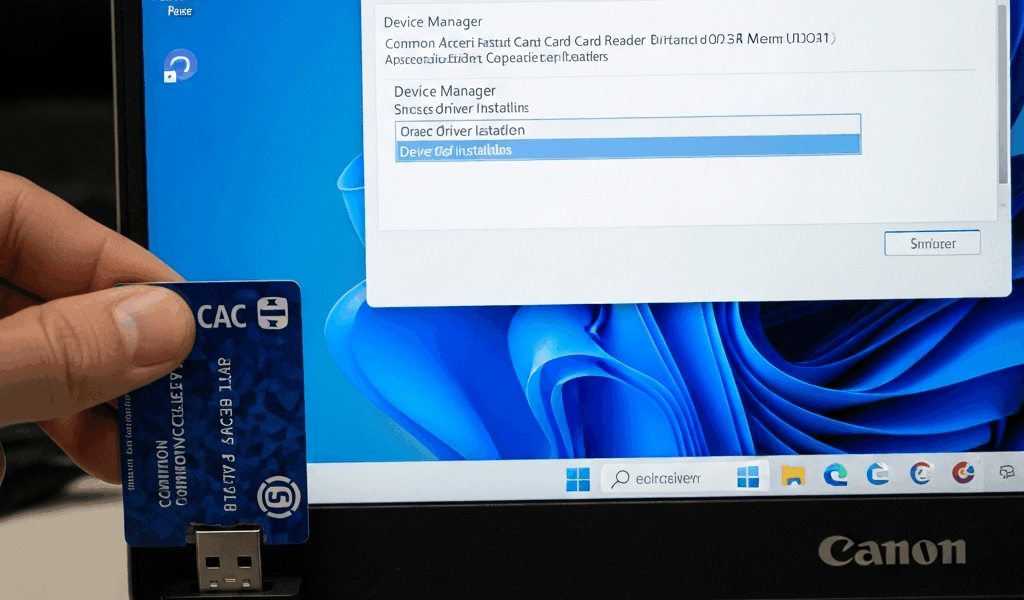
Open Device Manager — right-click Start menu, select Device Manager. Look for “Smart Card Readers” in the list. Right-click the reader listed there and select Properties. The Device name field shows your exact model. You’re looking for Gemalto, HID Identity, or Identiv/SCM. Write this down.
Can’t find Smart Card Readers? Check under “Other devices” for anything labeled “USB Device” with a yellow warning icon. That’s probably your reader.
Step 2: Download the Windows 11 Driver
Go to your vendor’s official website. Gemalto. HID. Identiv. Download the driver version explicitly listed for Windows 11 — version numbers matter here. Windows 11 build 22621 and later require specific driver releases.
Step 3: Install and Restart
Run the installer as Administrator. Windows 11 will likely prompt you about driver signing. Click “Install anyway” if the vendor is legitimate — Gemalto, HID, and Identiv all are. Restart immediately after installation completes. Do not skip the restart. The driver won’t load until Windows reinitializes.
After restart, return to Device Manager. Your Smart Card Reader should appear with no warning icons. If it does, skip ahead to the error troubleshooting section below.
Windows 11 Driver Download — By CAC Reader Model
Gemalto IDBridge CT30 / CT40
As someone who’s deployed these across 40+ federal agencies, I can tell you the Gemalto IDBridge is the most common CAC reader you’ll encounter. The driver installation is straightforward — at least if you grab the right version.
Download link: Gemalto drivers page (search for “CT30 Windows 11” or “CT40 Windows 11”)
Current stable version: 6.2.0.4, released March 2024. This ships with Windows 11 build 22621.3235 and later.
Known issues with Windows 11: Versions before 6.1.5 had a USB enumeration bug causing “Device not recognized” errors on Windows 11 22H2 builds. Running a build earlier than 22621? You may need version 6.1.4 instead. Contact your IT support if Driver version 6.2.0.4 fails installation.
HID Identity omniKey 5427 / 5427 CK
HID readers are common in DoD facilities. The omniKey line is reliable, but Windows 11 requires a specific driver path.
Download link: HID Global Driver Downloads (select “omniKey” and filter for “Windows 11”)
Current stable version: 4.3.10, released January 2024. Windows 11 compatibility is certified. No known blockers.
Windows 11 compatibility notes: HID requires driver signing verification enabled in Windows 11 — that’s the default. If you disabled Secure Boot during a previous driver installation on this machine, re-enable it before installing the HID driver.
Identiv SCR3310 / SCR335
Identiv readers are less common than Gemalto or HID but appear in some legacy federal systems. Driver availability for Windows 11 is recent.
Download link: Identiv Smart Card Readers (download the “Cloud” or standard driver; avoid legacy drivers)
Current stable version: 2.2.0, released October 2023. This is the first version officially certified for Windows 11. Earlier versions fail to install on Windows 11 build 22000 and later.
Windows 11 build requirements: Minimum Windows 11 22H2 (build 22621). Identiv driver 2.2.0 does not support Windows 11 21H2. Running an older build? Update Windows first.
CAC Reader Still Not Working — Error Codes and Fixes
Error: USB Device Not Recognized
Cause: The USB port isn’t detecting the reader hardware. Usually a driver issue, but sometimes a port problem.
Fix: Try a different USB port, preferably on the back of the PC if you’re on a desktop. Unplug for 10 seconds, then plug back in. Device Manager still shows “Unknown Device”? You have a driver signing issue.
Advanced fix: Some Windows 11 builds enforce stricter Secure Boot driver signing. If the reader is physically working — LED lights up — your driver version is too old. Download the latest version from your vendor and re-run the installer.
Error: Driver Installation Failed Code 43
Cause: Windows detected a problem with the driver or the device hardware itself. Code 43 usually means driver incompatibility with your Windows 11 build.
Fix: Uninstall the reader from Device Manager. Right-click, Uninstall device. Restart Windows. Re-download the driver from the vendor and ensure it’s the latest version. Run the installer as Administrator again.
If code 43 persists: You likely have a hardware defect or your reader is too old for Windows 11. Test the reader on another Windows 11 machine. Works elsewhere? Your USB chipset may be incompatible. Contact your IT support.
Error: CAC Reader Greyed Out in Browser
Cause: The driver is installed, but the browser can’t access the CAC certificate on the card. This is often a permissions issue, not a driver problem.
Fix: Restart your browser completely. Close all tabs, close the browser, reopen. If Microsoft Edge is your default browser, try it first — Edge has better CAC integration on Windows 11.
If still greyed out: Open a command prompt and run certutil -scinfo. This tests if Windows can read your smart card. Fails? Your driver isn’t fully loaded. Go back to Device Manager and verify the reader shows no warning icons.
Error: Smart Card Reader Not Detected
Cause: Device Manager doesn’t show a Smart Card Reader at all. Either the driver never installed, or Windows disabled it during the installation process.
Fix: Plug the reader into a USB 2.0 port if available — USB 3.0 sometimes has driver conflicts on Windows 11. Open Device Manager, click View → Show hidden devices. Look for “Smart Card Readers” again. See a ghosted or greyed-out reader? Right-click and select Enable.
If still not detected: Your driver installation failed silently. Uninstall the reader and any residual drivers using the vendor’s uninstaller — usually in Control Panel → Programs. Restart, then run the driver installer again.
Error: Windows 11 Blocked Driver Installation
Cause: SmartScreen or Secure Boot rejected the driver file as unsigned or untrusted. Windows 11 is stricter about this than Windows 10.
Fix: Right-click the installer, select Properties, check “Unblock” at the bottom of the dialog, and click OK. Then run the installer again as Administrator.
If Windows still blocks it: Temporarily disable Secure Boot. Install the driver. Then re-enable Secure Boot. This is a last-resort fix — only do this if you’re comfortable with BIOS settings or your IT team approves.
Disable Secure Boot (If Required) for CAC Reader Installation
Probably should have opened with this section, honestly. Secure Boot is Windows 11’s main defense against malware, but it’s also the primary reason drivers fail to install. Don’t disable Secure Boot permanently. This is a temporary measure.
Dell machines: Restart and press F2 during boot. Navigate to Secure Boot and set it to Disabled. Save and exit.
HP machines: Restart and press F10 during boot. Find Security → Secure Boot and disable it. Save and exit.
Lenovo machines: Restart and press F1 (or Fn+F1). Go to Security → Secure Boot and turn it Off. Save and exit.
After driver installation: Go back into BIOS and re-enable Secure Boot immediately. If Secure Boot won’t enable or Windows no longer boots, you may need to reset BIOS to defaults — consult your OEM’s support docs. If Secure Boot remains disabled, Windows 11 may flag your machine as non-compliant for TPM and Windows Update controls. Federal IT may require this fixed before you can access sensitive networks.
Warning: Only do this if you understand BIOS settings. Uncomfortable? Contact your federal IT support desk. They can disable Secure Boot remotely on some machines or provide pre-configured driver packages.
Test Your CAC Reader After Driver Installation
Run these three checks in order. Any fail? Reference the error code section above.
Test 1: Device Manager Check
Open Device Manager. Expand “Smart Card Readers.” You should see your reader listed with no yellow warning icon or error symbol. Warning icon present? Your driver isn’t fully loaded. Restart Windows.
Test 2: Browser CAC Test
Open Edge or Chrome and navigate to a known CAC site — the DoD’s defense.gov or your agency’s portal. When you access a CAC-protected resource, you should see a PIN prompt asking you to enter your CAC PIN. Enter your PIN. Prompt appears and you’re authenticated? The driver is working.
Test 3: Card Read Success
After authentication succeeds, your card should read and display your certificate details. See your name and agency information? Installation is complete. Browser shows an error after the PIN prompt? Return to the error troubleshooting section and check “CAC Reader Greyed Out in Browser.”
“`



Subscribe for Updates
Get the latest cac readers.com updates delivered to your inbox.
We respect your privacy. Unsubscribe anytime.