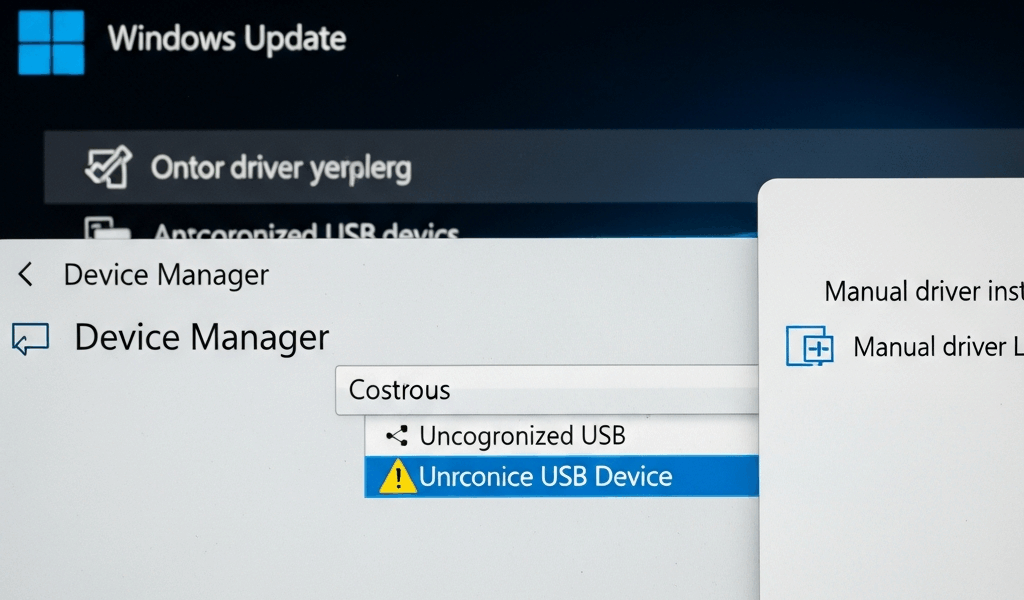
If a CAC reader driver will not install on Windows 11, first check whether Windows already recognizes the reader. Many standards-compliant smart-card readers use Windows inbox or Plug and Play support and do not need a separate download. Installing random drivers, legacy middleware or disabling Secure Boot can turn a simple detection issue into a security and compatibility problem.
Driver-installation decision at a glance
| Device Manager result | What it means | Safe next step |
|---|---|---|
| Reader appears normally under Smart card readers | The reader driver is installed | Test card and certificate detection; do not reinstall merely because a website fails |
| Unknown device or warning icon | Windows cannot load or identify the device correctly | Record the status/error code and hardware ID |
| No new device event in any approved port | Port, adapter, cable, power or hardware may be failing | Use the USB diagnostic before changing drivers |
| Reader works, but CAC certificates are absent | Card, smart-card service or minidriver layer may be involved | Use the full Windows 11 diagnostic |
| Certificates appear, but one portal fails | Not primarily a reader-driver problem | Check the approved browser, service and account |
1. Check Device Manager before downloading anything
- Remove the CAC but leave the reader connected.
- Open Device Manager through Windows Search or the managed support method.
- Look under Smart card readers, Universal Serial Bus devices, and Other devices.
- Open the reader’s Properties page and record Device status, error code, driver provider and driver version.
- Use Details → Hardware Ids to identify the exact device if the name is generic.
Do not use a product photo or retailer title to choose a driver. Different hardware revisions can share a marketing name. The hardware ID and manufacturer’s official support page are better evidence.
2. Let Windows Plug and Play complete first
Microsoft documents that Windows smart-card Plug and Play can pair a supported card or reader with an inbox component or obtain an appropriate minidriver through Windows Update. Connect to the organization-approved network, allow Windows Update or managed update policy to complete, and restart only if Windows requests it.
A “Microsoft” driver provider is not automatically a generic failure. It may be the correct inbox driver. Likewise, a reader appearing normally in Device Manager means the reader driver loaded; a browser login problem belongs to a later layer.
3. Use only the official manufacturer package when required
If Device Manager reports a problem and the manufacturer specifically supplies a Windows 11 package for the exact hardware revision:
- Confirm the manufacturer, model and hardware ID.
- Use the vendor’s official HTTPS support domain or your organization’s software catalog.
- Verify that the package names Windows 11 and the correct architecture.
- Check the digital signature and publisher shown by Windows.
- Follow the vendor’s order for connecting or disconnecting the reader.
Never use a driver aggregator, forum attachment, shortened link or package bundled with unrelated “PC repair” software. Do not disable signature enforcement or Secure Boot to install a consumer smart-card reader driver. If a package requires those changes, stop and escalate to the help desk or vendor.
4. Driver, card minidriver and middleware are different
- Reader driver: lets Windows communicate with the physical reader.
- Card minidriver: exposes cryptographic functions for a supported smart card.
- Smart Card service: coordinates applications’ access to readers and cards.
- Middleware: may add functions for a particular card, application or organizational workflow.
- Browser/application integration: determines whether a portal can request and use a certificate.
ActivClient is not a universal CAC-reader driver. Installing or reinstalling it will not repair a dead USB port, broken reader or unsupported browser. Use it only when your organization and card/workflow require it.
5. If an installer fails, capture the actual failure
Record the package name, publisher, version, time and complete Windows error. Common categories include an unsupported OS/architecture, older package already present, organization policy blocking installation, invalid signature, insufficient administrative rights or hardware mismatch.
On a managed endpoint, do not work around an administrator-policy block. The policy may intentionally require installation through Company Portal, Software Center, Intune or another managed catalog.
6. When to remove an existing driver
Uninstalling a working reader driver is not a first step. Consider removal only when official vendor or organizational instructions require a clean reinstall and you have the approved replacement available. Do not select “delete the driver software” casually; doing so can remove a package that Windows or another device needs.
If Windows Update installed a newer driver and the issue began immediately afterward, collect the before/after versions and error code. Use the organization’s support process rather than automatically rolling back security or system updates.
7. Test each layer after installation
- Confirm the reader has no Device Manager warning.
- Insert the CAC and confirm Windows registers a card event.
- Confirm the required certificates are visible through the approved diagnostic process.
- Test one approved CAC-enabled service.
- If only one service fails, stop changing the driver and troubleshoot that service.
For the complete reader-to-site workflow, follow the safe Windows 11 CAC troubleshooting guide. If the reader never appears as a USB device, use the USB connection diagnostic.
Do not make these risky changes
- Do not disable Secure Boot, antivirus, driver-signature enforcement or organization policy.
- Do not install every model’s driver “just in case.”
- Do not edit smart-card registry entries based on a generic article.
- Do not pause all future Windows driver or security updates.
- Do not install old ActivClient versions merely because a forum recommends them.
- Do not import unofficial root certificates to solve a Device Manager error.
Frequently asked questions
Does Windows 11 automatically install CAC reader drivers?
It can install compatible inbox or Plug and Play support for many readers. Check Device Manager before seeking a vendor package.
Why does the reader appear but the CAC does not work?
That indicates the reader driver may already be working. Check card seating, Smart Card service, card minidriver/certificate visibility and the target application.
Should I disable Secure Boot to install a CAC reader?
No generic CAC-reader installation should begin by weakening platform security. Stop and use the approved help-desk or vendor process.
Where should I download a CAC reader driver?
Use Windows Update, your organization’s managed catalog, or the exact hardware manufacturer’s official support site. Avoid third-party driver sites.
Is ActivClient the CAC reader driver?
No. It is middleware used in some smart-card environments. The physical reader driver is a separate layer.
Official technical references
- Microsoft: Windows Smart Card Technical Reference
- Microsoft: Smart Card Plug and Play
- Microsoft: Smart Card Reader Devices Design Guide
- DoD Cyber Exchange: PKI/PKE resources
Technical guidance checked August 2026. Windows status codes, official manufacturer support and organization policy control.
Before replacing the device, verify its connector and standards in our CAC reader buying and compatibility guide.

Subscribe for Updates
Get the latest cac readers.com updates delivered to your inbox.
We respect your privacy. Unsubscribe anytime.