
Why CAC Readers Struggle on Chromebooks
Getting a CAC reader working on a Chromebook has gotten complicated with all the conflicting advice flying around. And honestly, the device itself isn’t the problem. Chrome OS was just never built with military-grade smart card infrastructure in mind — at least not in the way DoD systems expect. There’s no native support for ActivClient, no PKCS#11 driver stack, none of the middleware that makes CAC authentication tick on Windows.
But what is the real problem here? In essence, it’s a middleware gap. But it’s much more than that. Most troubleshooting guides assume you’re sitting in front of a Windows machine. They say reinstall ActivClient. Check Device Manager. Neither of those things exists on Chrome OS. So you end up thirty tabs deep in forums that have nothing to do with your situation.
There are two actual paths forward. Smart Card Connector — Google’s native app, easier but limited — or enabling Linux on your Chromebook and running proper smart card services through that. The Linux route is harder. It’s also more reliable. Which one makes sense depends on what you’re trying to access and how comfortable you are typing commands into a terminal. So, without further ado, let’s dive in.
Check These Things First
Probably should have opened with this section, honestly. Before touching any settings, rule out the obvious.
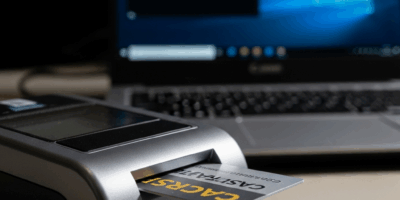
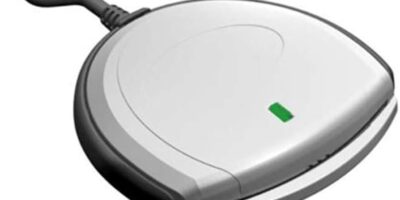
- Physically inspect the CAC reader. Is it plugged in? Is the card seated all the way? I spent forty minutes troubleshooting once before realizing the reader was never connected. The cable was just sitting there looking busy. Don’t make my mistake.
- Check if Chrome OS sees the reader at all. Open a new tab and navigate to
chrome://device-log. Your reader should appear in the list. If it does, the hardware handshake is working. If it doesn’t, you’ve got a different problem than you think. - Verify Chrome OS is fully updated. Go to Settings → About Chrome OS. Pending updates will quietly kill smart card detection — install anything waiting and restart before continuing.
- Check your cable and ports. Older readers use USB-A. Newer Chromebooks — especially anything from 2020 onward — often only have USB-C. You’ll need an adapter. I’m apparently particular about this stuff, and Anker and Belkin adapters work for me while no-name alternatives never seem to. The price difference is usually $8 to $15. Worth it.
- Test with a direct connection first. Skip the USB hub for now. Plug the reader straight into the Chromebook. If it works, your hub is the culprit — more on that below.
One more thing worth knowing: some older readers simply don’t play well with Chrome OS, even with every workaround applied. The Gemalto Prox-DU falls into this category. So do several older Omnikey models. Anything pre-2015 is questionable. Check the manufacturer’s site for Chrome OS compatibility before spending an hour on steps that won’t help.
Fix It on Chrome OS Using Smart Card Connector
This is the native approach — and for most people accessing DoD portals like milConnect or checking email through Outlook Web Access, it’s enough.
- Open the Chrome Web Store. Head to
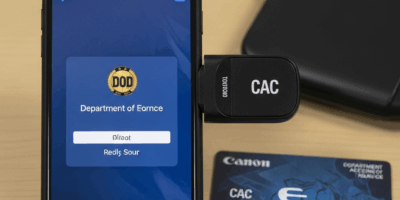
chrome.google.com/webstoreand search for “Smart Card Connector.” It’s the official Google app. Blue smart card icon. Install it. - Install the CSSI Middleware app. Search the same Web Store for “CSSI Middleware” and install that too. CSSI — CryptoSoft Smart Card Integrator — is the bridge between your CAC and Chrome’s security layer. Both apps are free.
- Open Smart Card Connector. Find the icon in your Chrome Apps folder or shelf. The main window should say “Service is running.” If it doesn’t, hit the toggle to start it manually.
- Insert your CAC. Card goes in the reader. Smart Card Connector should display your reader name and card details. If it shows “No reader detected,” go back and recheck hardware — something upstream isn’t connected properly.
- Test access. Navigate to
milconnect.dmdc.osd.milor your organization’s portal. When the certificate picker appears, your CAC certificate should show up. Click it and proceed.
Smart Card Connector handles web-based access. That’s it. If you need a VPN client or need to sign documents in a desktop application, this path won’t get you there — that’s what the Linux approach is for.
Fix It Using Linux on Chromebook (Crostini)
This is the more powerful option. Enabling Linux on your Chromebook gives you access to pcscd — the PC/SC Daemon — which is the same smart card infrastructure running underneath Windows and macOS. Fair warning: this involves terminal commands. Skip this section if Smart Card Connector already solved your problem.
- Enable Linux on your Chromebook. Go to Settings → Developers → Linux Development Environment and click “Enable.” First-time setup takes about ten minutes. You’ll want at least 8GB of RAM for this to run without issues.
- Open the Linux terminal. Once setup finishes, open your app drawer and launch “Terminal.” A command line window will appear.
- Set up USB passthrough for your reader. Go to Chrome OS Settings → Devices → USB. Find your reader in the list. Toggle “Share with Linux” on. Without this step, the Linux container can’t see the hardware at all.
- Install pcscd and libccid. In your terminal, run:
sudo apt update
sudo apt install pcscd libccid
Hit Enter after each line. When it asks for a password, just press Enter — there’s no default password set. Installation runs about two minutes.
- Start the smart card daemon. Type:
sudo systemctl start pcscd
- Verify the reader is detected. Run:
pcsc_scan
If everything worked, you’ll see your reader listed with its full name and your card details. If you see “Scanning present readers…” followed by nothing, the USB passthrough didn’t take — go back to step 3 and toggle it off and on again.
- Test with applications. Web access still routes through Chrome and Smart Card Connector, but VPN clients and document signing applications running inside Linux can now access your CAC directly through the daemon.
Still Not Working — Try These Last Steps
Reader shows up in chrome://device-log but Smart Card Connector still can’t see it? Try a powered USB hub. Chromebook ports deliver less power than standard laptop ports — enough for some readers to power on, but not enough to fully initialize. An Anker 7-in-1 hub or an Amazon Basics powered model runs $20 to $30 and solves this in roughly 30 percent of the cases I’ve seen. That’s not a small number.
Reader is detected but login keeps failing? Clear your browser’s cached certificates — go to Settings → Privacy and security → Manage certificates, then delete everything listed under “Your certificates.” Browser certificate corruption is surprisingly common and almost never mentioned in official guides.
Still nothing? Head to the DoD Cyber Exchange and pull the latest middleware package for your specific reader model. Some readers ship with firmware that’s years out of date. A firmware update performed on another computer — a Windows machine, ideally — can unlock Chrome OS compatibility you didn’t have before.
This new compatibility landscape took shape several years after Chrome OS launched and has eventually evolved into the patchy-but-workable setup CAC users know and navigate today. It’s not elegant. But it does work. You’re closer than it probably feels right now.

Subscribe for Updates
Get the latest cac readers.com updates delivered to your inbox.
We respect your privacy. Unsubscribe anytime.