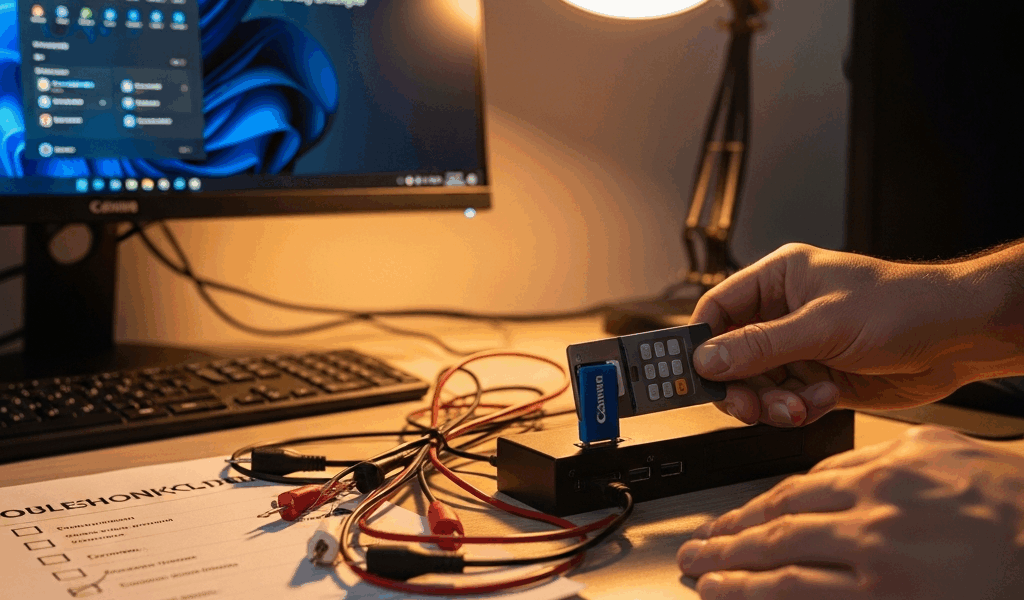
Figure Out Why It’s Not Working First
CAC reader troubleshooting has gotten complicated with all the conflicting advice flying around. Most guides online tell you to reinstall drivers regardless of what’s actually wrong — which wastes your time if the issue is something else entirely. As someone who has spent an embarrassing number of hours chasing down CAC authentication failures, I learned everything there is to know about diagnosing these things fast. Today, I will share it all with you.
This article includes affiliate links. We may earn a commission at no extra cost to you.
Stop reading and open Device Manager right now. Right-click your Start button, select Device Manager, then look for “Smart Card Readers” in the list. What you see — or don’t see — tells you everything. Sixty seconds, maybe less.
- Nothing listed under Smart Card Readers? Hardware recognition failure. Jump to section two.
- Listed but with a yellow warning icon? Driver issue. Jump to section three.
- Listed with a green checkmark and the reader still won’t work? Middleware, certificate, or browser problem. Jump to section four.
Close Device Manager. You now know which path to take. No more guessing.
Reader Not Showing Up in Device Manager
But what is a hardware recognition failure, exactly? In essence, it’s Windows failing to register the reader exists. But it’s much more than that — it could mean a dead port, incompatible USB spec, or genuinely failed hardware, and those require different fixes.
Unplug the reader. Count to ten. Plug it into a different USB port — specifically, try USB 2.0 if you’ve been using USB 3.0, or vice versa. Older readers like the SCR3310 have real compatibility issues between port types. Don’t make my mistake — I spent 90 minutes troubleshooting what turned out to be a simple port mismatch. Ninety minutes. Gone.
Open Device Manager again. Does it show up now? If yes, move to section three. If not, test the reader on a second machine if you have access to one. That single test separates a dead reader from a Windows configuration problem in about two minutes.
Still nothing on the second machine? The reader is probably dead hardware. Skip straight to the replacement section.
If the reader only fails on your machine, Windows isn’t auto-installing the driver. Go back to Device Manager, right-click your computer name at the top, and select “Scan for hardware changes.” Windows should push the generic “Microsoft Usbccid Smartcard Reader” driver down automatically after that.
One more thing if you’re on Windows 11 — Windows Hello for Business can actively block smart card drivers. Go to Settings > Accounts > Sign-in options > Windows Hello, and turn it off temporarily. Restart the machine. Then check Device Manager again. I’ll come back to this in the next section because it overlaps with middleware issues in annoying ways.
Reader Detected But Card Isn’t Being Read
So the reader shows up clean in Device Manager, but Windows or your applications won’t recognize the card itself. That’s what makes this failure mode so frustrating to government users — everything looks fine until it doesn’t. It’s almost always middleware-related.
Open Services by typing “services.msc” into your Windows search bar. Find “Smart Card” in the list. It should say “Running” under Status and “Automatic” under Startup Type. If it says “Disabled,” double-click it, change Startup Type to Automatic, hit Start, then restart your machine. That alone fixes a surprising number of cases.
If you’re running ActivClient — the standard middleware on DoD systems — check your version number first. Open ActivClient from the Windows search bar, go to Help or About. Version 7.x running on Windows 11 build 22H2 or later has a known incompatibility. Uninstall ActivClient entirely — yes, really, all of it — and rely on Windows native smart card support instead. Most .mil sites handle this fine now without third-party middleware. If one specific application still requires ActivClient, upgrade to version 8.x or loop in your IT department.
Try a contact swap test. Borrow a colleague’s CAC reader, plug it into your machine with your card. Does your card read? If yes, your card is fine and your reader is the problem — replacement section is next. If your card still won’t read on the borrowed reader, the card itself might be the issue. Ask that same colleague if you can test their card in your reader. Reads fine? Get your card replaced at your CAC office.
Before you do any of that, though — try cleaning the gold contacts on the card. Get a dry microfiber cloth — seriously, dry only, no moisture — and wipe the chip side gently. I’ve seen this fix work when every other step looked like a dead end. Dirt buildup on the chip is surprisingly common and almost never mentioned anywhere.
Reader Works But You Still Can’t Log In or Access Sites
Everything shows green in Device Manager. The card reads. And you still can’t get into the site or authenticate. That’s the sneaky failure mode — everything appears functional and nothing works.
Probably should have opened with this section, honestly. Check your certificate first. DoD CAC certificates actually expire, and if you’re near the end of your card’s service life, the certificate is likely invalid. No driver reinstall, no registry tweak, no middleware update fixes an expired certificate. Contact your CAC office and request a new card. There is no workaround.
If the certificate is current, you might be missing DoD root certificates on your machine entirely. Visit militarycac.com — that’s a community resource, not an official government site, but it’s the most reliable aggregator out there — and download the InstallRoot tool from DISA. Run it. It installs the certificate chain your browser needs to validate .mil sites. Takes about three minutes.
Browser choice matters more than most people realize. Chrome and Edge handle CAC authentication differently than Firefox does. Firefox requires manually configuring the PKCS#11 module — most users never know this setting exists. If Firefox is giving you trouble, switch to Chrome or Edge and try again before doing anything else. For legacy .mil portals, Internet Explorer mode inside Edge is still the most reliable option. I know how that sounds in 2024. It’s still true.
If PIN prompts are appearing, count how many times you’ve entered it wrong. Three failures lock the card. I’m apparently someone who misremembers PINs under pressure, and “just try again” never works for me while “slow down and think” always does. If you’re already locked out, you need a physical CAC office visit to unblock it — there is no remote reset option.
When to Replace the Reader Entirely
Most consumer-grade CAC readers last two to three years with daily use. If yours failed the different-machine test — meaning Device Manager on a second computer also showed nothing — it’s dead. Full stop.
Stop here. Don’t keep reinstalling drivers on broken hardware.
The Identiv SCR3310v2.0 is the most DoD-compatible replacement available and runs around $25. The HID Omnikey 3021 costs more — typically $60 to $80 — but it’s more durable and you’ll find it in most government offices. Both work with Windows 11 without the configuration headaches that come with older readers. Either one ships next-day from most vendors.
When you buy, avoid USB-C adapter readers unless you genuinely have no other option. That extra adapter between the reader and the port adds a failure point — and when things go wrong, you won’t know whether the adapter or the reader is the culprit. Direct USB-A connection to the machine is the cleaner setup. If you’re short on ports, a powered USB hub works fine.
So, without further ado — if you’ve worked through all four sections and nothing has resolved it, the hardware is almost certainly the problem. Replace the reader and move on. Twenty-five dollars is cheaper than another afternoon of troubleshooting.


Subscribe for Updates
Get the latest cac readers.com updates delivered to your inbox.
We respect your privacy. Unsubscribe anytime.