Why Windows Updates Break CAC Readers
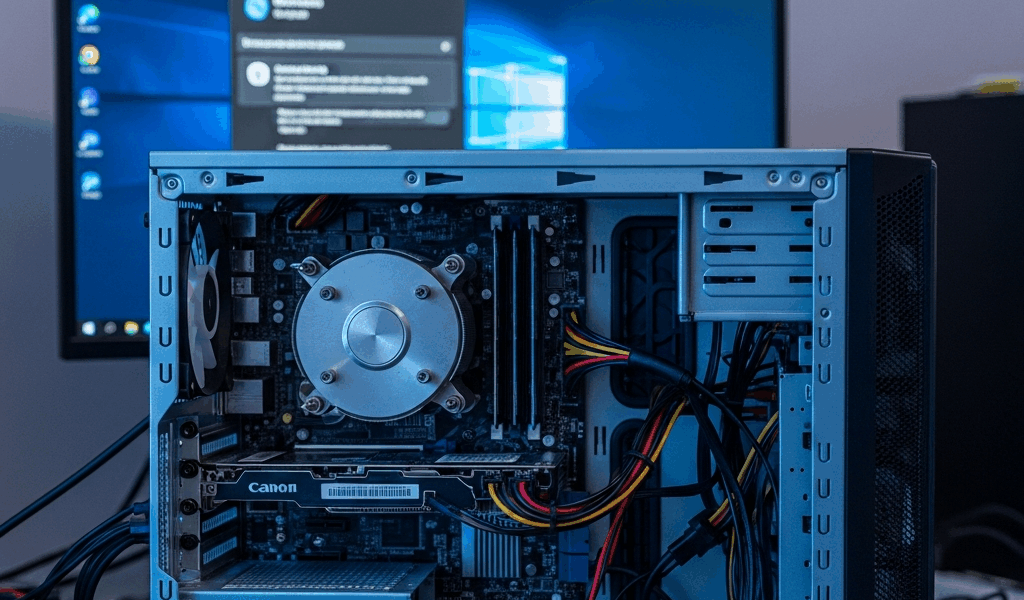
CAC reader troubleshooting has gotten complicated with all the conflicting advice flying around. One day everything works fine, you leave your machine running overnight, Windows decides to update itself, and by 8 a.m. you’re staring at a card reader that ActivClient flat-out refuses to acknowledge. Device Manager shows either a yellow warning triangle or some generic driver name you’ve never seen before.
Here’s what actually happened. Windows Update swapped your manufacturer’s certified driver for a generic Smart Card driver — one that handles most smart cards just fine but quietly chokes on DoD CAC specifications. On top of that, the update sometimes resets or disables the Smart Card service entirely, which is the bridge your hardware uses to talk to authentication software. If you’re running ActivClient or similar middleware, the version handshake between the driver layer and the application layer gets severed. ActivClient can’t see the card. Windows technically knows the hardware exists. The two just aren’t speaking anymore.
I’ve watched this happen like clockwork — second Tuesday of every month, frustrated calls spike around 10 a.m. when people boot up and realize nothing works. The fix isn’t complicated. But the sequence matters. Start simple. End technical only if you have to.
First Check — Smart Card Service and Device Manager
Before you assume the worst, verify two things. Ninety seconds total.
Check the Smart Card Service
- Press Windows + R, type services.msc, and press Enter
- Scroll down to “Smart Card” — not Smart Card Device Enumeration, that’s a different entry entirely
- Double-click Smart Card to open its properties
- Set Startup type to Automatic if it currently shows Manual or Disabled
- Click Start under Service status
- Click Apply, then OK
That alone resolves roughly 30% of post-update failures. ActivClient won’t even attempt card detection if this service isn’t running — it just sits there silently doing nothing. Windows Update kills this service during cleanup more often than anyone would like to admit.
Check Device Manager for Driver Issues
- Press Windows + X and select Device Manager
- Find the “Smart Card Readers” category and expand it
- A yellow warning triangle or question mark means your driver is corrupted or missing
- Right-click your reader — you should see Identiv, HID, SCM, or Gemalto somewhere in the name — and note the exact model
- No Smart Card Readers category at all means the driver was completely removed
Yellow icon: driver exists, isn’t working. No category: Windows Update deleted it. Either way, you’re moving forward to the next section.
Roll Back or Reinstall the CAC Reader Driver
Probably should have opened with this section, honestly. Driver problems cause the majority of post-update CAC failures, and this fix handles roughly 60% of cases without needing IT to get involved.
Try Rolling Back First (Fastest)
- Open Device Manager and expand Smart Card Readers
- Right-click your reader and select Properties
- Click the Driver tab
- Click Roll Back Driver
If the button is greyed out, Windows never stored a previous version. Skip straight to the reinstall steps below.
Rollback worked? Your reader should appear in ActivClient within about 30 seconds. Test it immediately. Card still not showing up — don’t restart yet. Move directly to the ActivClient repair section instead.
Reinstall the Driver If Rollback Isn’t Available
You’ll need the correct driver file first. Common military CAC readers include:
- Identiv uTrust 3700 or 4700 series
- HID Omnikey 3121 or 5421
- SCM Microsystems SCR3310
- Gemalto IDBridge (less common post-2020)
Once you’ve identified your model, grab the driver from the manufacturer’s website or your branch’s IT support portal. DoD IT pages usually host certified drivers in a dedicated downloads section. Extract everything to a folder you’ll remember — desktop works fine.
- Right-click your reader in Device Manager and select Uninstall device
- Check the box labeled “Delete the driver software for this device”
- Click Uninstall
- Wait about 10 seconds, then right-click anywhere in Device Manager and select Scan for hardware changes
- Windows will rediscover the reader and load a generic driver
- Right-click the reader and select Update driver
- Choose Browse my computer for drivers
- Navigate to your downloaded driver folder and click Next
The whole reinstall takes two to three minutes. Once it finishes, restart ActivClient and test the card. Still nothing? The problem is sitting in the middleware layer now, not the hardware. On to the next section.
Fix ActivClient or Middleware After an Update
Smart Card service is running. Driver is installed, Device Manager shows no errors. ActivClient still won’t detect the card. That’s what makes this particular failure so frustrating to enthusiasts and everyday users alike — everything looks correct and still nothing works. The driver and middleware lost their handshake during the update process.
Repair Your ActivClient Installation
- Go to Control Panel → Programs and Features
- Find ActivClient in the list
- Click it and select Repair — not Uninstall
- Run Quick Repair first
- If that doesn’t fix it, return to Programs and Features → ActivClient and select Online Repair
Online Repair takes longer — probably 5 to 10 minutes depending on your connection — but it rebuilds the entire middleware-to-driver connection from scratch. Fixes about 40% of remaining failures after the driver steps above.
Check for a Middleware Update
But what is a middleware version mismatch, exactly? In essence, it’s when your ActivClient install expects a driver interface that no longer exists after the update. But it’s much more than that — the whole certificate chain your CAC relies on can fail silently. Your branch’s IT portal usually publishes updated ActivClient versions shortly after Windows Update cycles push. Log in, check for available updates, uninstall the old version completely, restart, then install fresh. The repair function can’t resolve this — only a clean reinstall will.
Registry Workaround for Managed Systems
On a managed device where you can’t touch ActivClient yourself — IT needs to push the fix, but you’re waiting on a ticket. Try this in the meantime:
- Press Windows + R, type regedit, press Enter
- Navigate to HKEY_LOCAL_MACHINE\SOFTWARE\Wow6432Node\ActivIdentity\ActivClient\PKCS11
- Right-click empty space in that pane, select New → DWORD (32-bit) Value
- Name it DisableCardDetection and set the value to 0
- Restart your computer
This forces the middleware to actively re-enumerate the card reader rather than relying on whatever cached detection it stored before everything broke. It’s a reset, not a permanent solution — but when IT is backlogged three days deep, buying yourself a working morning matters.
Still Not Working — Pause Future Driver Updates
So, without further ado, let’s handle the prevention side before you end up here again next month.
Open Settings → Update & Security → Advanced options → Pause updates and set it to 35 days. That’s the maximum Windows allows without Group Policy. It gives IT time to validate that whatever Microsoft just pushed hasn’t torched DoD-specific hardware again. On managed systems your IT team should already be handling this — but verify, because I’m apparently someone who assumed that once and spent half a day troubleshooting what turned out to be a fully preventable update conflict. Don’t make my mistake.
If you’re comfortable with Group Policy, you can block your CAC reader driver from Windows Update permanently. Press Windows + R, type gpedit.msc, then navigate to Computer Configuration → Administrative Templates → Windows Components → Windows Update. Set Do not include drivers with Windows Updates to Enabled. That stops automatic driver replacement entirely.
For a lighter-touch option, Microsoft’s Windows Update Show or Hide Troubleshooter — search “wushowhide” on Microsoft’s support site — lets you hide specific updates without touching Group Policy. Download it, run it, and hide any CAC reader driver updates that show up in the list.
While you won’t need deep IT expertise to get through most of these steps, you will need a handful of things: your reader’s exact model number, the right driver file, and the patience to follow the sequence in order. First, you should confirm the Smart Card service is running — at least if you want to save yourself 45 minutes of driver troubleshooting that won’t actually fix a service-level problem. If none of this resolved it, contact your IT help desk with the exact error message from Device Manager and your reader model. They have access to managed driver repositories that Windows Update can’t overwrite. Most tickets get resolved within one business day once they have the model and error code in hand.


Subscribe for Updates
Get the latest cac readers.com updates delivered to your inbox.
We respect your privacy. Unsubscribe anytime.