
You just got a new Windows 11 machine — maybe a fresh laptop from your unit, maybe a personal PC you need for CAC access at home — and you need your CAC reader working today. Windows 11 has built-in smart card support, but that doesn’t mean it works out of the box for DoD websites. Here’s the full setup, browser by browser, with the step most guides skip.
Does Windows 11 Support CAC Readers Natively?
Partially. Windows 11 includes the Smart Card service and will detect most modern CAC readers through plug-and-play drivers. Microsoft Edge uses the Windows Certificate Store natively, which means Edge often works with CAC-protected .mil sites without any additional middleware — just plug in the reader, insert your CAC, and Edge handles the rest.
Chrome and Firefox are a different story. Both require PKCS#11 middleware to access CAC certificates because they don’t use the Windows Certificate Store by default. This Edge-vs-Chrome distinction matters because it determines how much setup you actually need to do. If Edge is acceptable for your .mil access, your setup is significantly simpler.
Install the CAC Reader Driver
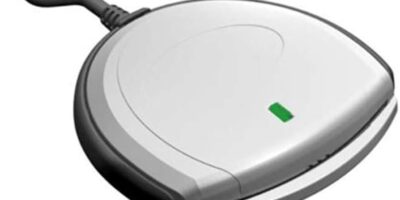
Most modern CAC readers get detected automatically by Windows 11. To check: open Device Manager (right-click Start, select Device Manager) and look for the Smart Card Readers category. Your reader should appear there by name — HID OMNIKEY, Identiv SCR3310, or whatever model you’re using.
If the reader shows as “Unknown Device” with a yellow triangle, Windows couldn’t find a driver automatically. Download the manufacturer driver from the vendor’s website — HID Global for Omnikey readers, Identiv for SCR series, Thursby for their products. Run the installer as administrator and restart.
If the reader doesn’t appear in Device Manager at all, try a different USB port. USB 3.0 ports occasionally cause timing issues with older smart card readers. A USB 2.0 port or a powered USB hub usually resolves the detection problem. Also try a different USB cable if you’re using one — I’ve seen setups where the cable was the only problem.
Install CAC Middleware (For Chrome and Firefox)
If you only use Edge for .mil websites, skip this step entirely. Edge talks to the Windows Certificate Store directly and doesn’t need middleware.
For Chrome or Firefox, you need a PKCS#11 middleware layer. Three options:
OpenSC (free, open source): Download from the OpenSC GitHub releases page. Run the installer as administrator. After installation, restart your browser. This is the simplest option for personal machines where you have full admin access.
HID ActivClient (enterprise standard): This is what most government-issued machines run. If your organization provides ActivClient, use it — it’s the most tested middleware in DoD environments. You’ll need the installation files from your IT department or an organizational software distribution site.
90Meter (formerly CACKey): Another free option that works well for personal setups. Download from the 90Meter website, install as administrator.
After installing middleware, verify by opening Chrome, navigating to Settings, then Privacy and Security, then Manage Certificates. You should see your DoD certificates listed after inserting your CAC and entering your PIN.
Install DoD Root Certificates
This is the step that most setup guides either skip entirely or mention as an afterthought. Without DoD root certificates, every .mil website will throw a certificate error — even when your reader is working perfectly and your middleware is installed correctly. The browser doesn’t trust the certificates because it doesn’t have the root of the certificate chain.
Download InstallRoot from DISA. The current version is on the DISA PKI page, or search “DISA InstallRoot” — militarycac.com also maintains a current link to the download. Run InstallRoot as administrator. Select all certificate stores when prompted. The installer handles importing the full DoD certificate chain into the Windows Certificate Store.
After running InstallRoot, open Edge and navigate to a CAC-protected .mil website — try mail.mil or mypay.dfas.mil. If you don’t see a certificate warning, the root certificates are installed correctly. If you still see warnings, run InstallRoot again and make sure all options are selected — some certificates can be missed on the first pass.
Configure Your Browser for CAC Login
Edge: Should work immediately after the root certificate install. Navigate to any CAC-protected .mil site. Edge will prompt you to select a certificate from your CAC, then ask for your PIN. Done.
Chrome: After middleware and root certificate installation, Chrome may need the PKCS#11 module enabled. In Chrome’s address bar, type chrome://flags, search for “PKCS#11,” and enable it if the option appears. Restart Chrome. If Chrome still doesn’t prompt for your CAC PIN on .mil sites, check that your middleware is properly installed by revisiting the Manage Certificates section in settings.
Firefox: Go to Tools (or the three-line menu), then Settings, then Privacy & Security. Scroll to Security Devices and click it. Click Load. Point to the PKCS#11 DLL from your middleware install. For OpenSC, the path is typically C:\Program Files\OpenSC Project\OpenSC\pkcs11\opensc-pkcs11.dll. For ActivClient, look in the ActivClient installation directory for the .dll file. Click OK, and Firefox will now access your CAC certificates through the middleware.
CAC Reader Not Working After Setup — Common Fixes
Reader in Device Manager but CAC not detected: Reseat the card — pull it out and reinsert with the chip making full contact. Check for visible chip damage (scratches across the gold contacts). If the chip looks clean and the card is seated, restart the Smart Card service: open services.msc, find Smart Card, right-click and Restart.
Certificate error on DoD websites: DoD root certificates aren’t installed or the installation was incomplete. Run InstallRoot again, selecting all certificate stores. Restart your browser after installation.
CAC works in Edge but not Chrome: The PKCS#11 middleware isn’t loaded in Chrome. Verify middleware is installed, check Chrome flags for PKCS#11 support, and restart Chrome. If using ActivClient, ensure the Chrome extension is enabled.
Everything worked, then stopped after a Windows update: Windows Updates occasionally reset middleware settings or remove third-party security modules. Reinstall your middleware (OpenSC, ActivClient, etc.), restart, and retest. This happens frequently enough that it’s worth keeping the installer accessible rather than buried in a downloads folder.
PIN locked after 3 incorrect attempts: No software fix. A PIN-locked CAC requires a visit to a RAPIDS/DEERS ID card office to reset. This is a security feature, not a bug, and it’s the same across every operating system.


Subscribe for Updates
Get the latest cac readers.com updates delivered to your inbox.
We respect your privacy. Unsubscribe anytime.