Why Your CAC Reader Probably Isn’t Working on iPad
CAC authentication on iPad has gotten complicated with all the conflicting advice flying around. You plug in the reader, tap your card, expect to log in — and nothing. As someone who has burned entire afternoons troubleshooting this exact setup, I learned everything there is to know about CAC readers on iPadOS. Today, I will share it all with you.
But what is the core issue here? In essence, it’s that iPadOS doesn’t natively support smart card middleware the way Windows or macOS does. But it’s much more than that. Most DoD portals and .gov sites depend on browser-level certificate authentication. Safari doesn’t have it. The OS was never built with military credentialing workflows in mind. Some situations are fixable. Others need a real workaround — not a miracle.
Military personnel, contractors, and government employees genuinely need tablet access to secure portals. That’s what makes this problem so maddening to us iPad users specifically. The guides that exist either ignore iPad entirely or lump it in with Mac instructions. Those don’t help. Not even a little.
What You Need Before You Try Anything
Hardware matters more than most people realize. Probably should have opened with this section, honestly. Wasted troubleshooting time on incompatible gear is the single biggest source of frustration I’ve run into. So, without further ado, let’s dive in.
iPad Model and Connector Type
Not all iPads are equal here. iPad Pro (all current models), iPad Air 4th generation and later, and iPad mini 6th generation ship with USB-C. Older Lightning-based iPads — iPad Air 3, standard iPad 7th gen, iPad mini 5 — need an adapter.
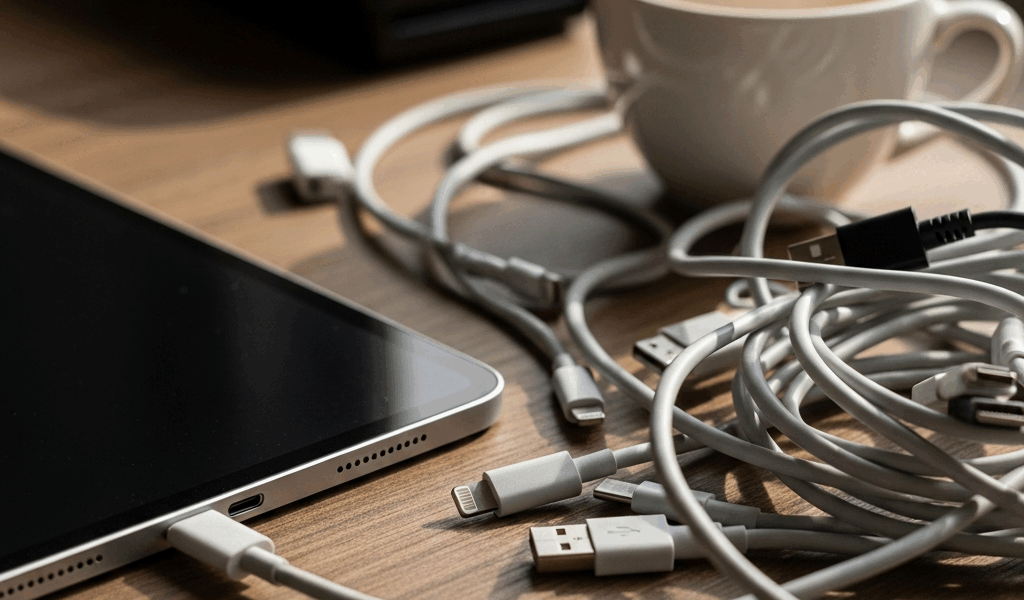
While you won’t need a full hardware overhaul, you will need a handful of the right components. First, you should buy Apple’s official Lightning Camera Connection Kit — at least if you’re running an older iPad. It runs about $29. That specific adapter actually passes smart card data reliably. Third-party alternatives fail silently. The reader appears connected. No data moves. Don’t make my mistake.
For USB-C iPads, a solid hub does the job. Anker and Belkin both make reliable options in the $15–$40 range. I’m apparently an Anker person and their 7-in-1 hub works for me while cheaper generic adapters never quite do.
CAC Reader Compatibility
Your reader must explicitly support iPadOS. The Identiv uTrust 3700 F works. The SCR3500 series works. The Gemalto IDBridge CT30 is hit-or-miss — check the documentation for “iOS compatible” stated outright, not implied.
Frustrated by repeated failures, many users discover their agency-issued reader was built exclusively for Windows environments using firmware from around 2013 or 2014. Updates that would fix this often don’t exist. If your reader is that old, it probably won’t work on iPad regardless of what else you try.
Your CAC Card Itself
Expired cards fail silently. Check the date printed on the front. Damaged contact points — bent, corroded, worn down from years inside a wallet — also trigger authentication failures that look identical to software problems. Pull the card out. The contacts should be clean gold. Gray or dull means corrosion.
Step-by-Step Fixes to Try Right Now
- Confirm the reader appears in iPad settings. Navigate to Settings > General > VPN & Device Management on newer iPadOS builds. Your reader should show as a connected accessory. If it doesn’t appear at all, the physical connection is broken — swap the adapter first, then the cable, then try a different hub port. That order matters.
- Swap your adapter before anything else. Seriously. I lost a full hour troubleshooting a perfectly functional reader and a perfectly valid card. The Lightning adapter I grabbed was faulty. Swapping in Apple’s official Camera Connection Kit fixed everything in under 30 seconds. That was the whole problem.
- Try a different browser. Safari alone won’t work for most .mil portals. Download the DoD Secure Browser from the App Store — it’s free. Brave has smart card extensions in certain configurations. Try both. Some portals behave completely differently depending on which browser hits them.
- Clear cached data completely. Old certificate data or stale credentials block fresh authentication. Go to Safari Settings > Advanced > Website Data and wipe everything. Or use Settings > Safari > Clear History and Website Data for the full reset. Retry the portal immediately after — don’t browse anything else first.
- Inspect the card contacts directly. Pull the CAC out and look at the gold contact strip under decent light. Clean it gently with a dry microfiber cloth if it looks dull. Insert the card slowly into the reader — some readers have a specific orientation, and forcing it the wrong way seats it incorrectly without obvious feedback.
When the Reader Is Recognized But Login Still Fails
The reader connects. iPad sees it. The card reads. Authentication still fails — or the portal kicks you out immediately. This is where the hard truth lives.
Most .mil and .gov portals require certificate middleware and trust configurations that iPadOS doesn’t fully support in any browser. The site sees your identity, validates the card, then refuses the session because the device isn’t running Windows or macOS. That’s not a reader bug. It’s not an iPad bug either.
It’s a policy decision baked into how those portals were originally built — mostly during the Windows-first era, never updated for mobile. This new reality of mobile government work took off several years later and eventually evolved into the patchwork system enthusiasts know and navigate today.
Check the DoD Cyber Exchange site for approved device configurations on your specific portal. If iPad isn’t listed, it won’t work — full stop, regardless of what else you try. The honest recommendation here is a Windows or Mac machine for those portals. Not what you want to hear. Still true.
Best Workaround If Nothing Else Works
Remote desktop from your iPad into a CAC-enabled Windows machine is legitimate, widely used across military and government environments, and genuinely reliable. Microsoft Remote Desktop is free on the App Store. You authenticate on the Windows side — all certificate handling happens there. Your iPad is just the display.
First-time setup takes maybe 10 to 15 minutes. Your IT department almost certainly has a guide. Screen size is a tradeoff, and responsiveness depends on your network connection — but it works consistently, which matters more than anything else in this situation.
Some newer portals now support PIV-I credentials or one-time password alternatives. Check whether your specific site offers a mobile-friendly login path before assuming CAC is the only option. It sometimes isn’t anymore.
Remote desktop might be the best option overall, as iPad-based CAC work requires a workaround by definition. That is because the underlying OS wasn’t designed for military certificate authentication — and while that’s slowly changing, we’re not there yet. Keep the Windows and macOS CAC guides bookmarked. Use those devices when you have access. Your iPad is capable of a lot. This particular workflow just isn’t its native territory.

Subscribe for Updates
Get the latest cac readers.com updates delivered to your inbox.
We respect your privacy. Unsubscribe anytime.