“`html
The Quick Fix — Check Your USB Connection First
I’ve watched people waste two hours troubleshooting driver updates when their CAC reader wasn’t working because the USB cable was loose. Honestly, a loose or improperly seated connection is probably the single most common culprit behind a non-responsive reader — and I’m willing to bet it’s your problem right now.
Here’s what you do. Unplug the reader completely. Wait five seconds — not two, not three. Five. Then plug it back in firmly into a USB port that’s directly on your computer (not a hub, not an extension cable). If you’re on a laptop, try a different USB port on the device itself. What you should see immediately: an LED indicator light up on the reader (usually blue or green), and Windows should chime with a device recognition sound. Mac users will see the reader appear in System Report under USB.
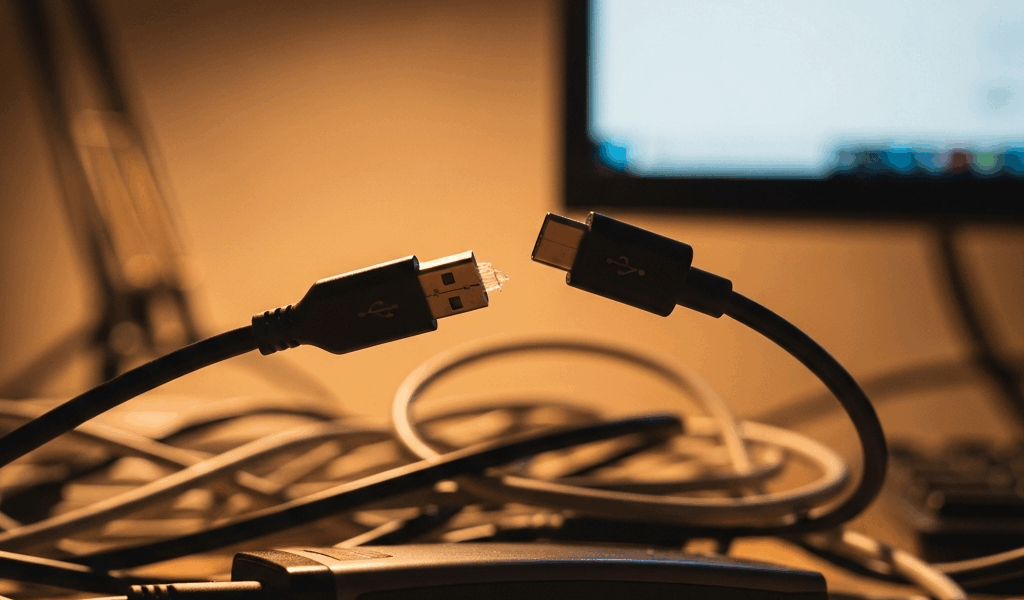
If nothing happens, test the USB cable itself. Borrow a cable from another device — printer, external drive, doesn’t matter — and plug the reader in. If the LED lights up with a different cable, you’ve got a failed cable. They’re cheap — $8 to $15 online. If the original cable works when you move it, you have a loose connection point at the reader end. That usually means the port itself is degraded and the device may be approaching end-of-life.
Still nothing? Try every USB port on your computer, one at a time. USB 2.0 and 3.0 ports sometimes behave differently with legacy readers. I once had a reader that only responded on the old USB 2.0 ports on the back of my tower while the newer ports on the front did nothing — totally bizarre. If it works on one port but not others, you know it’s not the reader. It’s that specific port or a USB controller issue on your motherboard.
Driver Installation and Reinstallation
Once you’ve confirmed the physical connection is solid, driver problems are next in line. Windows doesn’t always recognize CAC readers automatically. You’ll see “Unknown Device” in Device Manager with a yellow exclamation mark, or you might get error code 43 (device cannot start) or code 28 (drivers not installed).
Windows users: open Device Manager (right-click Start menu, select Device Manager). Look under “Other devices” or “Universal Serial Bus controllers” for anything marked with a yellow warning icon. Right-click it and select “Uninstall device.” Before you reinstall, physically unplug the reader. Restart your computer. Now go to your reader manufacturer’s support page — SCM Microsystems, Identiv, Gemalto, whoever makes your hardware — and download the latest driver package. Install it before plugging the reader back in. After installation completes, plug the reader in. Windows will detect it and you should see no warning icons. The reader should appear as “Smart Card Reader” with no errors.
Mac users: here’s the thing — most CAC readers work without proprietary drivers on macOS. The tricky part is when they don’t, troubleshooting gets harder. Go to Apple menu → About This Mac → System Report. Click USB in the left sidebar and look for your reader in the device tree. If it says “Device Not Responding,” try a different USB port first. If that fails, restart your Mac and try again. For Identiv or Gemalto readers on Mac, download their driver package from the manufacturer and run the installer. Some readers require a specific macOS version — check the documentation before updating.
Probably should have opened with this: I downloaded a driver from a third-party site once instead of the official manufacturer page. Got malware, spent a day cleaning it up. Don’t make my mistake. Always use the official support site. Write down your exact reader model (printed on the back) before you search.
Card Not Reading — Clean and Reinsert
Your reader is plugged in, drivers are installed, Windows recognizes it. But when you insert your CAC, nothing happens. No software response, no card detected message. That points either to the card itself or to dirty contacts preventing a clean read.
Start with the card. Get a soft microfiber cloth — like you’d use for glasses — and lightly wipe the gold contacts on the card. Use gentle pressure. You’re not scrubbing. If you have isopropyl alcohol (70% is fine, don’t use 99%), dampen the cloth slightly and wipe again, then let it air dry. Now reinsert the card into the reader. The correct orientation matters: the gold contacts face into the reader, and you’re inserting the card lengthwise, not sideways. You should feel a slight click. Most readers have a small arrow or diagram printed on them showing the right direction. When the card is read successfully, your credential management software should display the cardholder name, rank, and Social Security Number (masked).
If that still doesn’t work, clean the reader itself. The card slot accumulates dust and lint over time. Power off the reader, wait 10 seconds, then take a microfiber cloth and gently wipe inside the slot opening (don’t jam the cloth deep into the reader). A can of compressed air on low setting can also help — blow short bursts into the slot, not a sustained stream. Power the reader back on and try again with a known-good card if you have one.
Testing with a known-good card is critical, honestly. If your card reads fine in another reader or on another computer, your card is okay and your reader has a hardware failure. If it doesn’t read anywhere, the card is corrupted and you need a replacement from your issuing authority.
Software Conflicts and Firewall Issues
I didn’t think about this until I installed new antivirus software and suddenly my reader stopped working. Windows security tools, third-party antivirus, and personal firewalls can block Smart Card services without warning — no notification, nothing.
First, verify the Windows Smart Card service is running. On Windows, press Win+R, type “services.msc,” and hit Enter. Look for “Smart Card” in the list. Double-click it. The startup type should be “Automatic” and the status should show “Running.” If it says “Disabled,” change the startup type to Automatic, click Apply, then click Start. Close the services window and restart your computer.
Next, whitelist the reader in your antivirus. In Windows Defender, go to Virus & threat protection → Manage settings → Add exclusions. Add the folder where your credential software is installed (usually C:\Program Files\Common Files\SCM or similar — at least on most systems). In third-party antivirus (Norton, McAfee, Kaspersky), look for a Trusted Applications or Exceptions list. Add your credential management software to it. Some readers also require access to specific ports — check your software documentation for port numbers, then create a firewall rule allowing those ports. On Windows Firewall, go to Firewall → Advanced Settings → Inbound Rules → New Rule, select Port, and allow the specific port your software needs.
If you’re on a corporate network with group policies, these settings might be controlled centrally. Contact your IT department — they often have to push out reader-friendly policies to all workstations. It’s frustrating when you can’t control your own system, but that’s how enterprise environments work.
When to Replace vs. Repair
If you’ve worked through all four sections above and the reader still isn’t working, it’s a hardware failure. The USB chipset has likely failed, or the card contacts are permanently degraded. These aren’t field-repairable — you’d need to send it to the manufacturer or a repair shop.
Cost reality: a replacement CAC reader runs $25 to $80 depending on model. Repair labor (if available) is typically $75 to $150 plus parts. The math is simple — replace it. Look for readers compatible with your exact card format (PIV, Military, whatever you’re using) and your operating system. Most modern readers work across Windows, Mac, and Linux without issues. Order a replacement and you’ll be back online in 2-3 business days.
“`

Subscribe for Updates
Get the latest cac readers.com updates delivered to your inbox.
We respect your privacy. Unsubscribe anytime.