“`html
Why CAC Drivers Keep Breaking After Windows 11 Updates
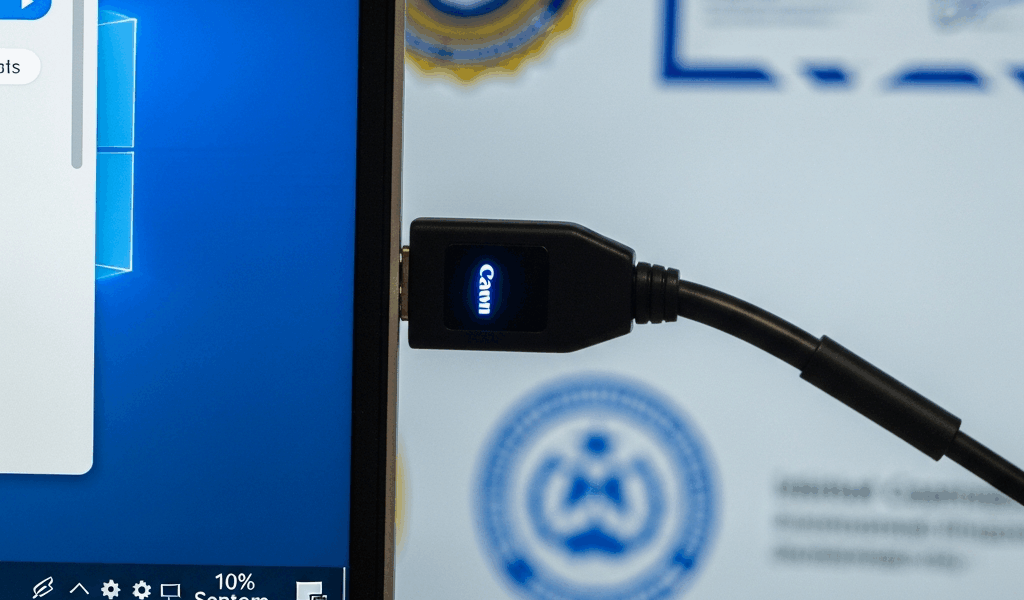
Windows 11 has gotten complicated with all the driver signing requirements flying around. When Microsoft dropped the 22H2 update in late 2023, and again with 23H2 in mid-2024, something strange happened—CAC reader drivers just stopped working. Not for everyone, but enough people that the problem became hard to ignore.
Here’s what actually happens: Windows 11 verifies that every driver has a valid digital signature. Microsoft or a trusted certificate authority—that’s the requirement. If a driver doesn’t meet this standard, Windows blocks installation or silently rolls back to an older version during system updates. For CAC (Common Access Card) readers, this creates a mess. The DoD certifies certain driver versions for military and federal use, but those versions sometimes came out before Windows 11 even existed, let alone before these stricter signing requirements showed up.
The automatic rollback behavior is what catches most people off guard — honestly, probably should have opened with this. You’ll update Windows 11, restart your machine, and suddenly your card reader shows an error code in Device Manager like “Code 52” or “Code 10.” The driver didn’t uninstall. It just reverted to an unsigned or improperly signed version that Windows flagged as unreliable.
That 23H2 update in particular became notorious for this mess. It introduced enhanced certificate chain validation that specifically checks whether the complete path from your CAC back to the DoD root certificate matches Windows’ expectations. Missing one intermediate certificate? Your reader fails validation. The driver won’t fully initialize, and you’re locked out.
Finding the Right CAC Reader Driver for Windows 11
You cannot just grab any CAC driver off the internet and expect it to work. The version matters. A lot.
Start at the official Defense Counterintelligence and Security Agency (DCSA) website or your organization’s IT portal. Look specifically for drivers marked “Windows 11 Certified” or bearing a 2023+ release date. For common card readers, here’s what actually matters:
- SCR3310 and SCR3311 — Identiv’s classic readers. Version 2.2.x works fine on Windows 10. Version 3.x is Windows 11 compatible and handles the stricter signature validation. If you’re still running 2.2.x, switching to 3.x is non-negotiable. Don’t mess with this.
- Omnikey 3021 and 3121 — HID Global’s enterprise standard. Version 4.2.x or later required for Windows 11. Anything below 4.2 triggers rollback behavior during 23H2 updates.
- Athena ASE-IIe — Less common but still supported. Driver version 1.3.15 or higher. Older versions lack the certificate chain validation that Windows 11 demands.
Download the 64-bit version. Windows 11 dropped 32-bit support entirely — at least if you want your system to actually recognize the driver. Some legacy systems claim compatibility anyway. If you install the 32-bit driver on a 64-bit system, Windows 11 will recognize it as incompatible and won’t load it. Your card reader sits there non-functional despite the installation appearing successful. I’m apparently someone who’s made this exact mistake, and Identiv’s 64-bit version works for me while the 32-bit one never even gets recognized.
The DoD issues updated driver packages quarterly. Check the release notes carefully — some versions are flagged “Known Issue: Windows 11 22H2 Compatibility” or similar warnings. You want the version that explicitly says “Windows 11 23H2 Tested” or carries certification from later than October 2024.
Install or Reinstall Your CAC Reader Driver — The Right Way
Removing the old driver completely is essential. Partial removal leaves registry entries and software components that interfere with the new version, causing the “device cannot start” errors that make you want to throw your keyboard across the room.
Step 1 — Access Device Manager. Right-click the Start menu and select “Device Manager” or search for it directly. Windows Key + X works too — then choose it from the menu.
Step 2 — Locate your reader. Expand “Smart Card Readers” or look under “Universal Serial Bus controllers” if your reader isn’t categorized correctly. Right-click the device and select “Properties.” Note the Device ID and the current driver version. You’ll need this information in a minute.
Step 3 — Remove the driver entirely. Click “Uninstall device.” A dialog appears asking “Do you want to remove the software for this device as well?” Check that box. This checkbox is critical — leaving it unchecked leaves behind configuration files and certificate references that Windows will try to use when you install the new driver, which defeats the entire purpose.
Step 4 — Disconnect the card reader. Unplug it from USB. Wait 10 seconds. Plug it back in. Windows will recognize it as a new device and attempt to auto-install a basic driver. Let it complete, then proceed to the next step.
Step 5 — Download and prepare the new driver. Visit the official source — DCSA, Identiv, HID, or your agency’s IT repository — and download the correct version for Windows 11. Extract the .zip file to a folder like C:\CAC_Drivers\Identiv_3_0_1 or something similar. Note the exact path.
Step 6 — Install with UAC elevation. Right-click the installer (.exe or .msi) and select “Run as administrator.” Windows will prompt for permission — click “Yes.” Do not skip this step. CAC drivers need system-level access to validate certificates and communicate with the card. Running without elevation causes partial installation and immediate failure.
Step 7 — Complete the installation. Follow the on-screen prompts. Most installers ask whether you want to install certificates as well. Say yes. Some installers give you an option to restart immediately or later. Choose immediate restart — the driver won’t fully activate until after the reboot.
Step 8 — Verify in Device Manager. After restart, open Device Manager again, expand “Smart Card Readers,” and check that your device shows no warning icon — no yellow triangle or red X. The status should simply say “This device is working properly.”
Verify Your Driver and Certificate Chain
A successfully installed driver isn’t the same as a working CAC reader. You need to confirm the certificate chain is intact and Windows recognizes your DoD credentials.
Open Device Manager, find your reader, right-click it, and select “Properties.” Click the “Driver” tab. The version should match what you installed — e.g., “3.0.1.0 for Identiv SCR3310.” If it still shows an older version, Windows rolled the driver back and you need to troubleshoot further.
Next, test certificate validation. Insert your CAC and open a command prompt as administrator. Run this:
certutil -scinfo
This utility scans your card and displays the certificate chain. You should see entries for your identity certificate and intermediate DoD certificates. If the output shows “No smart cards found” or lists errors, your driver installed but your card isn’t communicating with Windows properly.
If you use ActivClient (the DoD’s official login software), launch it and check whether it recognizes your card in the “Select Certificate” dropdown. If ActivClient sees your card but Device Manager shows errors, the problem is driver-level. If ActivClient also fails, the driver installation didn’t complete correctly.
Run one more check in Device Manager. Right-click your card reader, select “Update driver,” and choose “Search automatically for updated driver software.” Windows will confirm that you’re on the latest available version or alert you if updates are pending.
Common Driver Update Failures and Actual Fixes
Windows Update rolls back your driver after system updates. This happens because Windows Update applies a system image that includes older driver files, overwriting your manual installation. After installing a new Windows 11 update, immediately revisit Device Manager, check the driver version, and reinstall if necessary. Some users set a reminder for the day after Patch Tuesday — tedious, yes, but necessary if your workflow depends on CAC authentication.
Unsigned driver warning appears during installation. If Windows shows “The publisher could not be verified” despite running as administrator, the driver package itself may be corrupted or improperly signed. Delete the extracted files, re-download from the official source, and extract again. If the warning persists, contact your IT department — they may have an internally signed version for your specific Windows 11 build.
Device Manager shows “Code 52 — This driver has been blocked.” Windows detected the driver as unsigned or non-compliant. This is different from a rollback — the driver attempted to load but was rejected at the kernel level. Confirm you downloaded a version explicitly marked Windows 11 compatible. Some organizations publish driver packages with their own digital signatures. Your IT team may need to provide these instead of public versions.
Certificate chain validation fails (certutil shows incomplete path). Your DoD root certificates may be outdated or missing. Download and install the latest DoD root certificate bundle from the DCSA website. Run certutil again after installation. If it still fails, your card itself may need renewal or your organization’s PKI setup may need updating — contact your security officer.
Card reader shows “working properly” but applications don’t recognize it. The driver installed, but the card isn’t communicating. Try disconnecting and reconnecting the reader. Restart ActivClient if you use it. If that fails, reinstall the driver following the full removal steps outlined earlier. Partial driver removals are the most common cause of this false-positive “working” status. Don’t make my mistake.
Nothing works — consider your Windows 11 version. If you’ve reinstalled the driver twice and certificate validation still fails, check your Windows 11 build number — Windows Key + Pause/Break or Settings > System > About. If you’re on 22H2 and your driver is certified only for 23H2, you may need to update Windows first. Conversely, if you’re on 23H2 and only have a 22H2-certified driver, reverting Windows temporarily (Settings > System > Recovery > Go back) may restore functionality while you wait for updated driver releases.
“`


Subscribe for Updates
Get the latest cac readers.com updates delivered to your inbox.
We respect your privacy. Unsubscribe anytime.