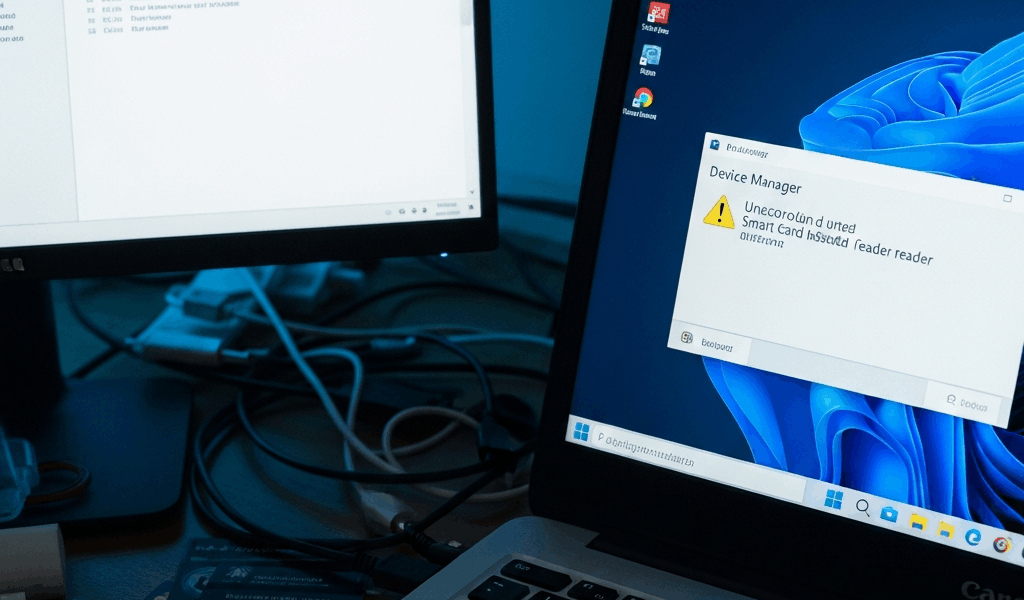
Why Windows 11 Stops Recognizing Your CAC Reader
CAC reader troubleshooting has gotten complicated with all the conflicting advice flying around. Unplug it, reinstall the driver, restart — none of that forum boilerplate actually addresses what’s happening under the hood in Windows 11. Your reader worked fine on Windows 10. Now it’s plugged in, Windows 11 acts like it doesn’t exist, and you’re locked out of everything. Infuriating. Also incredibly common since the 22H2 and 23H2 updates rolled out.
Two things usually break it. The Smart Card service — the Windows component that actually talks to your reader — either gets disabled during an update or fails to start correctly. Then there’s Windows 11’s built-in CCID driver, which is the generic protocol layer for card readers. Sometimes that conflicts with older manufacturer drivers or middleware like ActivClient. Either one can leave you staring at an unrecognized device in Device Manager.
The fixes aren’t complicated, but they’re not the generic “reinstall your driver” nonsense you’ll find everywhere else. We’re going to hit the services layer, clean up the driver stack, and deal with the ActivClient-specific mess that government IT folks rarely document clearly. So, without further ado, let’s dive in.
This article includes affiliate links. We may earn a commission at no extra cost to you.
Step 1 — Check and Restart the Smart Card Services
Probably should have opened with this section, honestly. I wasted two hours reinstalling drivers before realizing the Smart Card service was simply turned off — killed quietly during a routine update with zero notification. Before you touch any drivers, verify that Windows is even attempting to recognize smart cards.
Press Windows + R, type services.msc, hit Enter. You’re looking for two services specifically:
- Smart Card (SCardSvr)
- Certificate Propagation (CertPropSvc)
But what is the Smart Card service, exactly? In essence, it’s the core Windows component that detects your reader and manages card communication. But it’s much more than that — without it running, Certificate Propagation has nothing to work with, and your certificates never reach the applications requesting them. Both need to exist. Both need to be set to Automatic startup.
Right-click Smart Card (SCardSvr). Click Properties. Under “Startup type,” select Automatic. If the service shows Automatic but the status reads “Stopped,” click Start. Wait a few seconds. Verify it says “Running.” Repeat the exact same process for Certificate Propagation.
Close services.msc. Unplug your CAC reader, wait 10 seconds, plug it back in. Open Device Manager — press Windows + X, then Device Manager. If the service restart fixed things, your reader shows up under “Smart Card Readers” with no yellow warning icon.
Still absent or flagged with an error? Move to Step 2.
Step 2 — Fix or Reinstall the CAC Reader Driver
In Device Manager, your reader could be hiding in a few spots: under “Smart Card Readers,” under “Other devices” with a yellow exclamation mark, or buried in “Universal Serial Bus controllers” as an unknown device. The name depends on the manufacturer — Identiv, SCR3310, CAC Stick, Omnikey, FEITIAN. Those are the common ones you’ll encounter.
Once you locate it, right-click and select Uninstall device. Check the box labeled “Attempt to remove the driver software for this device.” Click Uninstall. That clears out whatever driver Windows or a previous installation loaded — clean slate.
Unplug the reader. Five seconds. Plug it back in. Windows 11 automatically installs its built-in CCID driver for most card readers. Let it finish — you’ll catch the install notification in the bottom right corner.
Here’s what most guides skip entirely: most modern CAC readers work perfectly on Windows 11’s generic CCID driver. The SCR3310, Identiv USB tokens, recent Omnikey models — all work out of the box without touching a manufacturer driver. Installing that older driver is often what caused the conflict in the first place. Don’t make my mistake of layering driver on top of driver trying to fix something that was already functional at the CCID level.
That said — if you’re running an older reader or your organization mandates specific middleware, go to the manufacturer’s site and download the latest Windows 11-compatible driver. Not the one from 2019. Extract it, right-click your reader in Device Manager, select Update driver, choose Browse my computer for driver software, navigate to the extracted folder. Install it, restart the machine.
Step 3 — Fix ActivClient Conflicts on Windows 11
ActivClient might be the best option for DoD environments, as CAC authentication requires centralized certificate management on government networks. That is because the standard Windows Smart Card stack doesn’t handle all the policy enforcement and credential propagation that federal systems expect. But ActivClient 7.x had serious compatibility issues with Windows 11 after 22H2. On some machines it still does.
Check your version first. Open ActivClient, look at the Help menu or the title bar. If you’re on 7.0 or 7.1, you need the latest patch. I’m apparently running 7.3 and that version works for me while 7.1 never played nicely with Windows 11 after the 23H2 rollout. Visit the DoD’s official site or request it from your IT admin — don’t pull it from random download mirrors. Versions 7.2 and 7.3 have the Windows 11 22H2 fixes already baked in.
Before updating, uninstall ActivClient completely. Go to Settings > Apps > Apps & Features, find ActivClient, uninstall it. Restart your machine. Then install the new version fresh — don’t update over the top of a broken installation.
One more thing worth knowing: ActivClient can override the Windows Smart Card stack if it’s misconfigured after installation. Open ActivClient’s diagnostic tool — usually under Start menu > ActivClient > Diagnostics. Run a full check. If it reports the Smart Card service is being shadowed or blocked, restart both the Smart Card and ActivClient services in services.msc, then test again.
On government-managed machines, you might not have permission to do any of this yourself. Contact your IT department and reference the Windows 11 22H2 Smart Card service compatibility issue specifically — they’ll know exactly what you mean.
Still Not Working — Four Last-Resort Fixes
Try a different USB port or a powered hub. Seriously. USB 3.0 ports sometimes conflict with smart card readers in ways that produce no useful error message whatsoever. Plug into a USB 2.0 port on the back of your machine — not the front panel. I found this out accidentally when my SCR3310 randomly worked on my laptop’s rear port but threw an unrecognized device error on the front-facing ones. A powered USB hub running around $15–$25 also solves this reliably.
Clear the certificate cache. Open a Command Prompt as Administrator and type:
certutil -setreg chain\ChainCacheResyncFiletime @now
That forces Windows to rebuild its internal certificate store from scratch. Restart, then test.
Run the Windows Smart Card Troubleshooter. Settings > System > Troubleshoot > Other troubleshooters. Look for “Smart Card,” run it, follow the prompts. Basic — but it catches obvious misconfigurations that are easy to overlook after you’ve been staring at Device Manager for an hour.
Check for pending Windows Updates. Settings > Update & Security > Windows Update. Microsoft pushed patches in late 2024 specifically targeting Smart Card recognition issues on Windows 11. They’re not always delivered automatically. If an update is sitting there waiting, install it and restart before assuming your hardware is the problem.
If none of this resolves it, the reader hardware itself may be failing or genuinely incompatible with Windows 11. The Identiv SCR3310v2.0 is a proven Windows 11-compatible option under $30. For 2025, the safest plug-and-play options are the Identiv uTrust 4711 F Dual Interface, the Omnikey 5425, and any reader certified by the DoD Common Access Card Technical Working Group. Look for the “Windows 11 certified” label before purchasing — that one label saves a lot of headaches.




Subscribe for Updates
Get the latest cac readers.com updates delivered to your inbox.
We respect your privacy. Unsubscribe anytime.