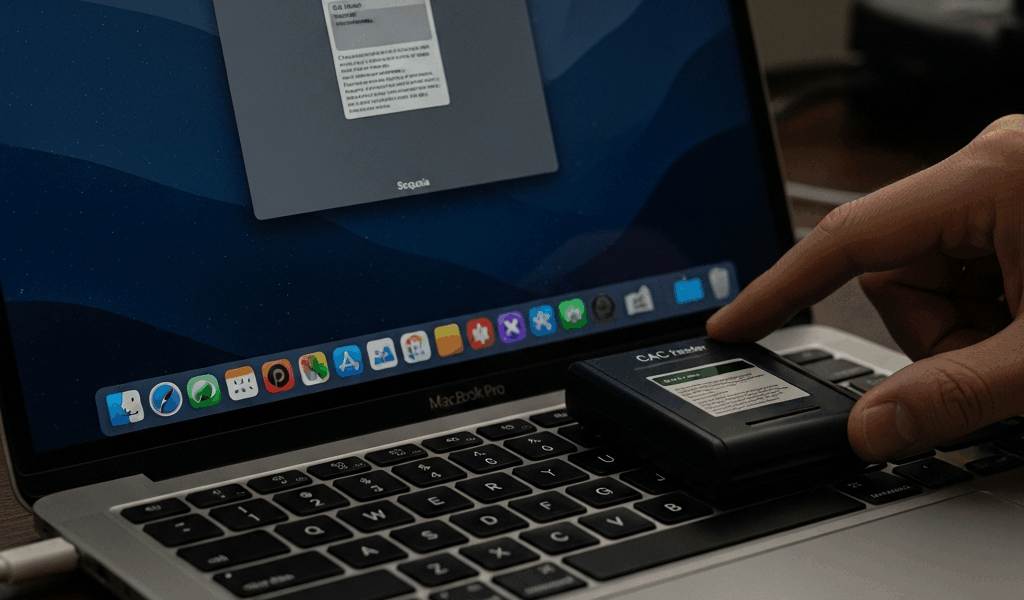
CAC Reader Not Working on Mac Sequoia — Fix Guide
CAC authentication on Mac has gotten complicated with all the macOS updates flying around — and Sequoia broke more things than most. As someone who has been setting up CAC authentication for service members at my installation for going on six years, I learned everything there is to know about what these updates actually destroy under the hood. I watched a sailor spend three hours on a Monday morning locked out of her email before we tracked it down to a two-line Terminal command. That’s what makes getting this right so important to those of us keeping these systems running.
Grab your CAC reader, sit down, and work through these steps in order. Don’t skip ahead. Don’t make my mistake — I jumped straight to reinstalling certificates on the first few Sequoia cases I handled, completely bypassed the driver layer, and cost everyone an extra hour they didn’t have.
The Sequoia Problem — What Changed
But what is CryptoTokenKit? In essence, it’s Apple’s native framework for reading PIV-compliant cards like your CAC. But it’s much more than that — it’s the entire handshake layer between your USB reader and anything authentication-related on the Mac.
When Apple shipped Sequoia (macOS 15), they rewrote how that framework initializes USB smart card readers at login. Older macOS versions had CryptoTokenKit aggressively enumerating connected readers on boot. Sequoia throttled that behavior — apparently tied to some security hardening work on Apple’s end. The practical result is ugly: a large chunk of USB and USB-C CAC readers just don’t get recognized. Your Mac sees the USB device. It doesn’t hand it off to the smart card subsystem. The CAC sits there. Nothing happens.
The readers I see this with most often at my installation are the SCR3500A from SCM Microsystems — a black USB-A reader that basically everyone has — the Identiv uTrust 3700F, and several of the cheaper USB-C readers people bought when they switched to M1 or M2 MacBooks. The fix differs slightly depending on which one you have, which is why this guide runs through multiple steps.
Probably should have opened with this section, honestly — if you’re on Sequoia 15.0 or 15.0.1, update to at least 15.1 first. Apple quietly patched one of the core CryptoTokenKit issues in that point release. Check System Settings → General → Software Update before you touch anything else.
Step 1 — Re-enable Smart Card Support
This is the fix that clears the problem for probably 70% of people. It’s a Terminal command — forces CryptoTokenKit to re-register the PIV token extension, which is the specific component responsible for reading DoD CAC cards.
Open Terminal. It’s in Applications → Utilities, or just Spotlight it. Once you’re in, type — or paste — this command exactly:
sudo defaults write /Library/Preferences/com.apple.security.smartcard DisabledTokens -arrayHit Enter. You’ll get a password prompt for your Mac’s administrator account. Type it, hit Enter again. No characters will appear as you type — that’s normal, not a glitch.
Now run this second command:
sudo sc_auth identitiesThis queries the smart card system for recognized identities. Reader plugged in and things starting to cooperate? You’ll see output referencing your CAC certificates. Nothing back — or an error about no smart card present — move to Step 2.
Restart your Mac. Full restart — not sleep, not fast user switching. After it comes back up, plug your CAC reader in fresh and give it about 30 seconds. Then try a CAC-protected site or your CAC-required application.
Frustrated by months of dealing with a reader that worked fine on Monterey and Ventura, one of our IT techs eventually wrote this command set on a sticky note and taped it directly to his desk monitor. I’ve since had it printed on a laminated half-sheet we hand out at new service member check-in. It’s that reliable.
Step 2 — Install Feitian USB-C Driver If Needed
If Step 1 didn’t fully solve it and you’re running a USB-C reader — particularly one of the Feitian (also spelled Feitain on some of their own packaging, which is its own headache) USB-C smart card readers — you need an additional driver.
The specific models I’ve seen require this: the Feitian R301, the bR301 Bluetooth reader when used over USB-C, and the Identiv uTrust 3700F in USB-C mode sometimes needs it too. Sequoia’s native CCID driver stack doesn’t fully support some of these devices’ USB descriptor tables — that’s the short version of a longer, more frustrating story.
Here’s how to get it sorted:
- Go to ftsafe.com — Feitian’s official site. Navigate to Support → Download → Drivers.
- Download the macOS CCID driver package. As of early 2025, the current version is iR301 CCID Driver v3.1.2 — the installer file runs about 4.2 MB.
- Open the .pkg installer. macOS will almost certainly throw a Gatekeeper warning. Go to System Settings → Privacy & Security, scroll down, and find the message saying the driver was blocked. Click “Allow Anyway.”
- Run the installer again and complete it.
- Restart your Mac.
After restart, plug in your USB-C reader and give it a full 45 seconds. The system needs that moment to load the new kernel extension. Open Terminal, run sudo sc_auth identities again — at this point you should see your card’s identities listed.
One thing I learned the hard way — skip the USB-C hub. Plug directly into one of the Mac’s built-in Thunderbolt ports. Hubs introduce their own USB negotiation layer, and I’ve watched them confuse the CCID driver even when everything else was correctly configured. Direct connection only.
Step 3 — Reinstall DoD Certificates
Even with the reader working at the hardware and driver level, you can still hit certificate errors in browsers if your DoD root certificates are outdated or corrupted. Sequoia’s tighter security sandbox sometimes marks older certificate installations as untrusted on first boot — quietly, without telling you anything useful.
First, clear your browser cache — at least if you want to avoid validating against stale data after reinstalling certs. In Safari: Settings → Advanced → check “Show features for web developers” → Develop menu → Empty Caches. In Chrome: Settings → Privacy and Security → Clear Browsing Data → check Cached images and files → Clear data.
Now get fresh DoD certificates:
- Go to militarycac.com/macnotes.htm — the authoritative source for this. Find “DoD Certificates” and download the latest InstallRoot package for Mac. Current package as of 2025 is InstallRoot 5.5 macOS, roughly 11 MB as a .pkg.
- Run the installer. It deposits DoD root, intermediate, and issuing CA certificates directly into your system keychain.
- Open Keychain Access — Applications → Utilities → Keychain Access. In the left sidebar, select “System” under Keychains, then “Certificates” under Category.
- Search “DOD” in the search bar. You should see a list — DoD Root CA 3, 4, 5, 6, plus several EMAIL CA and ID CA entries.
- If any show a red X or flag “This certificate has an invalid issuer,” right-click it and select “Get Info.” Under Trust, change “When using this certificate” to “Always Trust.” Close the window, enter your password when prompted.
Quit Safari or Chrome entirely after this — not just close the window, but fully quit and reopen. That distinction matters more than it should.
At this point, with your reader recognized by Sequoia’s CryptoTokenKit, the correct CCID driver installed where needed, and fresh DoD certificates trusted in Keychain Access, CAC authentication should be working. Test it at myaccess.defense.gov or whichever portal you need. Insert your card when prompted, select the correct certificate — usually the one labeled with your name and “Authentication” rather than “Email Encryption” — and enter your PIN.
Still failing after all three steps? The next thing I check is whether the CAC itself has expired or locked from too many bad PIN attempts. That’s a trip to the ID card office, not an IT fix. But these three steps clear the Sequoia-specific issues for the overwhelming majority of cases — and now you won’t lose a Monday morning to it.


Subscribe for Updates
Get the latest cac readers.com updates delivered to your inbox.
We respect your privacy. Unsubscribe anytime.