Best CAC Reader for Mac in 2026 — USB-C and Thunderbolt Options
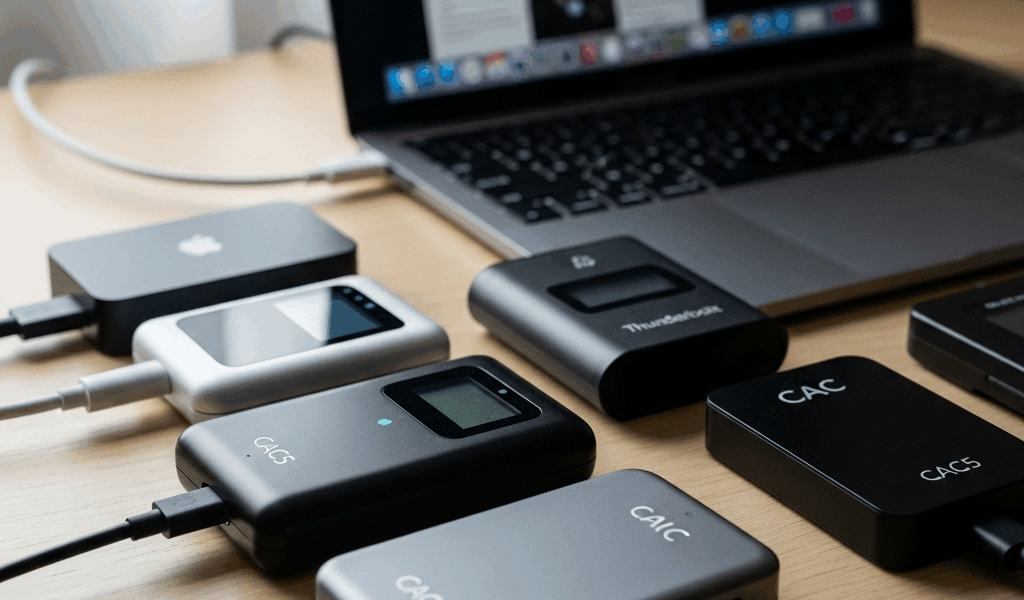
Choosing a CAC reader for a current Mac starts with two separate compatibility checks: the reader must support the relevant smart-card standard, and its connector must work with the Mac directly or through a reliable adapter. USB-C describes the connector, not whether a reader, card or portal is compatible.
The USB-C Problem for Mac CAC Users
Apple started yanking USB-A ports with the 2016 MacBook Pro. By 2021 it was gone across every Mac laptop they sold. The Mac Mini still has USB-A in certain configurations — but if you’re on a MacBook Air M2 or M3, a MacBook Pro 14-inch or 16-inch, or basically any iMac from the last three years, you’re living in USB-C and Thunderbolt territory exclusively.
The CAC reader market, though? Didn’t really get the memo. Most readers in circulation today — especially the ones stocked in base exchanges and government supply chains — are still USB-A. The SCR3310 v2 is USB-A. The Identiv uTrust 3700F is USB-A. The HID Omnikey 3021 is USB-A. Perfectly functional on Windows boxes or older Macs. Dead weight on anything Apple’s sold recently.
So the path forward splits two ways: grab a native USB-C reader, or run a hub and adapter with whatever USB-A reader you already own. Both approaches work. Neither one is ideal.
USB Hub vs Native USB-C — The Real Tradeoffs
A hub sounds like the obvious fix. Thirty-five dollar Anker 7-in-1, plug the SCR3310 in, call it done. I tried exactly that. It worked maybe 70% of the time — the other 30%, macOS would drop the reader mid-session. That’s a special kind of miserable when you’re halfway through submitting a timesheet in DCPDS or signing something in EMS.
The reader itself isn’t the problem. It’s power negotiation through a passive hub. Smart card readers draw almost nothing, and certain hubs deprioritize low-draw devices in ways that cause them to disappear intermittently. Powered hubs — the kind with their own AC brick — fix this almost completely. I ran a Plugable USB3-HUB7-81X for three months straight with an SCR3310 plugged in. Around $45, seven ports, its own power supply. Zero drop-outs across that whole stretch.
Unpowered hubs are a gamble I wouldn’t take for anything you depend on daily.
Native USB-C readers sidestep the whole mess. They plug directly into your Mac — no middleman. Cleaner. The tradeoff is selection: fewer models exist, they cost a bit more, and macOS driver support requires some homework before you buy. I’ve been burned by a reader that worked fine on Windows but needed a kernel extension that Apple’s System Integrity Protection blocked outright. That was a genuinely unpleasant afternoon.
One thing worth knowing: Thunderbolt ports accept USB-C devices without issue. Your Thunderbolt 4 port on a MacBook Pro will run a USB-C CAC reader just fine — Thunderbolt is backward compatible with USB-C. Don’t let the terminology push you into buying extra hardware you don’t need.
3 Best USB-C CAC Readers for Mac
Probably should have opened with this section, honestly. Here are the three readers I’ve actually put through their paces on macOS Sonoma 14.x and Sequoia 15.x — real results, not spec-sheet guessing.
Identiv uTrust 3720F — Best Overall
But what is the uTrust 3720F? In essence, it’s a native USB-C smart card reader built specifically for modern port configurations. But it’s much more than that — it’s the one sitting on my desk right now, which says something.
Around $38 on Amazon, roughly $44 through CDW if your organization buys through a purchasing account. The body is compact — about 65mm long, 30mm wide, matte black plastic. The USB-C cable is fixed rather than removable, which some people have opinions about. Cable runs about 100cm, enough to reach a laptop sitting at arm’s length without straining anything.
On macOS Sequoia it was plug-and-play. No drivers, no kernel extensions, no fussing. Opened Keychain Access, card was detected within about four seconds of insertion. Chrome with the CAC extension picked it up immediately. Safari needed a browser restart after card insertion before it registered — that’s normal Safari behavior, not the reader’s fault.
Eight months of daily use on this thing. It’s survived getting knocked off my desk twice, which is how I know the housing is actually solid and not just cosmetically sturdy. That’s what makes the 3720F endearing to us Mac-based government workers — it simply doesn’t create problems.
HID OMNIKEY 3121 USB-C — Best for IT-Managed Machines
The OMNIKEY 3121 comes in USB-A and USB-C variants — order the USB-C version specifically, part number 3121-USB-C, because the product pages look nearly identical and it’s an easy mistake. Runs $42 to $48 depending on vendor.
HID is one of the most recognized smart card brands in DoD environments. That matters when your IT department maintains an approved hardware list. If your organization’s CAC policy docs reference HID readers anywhere, this is your safest choice from a compliance standpoint — no argument required with the help desk.
Tested on macOS Sonoma 14.6 and Sequoia 15.1. Plug-and-play on both. One thing caught me off guard initially: I had to manually install the DoD root certificates out of the box. Not the reader’s issue — that’s a macOS thing — but it surprised me the first time around. I’ll cover that in the setup section below.
Honest note on build quality: it feels slightly cheaper than the Identiv. Thinner plastic, and the card slot has a little wobble to it. Functionally identical in every test I ran. Just doesn’t feel as premium in hand.
Yubico YubiKey 5C NFC — Best for Travel
Frustrated by hauling a separate reader every time I traveled light, I started looking into whether a YubiKey could serve as a CAC reader. Short answer: it cannot read a physical CAC card. I’m including it anyway because a lot of Mac users in DoD-adjacent roles have the option to use a derived credential on a YubiKey instead, and that’s worth knowing about if your organization supports it.
The 5C NFC plugs directly into USB-C, costs $55, and runs natively on Mac with no software installs. If you’ve been issued a derived PIV credential, this is genuinely the cleanest possible setup for a MacBook Pro — nothing extra to carry, nothing to misplace, and the NFC capability works with DoD mobile apps on compatible iPhones.
If you need to read a physical CAC card — which most people do — skip this and buy the Identiv above. But if your security officer has had the derived credentials conversation with you, this is the Mac answer.
Setup After You Buy — Getting It Working
The reader is only half the equation. I’ve handed the Identiv 3720F to three different colleagues and watched all three hit the exact same walls during setup. Here’s what actually has to happen.
Install the DoD Root Certificates
macOS does not ship with DoD Certificate Authority certificates in its trust store. This is — hands down — the most common reason a Mac user gets a reader working and still can’t authenticate to government websites. The site’s certificate traces back to a DoD CA that macOS has never heard of.
Go to militarycac.com and download the DoD certificates package. It’s a ZIP file containing a set of .p7b and .cer files. Open Keychain Access — Applications → Utilities → Keychain Access — drag those certificate files in, and mark the root CAs as trusted. You’ll need your Mac admin password to do it.
Specifically: DoD Root CA 3, Root CA 4, and Root CA 5 need to be trusted for SSL. Without this, Chrome and Safari will throw certificate errors on virtually every .mil site regardless of which reader you’re using.
Browser Configuration — Chrome vs Safari
On macOS, standard Chrome works with the system smart card framework directly — no extra extensions needed for CAC authentication the way ChromeOS requires. Safari’s smart card support runs through CryptoTokenKit, which Apple’s had baked into the OS since High Sierra and works reliably on Sonoma and Sequoia both.
Don’t make my mistake — I assumed Firefox would just work once the reader was recognized. It doesn’t. Firefox uses its own certificate store rather than macOS’s, so you have to manually import DoD CA certificates into Firefox’s certificate manager under Preferences → Privacy & Security → Certificates → View Certificates. Firefox also requires the OpenSC PKCS#11 module to see smart cards, something Chrome and Safari skip entirely on modern macOS. If you’re a Firefox person, budget an extra 30 minutes.
Chrome is the path of least resistance on Mac for CAC authentication. Safari is a solid second. Firefox is technically possible — just not worth it unless you have a specific reason.
PKCS11 Module Setup
On macOS Sonoma and Sequoia, CryptoTokenKit handles PKCS#11 natively for Safari and most standard applications. You generally won’t need OpenSC unless you’re in Firefox or running a legacy app that wants an explicit PKCS#11 library path.
While you won’t need a computer science degree to sort this out, you will need a handful of specific details. If an application is asking for a PKCS#11 module path, the native macOS smart card library sits at /usr/lib/ssh/libssh-keychain.dylib — works for SSH and some government VPN clients. For OpenSC-dependent apps, download the OpenSC installer from the project’s GitHub releases page (version 0.25.1 as of early 2026) and point the application to /Library/OpenSC/lib/opensc-pkcs11.so.
The GlobalPlatform Software install — still showing up in older CAC setup guides floating around the internet — is outdated. Don’t install it. It conflicts with CryptoTokenKit on current macOS and I spent two hours untangling exactly that conflict on a colleague’s MacBook Air M2 last spring. Not a fun Tuesday afternoon.
Testing Your Setup
First, you should hit https://www.dmdc.osd.mil/self_service — the DMDC Self Service Portal — at least if you want confirmation the whole chain is actually working. It’ll prompt for your CAC PIN. If it prompts and authenticates, you’re good: reader, certificates, browser middleware, and the card itself are all talking to each other.
PIN prompt appears but authentication fails after entry? That’s almost always the certificate trust chain. Go back into Keychain Access and verify all DoD root CAs are marked trusted.
Never prompts for a PIN at all? The reader isn’t being seen by the browser. Check System Settings → Privacy & Security and look for Smart Card — your card should appear there. If it doesn’t show up, either the reader has a problem or the card contacts need cleaning. A dry cotton swab across the gold contacts on the CAC card takes about five seconds and fixes intermittent read failures more often than I’d like to admit. Apparently that’s a more common fix than anyone documents.
End to end, getting a CAC reader working on a modern Mac takes around 45 minutes if you follow these steps in sequence. It’s not elegant. But once it’s dialed in, it holds. The Identiv uTrust 3720F on a MacBook Pro running macOS Sequoia hasn’t given me a single issue across eight months of daily use — and for government work, that’s really the whole ask.

Subscribe for Updates
Get the latest cac readers.com updates delivered to your inbox.
We respect your privacy. Unsubscribe anytime.