
“`html
Quick Fix — Reinstall the Driver in Device Manager
CAC reader drivers Windows 11 not working is one of those issues that catches you mid-workday, usually right when you need to sign a document. I’ve been down this road more times than I’d like to admit, and nine times out of ten, the fix takes less than five minutes in Device Manager.
Here’s what’s actually happening — Windows 11 updates occasionally drop your CAC reader into a state where it’s either invisible or showing up as “Unknown Device” instead of “Smart Card Reader.” USB driver assignments got shuffled. That’s it. Your hardware didn’t die.
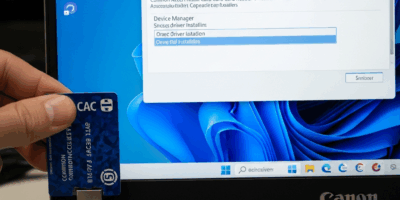
Open Device Manager. Right-click the Start button and select it, or press Windows key + X and pick Device Manager from the menu. You’ll see a tree of device categories. Look for “Smart Card Readers” first. If your CAC reader is there but has a yellow exclamation mark, that’s a driver issue. Not there at all? Scroll down to “Other Devices” and look for anything labeled “Unknown Device” with a question mark. That’s probably your reader.
Right-click the device. Select “Uninstall device.” A dialog box appears—check the box that says “Attempt to remove the driver software for this device” and click Uninstall. Windows 11 will remove it completely.
Here’s the part people skip: Shut down your computer entirely. Don’t restart—actually power off. Unplug the CAC reader for 30 seconds, then plug it back in after you restart. Windows will detect it as new hardware and automatically search for the driver. In most cases, Windows 11 has the generic smart card driver already built in, and your reader comes back as “Smart Card Reader” or as “[Manufacturer] CAC Reader” under the Smart Card Readers category. Green checkmark, no yellow warning? You’re done.
Probably should have opened with this section, honestly — so many support tickets resolve right here and nowhere else.
Windows 11 SmartCard Service — Why It Matters
Reinstalled the driver and your reader still doesn’t work? Check Services.msc. Seriously.
Windows 11 disabled the SmartCard service by default in certain builds, particularly early 21H2 releases. If that service is stopped, your CAC reader won’t function — even though Device Manager shows it installed perfectly. This is the second most common reason for detection failure.
Press Windows key + R, type services.msc, and hit Enter. Scroll down until you find “Smart Card.” Double-click it. Look at the “Startup type” dropdown. If it says “Disabled,” change it to “Automatic.” Click Apply, then Start. The service launches immediately. Click OK.
Miss this step and you’ll get vague errors like “No smart card detected” when you try to authenticate. Your certificate management software won’t see the reader, even though it’s physically connected and the driver is installed.
Restart your computer for good measure. Open Device Manager again and confirm the reader still shows under Smart Card Readers with no warnings. It should.
Model-Specific Drivers — Gemalto, SCM, ACS Readers
The generic Windows driver didn’t work? Then you need manufacturer-specific drivers. CAC readers come in three flavors.
Gemalto IDPrime Readers
Gemalto — now part of Thales — makes IDPrime and IDPrime 3927 readers commonly issued by DoD. Windows 11 21H2 updates sometimes drop support for older driver versions. Download version 3.4.2 or later from the Gemalto support portal at gemalto.com/dps. Log in with your account. Look for “IDPrime Driver Package for Windows 11,” currently at version 3.5.1 (released March 2024).
Uninstall any existing Gemalto software first. In Device Manager, uninstall the reader as described above. Install the 3.5.1 driver package, restart, and plug in the reader. Device Manager should now show “Gemalto IDPrime 3927” under Smart Card Readers.
Known issue: Stuck on build 21H2? Check Settings > System > About. IDPrime readers disconnect after 10 minutes of inactivity on driver versions earlier than 3.4.2. This isn’t a CAC failure — it’s timeout behavior. Update to 3.4.2 or later and that goes away.
SCM Microsystems Readers
SCM makes SPR332 and SCR3310 readers, particularly common in military and federal settings. Download the latest driver from scm-microsystems.com/en/products/smart-card-readers/contact/downloads. Current version is 2.3.8, released January 2024, with explicit Windows 11 certification.
Installation process is identical — uninstall in Device Manager, install the driver package, restart, reconnect. One quirk though: SCM drivers sometimes install a utility called “Identiv Reader Manager” that runs at startup. Don’t disable it. That utility handles power management for the reader.
ACS ACR122U and ACR39U Readers
ACS Advanced Card Systems makes ACR122U and ACR39U readers found in some civilian CAC environments. Download from acs.com.hk/en/driver for ACR Driver version 1.7.5 or later — Windows 11 compatible, released September 2023.
Same uninstall-and-reinstall process. One note: ACS readers sometimes appear in Device Manager as “ACS ACR122U PICC Interface” or similar. That’s normal. No yellow warning? The driver is working.
Identifying Your Reader Model
Not sure which reader you have? Right-click it in Device Manager and select Properties. Go to the Details tab, click the Property dropdown, and select “Hardware Ids.” You’ll see strings like “USB\VID_1234&PID_5678.” The VID identifies the manufacturer — 0x0B81 is Gemalto, 0x04E6 is SCM, 0x072F is ACS. Google that VID and the PID together and you’ll find the exact model.
Registry Fix for Corrupted CAC Reader Entries
Driver reinstall failed. SmartCard service is running. Device Manager still shows nothing, or shows Unknown Device consistently. Time for the registry.
Windows 11 sometimes leaves orphaned driver references from failed uninstalls or upgrades from Windows 10. These block detection of new drivers.
Backup your registry first. Press Windows key + R, type regedit, and hit Enter. In the menu bar, click File > Export. Save a backup to your Desktop called “Registry_Backup_[Date].” You can restore from this file if something goes wrong.
Navigate to HKEY_LOCAL_MACHINE\SYSTEM\CurrentControlSet\Enum\USB. Expand this key. You’ll see dozens of subfolders with names like “VID_0B81PID_0001” — that’s a Gemalto reader. Look for any entry that matches your reader’s Hardware ID from Device Manager. Right-click the folder and delete it. Windows will rebuild the entry when you reconnect the reader.
Still stuck? Check HKEY_LOCAL_MACHINE\SYSTEM\CurrentControlSet\Services\usbccgp. This service manages composite USB devices. If corrupted, delete the entire registry entry — right-click, Delete — restart, and let Windows rebuild it. Some reports claim this fixed stuck “Unknown Device” issues on Windows 11 22H2.
Restart after any registry edit. Plug in the reader. Open Device Manager and refresh with F5. If the registry was the problem, your reader will appear cleanly under Smart Card Readers.
When to Call IT — It’s Not Your Device
You’ve reinstalled the driver. SmartCard service is running. Device Manager shows the reader installed and working. But your certificate manager still won’t load the CAC.
The issue has moved upstream. It’s not the device or the driver anymore.
Check three things before contacting IT:
- Windows Policy Block — Your organization might have disabled smart card access at the group policy level. Open
gpedit.msc(Group Policy Editor). Navigate to Computer Configuration > Administrative Templates > System > Smart Card. If “Allow smart card device enumeration” is set to Disabled, that’s your answer. IT needs to flip this. - Antivirus or Endpoint Protection — Many organizations run Defender or third-party endpoint protection that blocks certificate access by default. Check if your antivirus settings have a “Smart Card” or “Certificate” exclusion. If not, add an exclusion for your CAC reader’s driver path — usually C:\Program Files\Gemalto or similar.
- Firmware Version — Older CAC reader firmware sometimes conflicts with Windows 11. Some Gemalto IDPrime readers manufactured before 2021 require a firmware update. Only IT can do this through your organization’s management console.
All three check out and the reader still doesn’t work? Contact your IT help desk with this: “Device Manager shows [exact reader name] installed under Smart Card Readers. SmartCard service is running. Windows Policy allows smart card enumeration. Request verification of: (1) endpoint protection policy for smart card access, (2) reader firmware version, (3) certificate enrollment status in Active Directory.”
That email saves 45 minutes of “Have you tried restarting?” troubleshooting. IT will recognize you’ve already completed the client-side fixes and can focus on policy or enrollment issues.
“`



Subscribe for Updates
Get the latest cac readers.com updates delivered to your inbox.
We respect your privacy. Unsubscribe anytime.