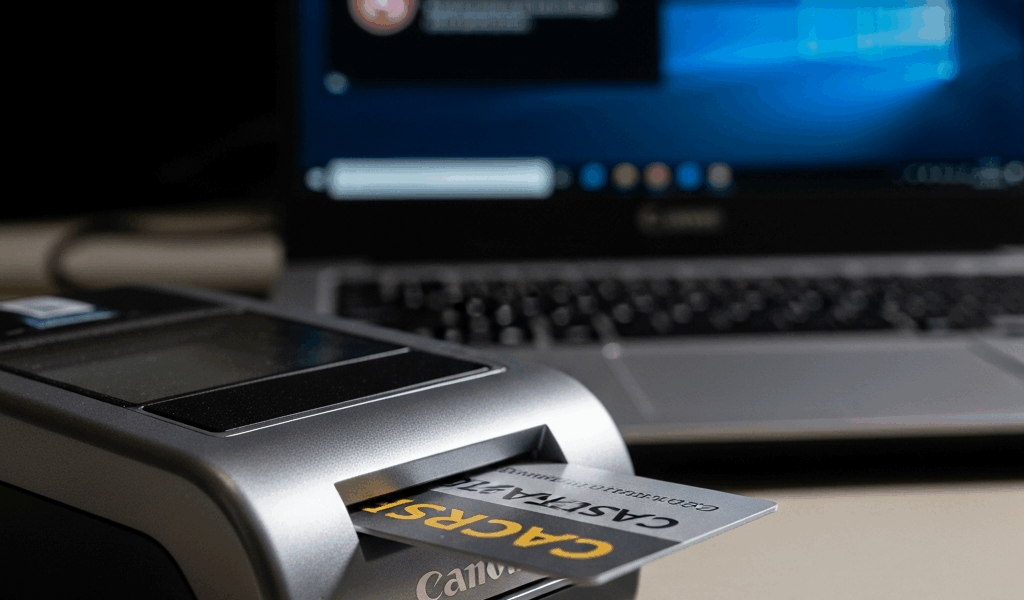
Why Your CAC Reader Stops Detecting the Card
I’ve spent the last three years supporting CAC readers for federal contractors, and honestly, the most frustrating support ticket is always identical: “My reader shows up in Device Manager just fine, but it won’t read my card.” That’s different from a completely missing device — your reader is there. Windows sees it. But the card detection? Dead silent.
This distinction matters because it narrows down where the problem actually lives. A card detection failure means your reader hardware is communicating with Windows, but something in the chain between the physical card slot and the software layer got broken somewhere. Maybe it’s driver corruption. Maybe it’s power delivery choking out mid-read. Maybe it’s firmware that got trampled by a Windows update you didn’t authorize.
Here are the real culprits I’ve traced repeatedly:
- Driver corruption or partial installation — Windows 10 updates sometimes break USB drivers mid-cycle, leaving your CAC reader in a zombie state where it powers on but doesn’t initialize the card detection sequence properly.
- Insufficient USB port power delivery — Older machines or certain motherboards throttle power to USB ports, especially after sleep cycles. Your reader lights up but lacks the amperage to trigger card detection.
- Firmware mismatch with Windows 10 build — Some CAC reader firmware versions were built before certain Windows 10 builds existed. When you update Windows, the reader firmware silently fails the compatibility handshake.
- Card contact degradation — Less about software, more about physics. Contacts oxidize or bend slightly, preventing the electrical connection that triggers detection.
Probably should have opened with this section, honestly, but knowing which category your problem falls into saves you hours of pointless registry editing.
Quick Hardware Checks Before Troubleshooting
Do this first. Seriously. I’ve watched people burn two days resetting drivers when a bent card contact was the real problem.
Inspect your CAC physically. Pull it out. Look at the chip contacts — the gold-colored rectangle on the front. Any visible dirt, scratches, or oxidation? Gently wipe the contacts with a lint-free cloth (microfiber works). Don’t use water or solvents. Just dry cloth. I made that mistake once with isopropyl alcohol and degraded the card’s protective coating.
Now try reinserting the card slowly and deliberately into your reader. If you feel unusual resistance or the card doesn’t slide smoothly, stop. Don’t force it. That’s either a bent card or reader contacts that need replacement.
Next, test the USB port itself. Unplug the reader and plug it into a different USB port on your machine — ideally one that’s not a hub. If your computer has four USB ports, try all of them. Skip any USB hubs; they introduce power and data integrity issues that complicate diagnosis. Reinsert your CAC and see if it detects.
Still nothing? Test the reader on another Windows 10 machine. This is critical. If your card reads fine on a colleague’s workstation, the problem is your machine or that specific USB port. If the reader still won’t detect the card on the second machine, the reader hardware has failed and needs replacement — no amount of driver reinstalling will fix it.
If you can swap readers and try your card in another reader on your original machine, do that too. Card reading fine with reader B but not reader A? The original reader is dead. Request a replacement from your IT department and skip the rest of this article.
Fix 1 — Reset and Reinstall the CAC Reader Driver
Corrupted drivers cause roughly 40% of card detection failures I’ve encountered. Windows 10 sometimes installs generic USB drivers that conflict with CAC-specific drivers, or update cycles partially overwrite driver files.
Open Device Manager (right-click Start, select Device Manager). Expand “Smart Card Readers.” Find your reader — it’ll probably have a name like “OMNIKEY 3121 USB” or “Gemalto USB SmartCard Reader” or something with your manufacturer’s name.
Right-click it. Select “Uninstall device.” Check the box that says “Delete the driver software for this device.” Click Uninstall. Wait for Windows to confirm.
Now delete the cached driver files. Open File Explorer and navigate to:
C:WindowsSystem32DriverStoreFileRepository
Look for any folder starting with your reader manufacturer’s name (like “omnikey” or “gemalto”). Delete those folders. You’ll need admin privileges. If you get access denied, restart in Safe Mode and try again.
Alternatively, open Command Prompt as Administrator and run:
pnputil /delete-driver oem*.inf /uninstall
This removes all cached printer and smartcard drivers. Aggressive, but effective — at least if you know what you’re doing.
Restart your machine. When Windows boots, plug in your CAC reader. Windows will auto-detect it and install the generic driver. This usually works. If you have your reader’s installation CD or downloaded drivers from the manufacturer’s website, install those now — they’ll upgrade the generic driver to a CAC-specific one.
Insert your CAC. If it detects, you’re done.
One note: if you’re using ActivClient (the DoD’s authentication software), make sure you’re on version 8.2 or later for Windows 10 compatibility. Earlier versions have known card detection issues. Check your version by opening ActivClient and going to Help → About.
Fix 2 — Update Windows 10 and Reader Firmware
Windows 10 updates occasionally reset your USB driver stack, which breaks card detection even if the reader itself still works. Additionally, some reader firmware was never tested against certain Windows 10 builds.
First, update Windows. Open Settings → Update & Security → Windows Update. Click “Check for updates.” Install any pending updates and restart.
Next, check your reader’s firmware version. This varies by manufacturer, but most readers report firmware through ActivClient or a dedicated utility. For Gemalto readers, it’s often visible in Device Manager properties. For OMNIKEY readers, check the manufacturer’s support site for your specific model number (you can find this in Device Manager under your reader’s properties).
If firmware updates are available, download them from the manufacturer’s website. Firmware updates for CAC readers typically require running an executable on your machine while the reader is connected. The process is straightforward but slow — usually 5 to 10 minutes. Don’t disconnect the reader mid-update.
For example, if you have a Gemalto GemPC Twin reader (common on federal networks), you’d download the firmware from the Gemalto support portal, run the update utility, and wait for it to complete. The reader will go silent during the update — that’s normal.
After firmware updates, restart your machine and test card detection again.
Fix 3 — Disable USB Selective Suspend and Check Port Power
Windows 10 has a power-saving feature called USB Selective Suspend. It’s aggressive and breaks CAC readers regularly. When your machine hasn’t read a card in a few minutes, Windows powers down that USB port to save battery. When you insert a card, the port needs to wake up — and sometimes it doesn’t.
Open Device Manager. Expand “Universal Serial Bus controllers.” Find your USB hub (usually labeled “Generic USB Hub” or with your chipset name like “Intel Chipset USB Hub”). Right-click it and select “Properties.”
Go to the “Power Management” tab. Uncheck “Allow the computer to turn off this device to save power.” Click OK.
Repeat this for every USB hub listed. If you have four USB ports and one hub, you might have multiple hubs to disable.
Now open Power Options. Press Win+R, type powercfg.cpl, and press Enter. Click “Change plan settings” next to your current plan. Click “Change advanced power settings.” Expand “USB settings” and set “USB selective suspend setting” to “Disabled.”
Click OK and restart your machine.
This setting disables the power-saving feature across your whole machine, which costs battery life on laptops but solves card detection on stubborn readers. If you’re on a desktop, this is a permanent fix with no downside.
When to Replace Hardware vs Keep Troubleshooting
You’ve done driver resets, firmware updates, and disabled selective suspend. Card still won’t detect. Time to stop and admit the hardware is broken.
Use this decision tree:
- Your card reads fine on another Windows 10 machine → Your reader is dead. Request replacement.
- Your reader detects another person’s card → Your CAC is dead. Request a new card from your issuing authority.
- Your reader detects a colleague’s card, but your card won’t read on any reader → Your CAC is dead.
- Your reader won’t detect any card, including on other machines → Your reader is dead.
- Your reader and card work fine with another USB port or machine → You have a motherboard USB controller issue or a driver problem specific to that port. Replace the motherboard or stick with working ports.
One honest truth: If you’ve worked through all three fixes above and the problem persists, you’re dealing with hardware failure. No registry edit or driver reinstall brings hardware back to life. Federal contractors with procurement cycles can be slow, but contact your IT support and escalate to hardware replacement. Most organizations have CAC reader spares because this happens constantly.
Document what you’ve tried. Tell your IT team: “I’ve reset drivers, updated Windows and firmware, disabled selective suspend, and tested on another machine. Card still won’t detect. Need hardware replacement.” That specificity speeds up the process and prevents them from asking you to redo work you’ve already done.



Subscribe for Updates
Get the latest cac readers.com updates delivered to your inbox.
We respect your privacy. Unsubscribe anytime.