
USB CAC reader setup has gotten complicated with all the different operating systems and configuration steps flying around. As someone who’s unboxed and set up more CAC readers than I care to admit — from fresh-out-of-the-package to first successful authentication — I learned everything there is to know about getting these things working right. Today, I will share it all with you.
Before You Touch the Reader
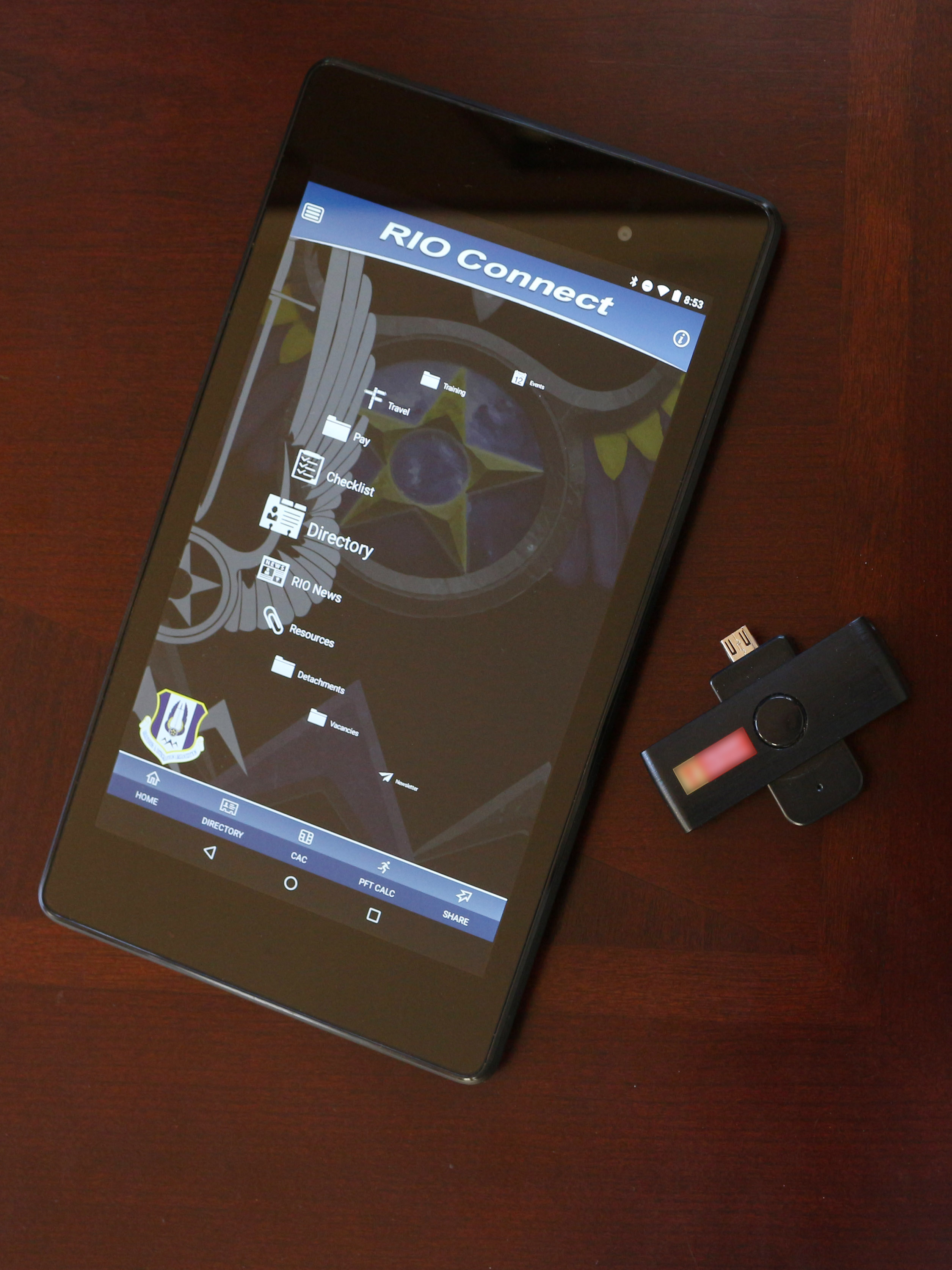
Grab your USB CAC reader, your CAC card, and make sure you know your PIN. You’ll also need admin access on your computer to install certificates and potentially drivers. If you’re on a government-managed machine, you might need to coordinate with IT for some steps. On a personal computer, you’ve got full control.
Step 1: Plug It In
Connect the reader directly to a USB port on your computer. Not a hub, not a keyboard USB port, not a monitor USB pass-through — directly into the computer. Front panel ports on desktops sometimes have power issues, so if you’re on a desktop, try a back panel port first.
Wait about 10-30 seconds. You should see a notification saying Windows is setting up the device (if it’s a new reader), and the LED on the reader should light up. If the LED comes on, the reader has power and is communicating with your computer.
Step 2: Make Sure Your Computer Sees It
On Windows 10/11, right-click the Start button, open Device Manager, and expand “Smart card readers.” Your reader should be listed there. If it shows “Microsoft Usbccid Smartcard Reader,” that’s the generic CCID driver and it’s perfectly fine for most readers.
On macOS, go to Apple menu, About This Mac, System Report, and look under USB. Your reader should appear in the device list.
On Linux, run lsusb and look for your reader, or if you’ve already installed pcsc-lite, run pcsc_scan to see if the daemon detects it.
Step 3: Install DoD Certificates
Probably should have led with this section, honestly. Without DoD certificates, your CAC reader can talk to your card all day long but your browser won’t trust any of the military websites you’re trying to access.
On Windows, download InstallRoot from DISA’s PKI site at public.cyber.mil/pki-pke/. Run the installer as Administrator and accept all certificates when prompted. Restart your browser afterward.
On macOS, download the DoD PKE bundle for Mac from the same site. Install the certificates into your Keychain. You might need to manually set each DoD Root CA cert to “Always Trust” in Keychain Access.
On Linux, download the certificate ZIP, convert the PKCS7 files to PEM format, and copy them into your system’s certificate trust store. For Ubuntu that’s /usr/local/share/ca-certificates/ followed by sudo update-ca-certificates. For RHEL/Fedora it’s /etc/pki/ca-trust/source/anchors/ followed by sudo update-ca-trust.
Step 4: Insert Your CAC
Hold the card with the gold chip facing up (for most readers — check yours if the orientation isn’t obvious). Slide it in until it seats. The reader’s LED should blink or change color to indicate it detected a card. Give it a few seconds to read the card’s initial data.
Step 5: Configure Your Browser
That’s what makes browser setup endearing to us IT types — each browser has its own quirks, and knowing them saves hours of troubleshooting.
Chrome and Edge on Windows use the Windows certificate store automatically. Once your DoD certs are installed and your reader is working, these browsers pick up your CAC certificates with zero additional configuration. This is why I recommend Chrome or Edge for most people.
Firefox is the exception. It uses its own certificate store, so you need to load the PKCS#11 security module manually. Go to Settings, search for “Security Devices,” click it, click Load, name it “CAC Module,” and point it to the PKCS#11 library: on Windows with ActivClient that’s C:\Program Files\ActivIdentity\ActivClient\acpkcs211.dll, without ActivClient try C:\Windows\System32\opensc-pkcs11.dll, and on Linux it’s /usr/lib/x86_64-linux-gnu/opensc-pkcs11.so (Ubuntu) or /usr/lib64/opensc-pkcs11.so (Fedora/RHEL).
Step 6: Test It
Navigate to a CAC-enabled site like MilConnect (dmdc.osd.mil/milconnect) or your branch’s OWA email portal. Your browser should prompt you to select a certificate. Pick the one with your email address or the one labeled “EMAIL.” Enter your PIN when prompted. If the site loads and you’re authenticated, you’re done. If not, check the troubleshooting section below.
Quick Troubleshooting
No certificate prompt? Remove and reinsert your card, restart the browser, and check Device Manager. Wrong certificate or PIN error? Clear browser cache and cookies, close all browser windows completely, and try again. Reader LED not lighting up? Try a different USB port, and if it still doesn’t work on a second computer, the reader might be defective.
Daily Tips
Insert your card before opening your browser for the smoothest experience. Remove it when you step away — it’s a security best practice and some systems are configured to lock when the card is pulled. Don’t force bent or damaged cards into the reader — you’ll wreck both the card and the reader contacts. And never share your PIN or write it down where someone could find it.


Subscribe for Updates
Get the latest articles delivered to your inbox.
We respect your privacy. Unsubscribe anytime.