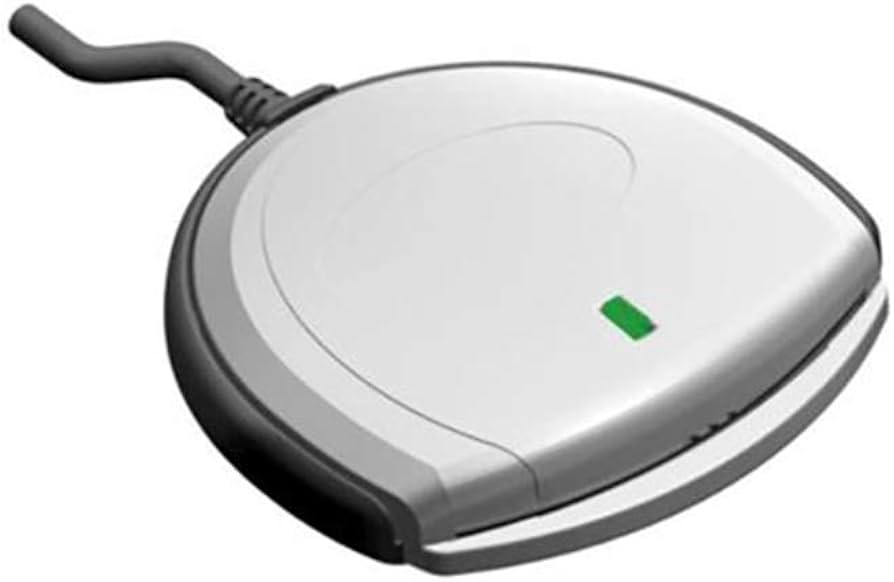
CAC reader troubleshooting has gotten complicated with all the Windows updates and driver issues flying around. As someone who has helped countless military personnel and government workers get their readers working again, I learned everything there is to know about fixing these frustrating problems. Today, I will share it all with you.
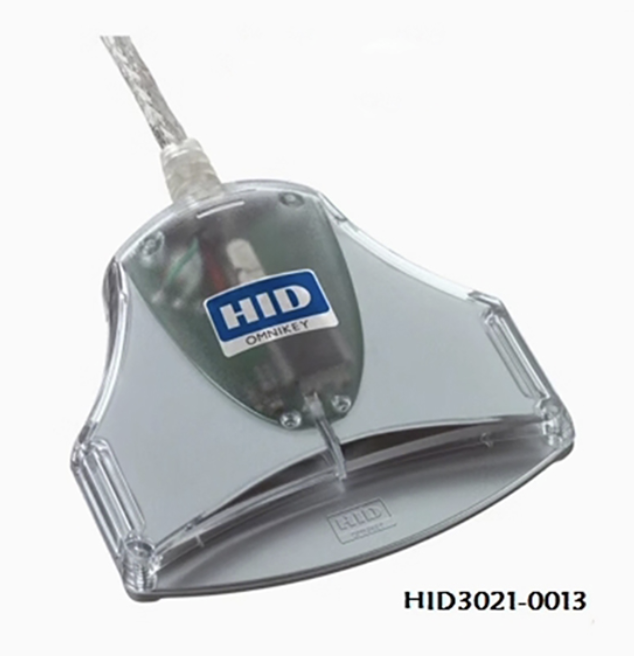
Step 1: Check the Physical Connection
Start with the basics. Unplug your CAC reader and plug it back in firmly. Try a different USB port—preferably one directly on your computer rather than through a hub. USB hubs can cause power and communication issues that drive you crazy trying to diagnose.
Look for bent pins inside the reader slot and check your CAC card for visible damage, cracks, or worn contacts. A damaged card needs replacement from your issuing office—no amount of troubleshooting fixes physical damage.
Step 2: Verify the Reader Light Indicators
Probably should have led with this section, honestly. Most CAC readers have LED indicators telling you their status:
- No light: Reader isn’t receiving power—try another USB port
- Steady light: Reader is powered and waiting for a card
- Blinking light: Reader is communicating with the card
- Red light: Error state—remove card and reinsert
Step 3: Test with Another CAC Card
If possible, borrow a colleague’s CAC for testing (with their permission). If their card works in your reader, the problem is your card, not the reader. If their card also fails, focus on the reader or your computer configuration.
Step 4: Check Device Manager for Driver Issues
Open Device Manager (right-click Start menu > Device Manager) and look for:
- Smart card readers section: Your reader should appear here without yellow warning triangles
- Unknown devices: A CAC reader showing as unknown needs driver installation
- Exclamation marks: These indicate driver conflicts or failures
Right-click the reader and select “Update driver” to search for newer drivers automatically.
Step 5: Restart Smart Card Services
Windows smart card services hang more often than Microsoft would like to admit. Open Services (type “services.msc” in the Start menu) and restart these:
- Smart Card: Right-click > Restart
- Smart Card Device Enumeration Service: Right-click > Restart
- Certificate Propagation: Right-click > Restart
Set all three to “Automatic” startup if they aren’t already.
Step 6: Clear the Certificate Cache
That’s what makes certificate cache issues endearing to us IT folks—corrupted cached certificates cause authentication failures even when the reader works perfectly. Open Command Prompt as Administrator and run:
certutil -urlcache * delete
certutil -setreg chain\ChainCacheResyncFiletime @now
Restart your browser and try again.
Step 7: Update or Reinstall ActivClient/Middleware
Your CAC middleware (usually ActivClient) processes the card data. Check for updates through your organization’s software portal. For a clean reinstall:
- Uninstall current middleware through Control Panel
- Restart your computer
- Download the latest approved version from your IT portal
- Install and restart again
Step 8: Verify Browser Certificate Settings
Each browser handles CAC authentication differently:
Chrome/Edge: Go to Settings > Privacy and security > Security > Manage certificates. Your DOD certificates should appear when your CAC is inserted.
Firefox: Requires manual security device configuration. Go to Settings > Privacy & Security > Security Devices and load the CAC module.
Step 9: Check for Windows Updates
Microsoft occasionally releases updates that break smart card functionality. Run Windows Update and install any pending updates, especially security updates. Some updates specifically address reader compatibility issues.
Step 10: Test on Another Computer
If nothing works, try your reader and card on a different machine. This tells you whether the problem is:
- Reader works elsewhere: Your computer’s configuration needs attention
- Reader fails everywhere: The reader hardware is faulty
- Card fails everywhere: Your CAC needs replacement
When to Contact IT Support
Call your IT help desk if:
- All 10 steps fail
- Your CAC PIN is locked after too many attempts
- Certificates show as expired or revoked
- You need new drivers requiring administrator installation
- Reader works but specific DoD websites still reject authentication
Preventing Future Issues
Keep your CAC reader working with these habits:
- Remove your card properly—don’t yank it out while the light blinks
- Keep reader contacts clean with compressed air
- Store your CAC in a protective sleeve when not in use
- Avoid bending or flexing the card
- Keep middleware and drivers updated through approved channels



Subscribe for Updates
Get the latest articles delivered to your inbox.
We respect your privacy. Unsubscribe anytime.