CAC reader LED lights have gotten complicated with all the different models flying around. As someone who’s troubleshot readers across every branch of service, I learned everything there is to know about what those little blinking lights actually mean. Today, I will share it all with you.
Why LED Indicators Matter
That little LED on your CAC reader is basically the device talking to you. It can’t pop up a message on screen, so it uses light patterns to tell you what’s going on. Most people ignore it completely until something goes wrong — then suddenly that light becomes the most important diagnostic tool you’ve got.
Different manufacturers use different color schemes and blink patterns, which is where things get confusing. I’ll break down the most common readers you’ll encounter in a DoD environment.
SCR3310 LED Patterns
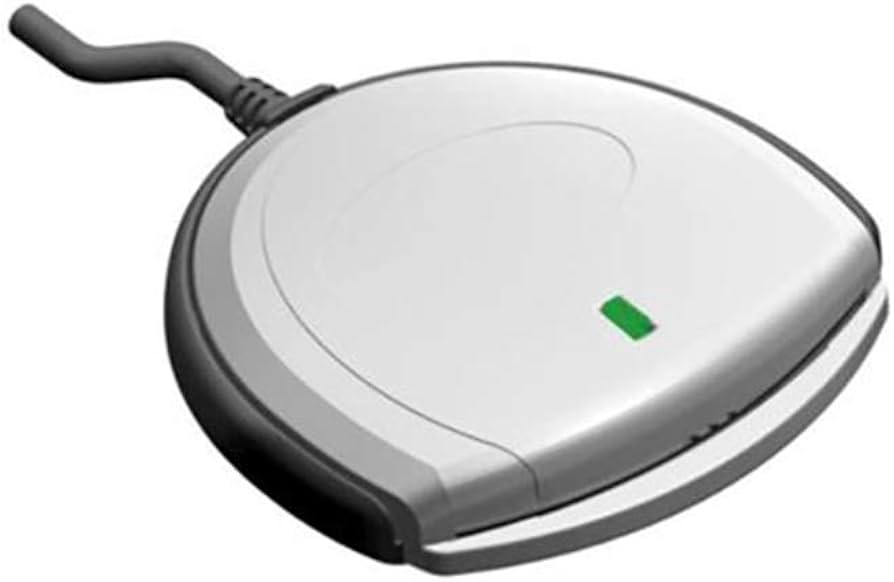
The SCR3310 — probably the most common CAC reader in government — uses a single green LED. Here’s what it tells you:
Solid green light: Reader has power and is connected to the computer. No card inserted. This is your “ready” state. If you see solid green, your reader is alive and waiting for a card.
Blinking green light: The reader is communicating with a card. When you insert your CAC and see the light flickering, that means data is being transferred. Authentication handshakes, certificate reads, PIN verification — all of this causes the light to blink. This is normal and good.
No light at all: Either the reader isn’t getting power (check your USB connection), the cable is damaged, or the reader itself has failed. Try a different USB port first.
OMNIKEY Reader LEDs
HID Global’s OMNIKEY series is a bit fancier with their indicators. Some models have multi-color LEDs that can show green, amber, and red.
Green: Normal operation, reader detected by the system. Amber/Yellow: Card inserted and being read. Red: Error condition — card read failure, bad contact, or driver issue. Alternating colors: Firmware update in progress. Do NOT unplug the reader if you see this.
Probably should have led with this section, honestly. If your OMNIKEY is showing red and you’re panicking, just pull the card out, wait five seconds, and reinsert it. Nine times out of ten, it’s a contact issue, not a hardware failure.
Identiv uTrust 2700 Indicators
The uTrust 2700 R uses a blue LED, which looks slick but can be hard to see in a brightly lit office. Solid blue means power and ready. Blinking blue means card communication. No light means no power.
What to Do When LEDs Act Weird
That’s what makes understanding these indicators endearing to us IT support folks — you can diagnose half your problems just by looking at the light.
If your LED is flickering rapidly and nonstop even without a card inserted, your reader might be malfunctioning or there’s a driver conflict. Try uninstalling the reader driver, unplugging the device, rebooting, and then plugging it back in.
If the LED comes on but goes dark when you insert your CAC, the contact pins might be dirty or damaged. Try a different card first to rule out a bad CAC. If other cards have the same problem, clean the reader contacts with compressed air — never use liquids inside a card reader.
And if you’ve got a reader with no LED activity at all, try it on another computer. If it still won’t light up, the reader is probably dead and needs to be replaced.


Subscribe for Updates
Get the latest articles delivered to your inbox.
We respect your privacy. Unsubscribe anytime.