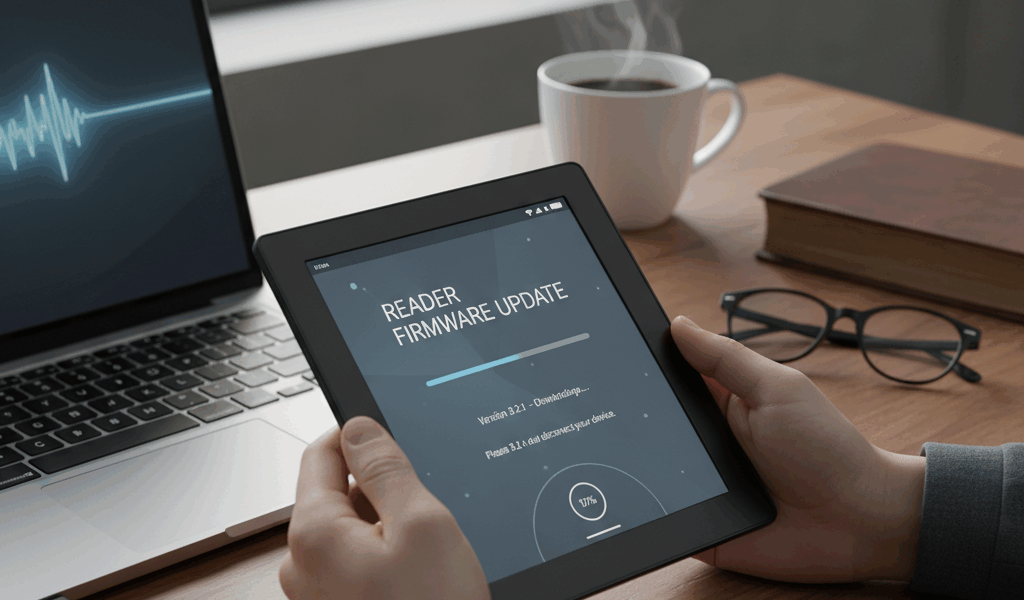
CAC reader firmware updates have gotten complicated with all the different manufacturer tools and procedures flying around. As someone who’s had to coordinate firmware updates across an entire building’s worth of readers after a security advisory, I learned everything there is to know about doing these updates without bricking your hardware. Today, I will share it all with you.

Should You Even Update?
Probably should have led with this section, honestly. The first rule of firmware updates is: if your reader is working fine and there’s no security advisory forcing an update, leave it alone. Firmware updates carry risk. A power glitch or USB disconnect mid-update can leave you with a dead reader. I’ve seen it happen.
Update your firmware when: the vendor release notes specifically address a bug you’re experiencing, there’s a critical security patch (your cybersecurity team will usually push this), a new OS version requires updated firmware for compatibility, or your organization mandates a specific firmware version for compliance.
Don’t update when: everything works fine, the update is labeled “beta” or “preview,” you’re about to do something important and can’t afford downtime, or you don’t have a backup reader handy. Seriously, that last one is important. Never update firmware on your only reader right before a deadline.
Checking Your Current Firmware
Before you do anything, find out what you’re running now. In Windows, open Device Manager, expand “Smart card readers,” right-click your reader and check Properties. The Driver tab shows the driver version, which isn’t always the same as firmware version but it’s a starting point.
Most manufacturers have diagnostic utilities that show the actual firmware version. HID has the OMNIKEY Configuration Tool, Identiv has their own diagnostic app, and you can also try opensc-tool -l from the command line which sometimes reports firmware info.
The Update Process
Step 1: Get the firmware from the right place
Only download firmware from the manufacturer’s official website or your organization’s approved software repository. Never, ever grab firmware from a random forum post or third-party download site. Malicious firmware on a smart card reader is a nightmare scenario from a security standpoint — it could intercept your PIN or certificate data.
Step 2: Prep your system
Close every browser window. Exit ActivClient or whatever middleware your shop uses. Pull your CAC out of the reader. If the update instructions say to stop the Smart Card service, do that too. You want nothing talking to the reader during the update.
Step 3: Run the update tool
Right-click and run as Administrator. Follow the prompts. And here’s the critical part — do NOT unplug the reader during the update. Do NOT close the utility window even if it looks frozen. Some firmware updates take several minutes and the progress bar might not move for a while. Walk away and get coffee if you need to, but don’t touch anything.
Step 4: Verify it worked
Unplug the reader, wait 10 seconds, plug it back in. Check Device Manager to make sure it shows up correctly. Run the vendor diagnostic tool to confirm the new firmware version. Then insert your CAC and test authentication on a website you know works. If all of that passes, you’re good.
Manufacturer-Specific Notes
That’s what makes knowing your specific hardware endearing to us support techs — the process varies enough between brands that generic advice only gets you so far.
HID OMNIKEY: Download the OMNIKEY Configuration Tool from HID Global’s support site. It handles both firmware display and updates. Updates are separate files you load through the tool.
Identiv SCR series: Identiv provides firmware through their support portal. Honestly, the SCR3310 almost never needs firmware updates because it’s a simple CCID device. If Identiv pushes an update for it, pay attention — it means something important changed.
Gemalto/Thales: Use the Gemalto Classic Client or IDPrime management tools. Enterprise customers get updates through their Thales rep, which is nicer than hunting around a website.
When an Update Goes Wrong
Reader not recognized after update? Unplug it, wait 30 seconds, try a different USB port. If Device Manager shows it with an error, uninstall the device entry and let Windows rediscover it.
Update utility says it failed? Don’t panic and don’t unplug. Try running the update again from the beginning. If it keeps failing, contact the vendor’s support line before disconnecting the reader — some readers have recovery modes that only work while still connected.
Reader is completely dead? Check the vendor’s site for a recovery utility. Some readers have a hardware recovery mode activated by holding a button while plugging in. If nothing works, contact the vendor. Failed firmware updates are usually covered under warranty since it’s a device defect if the update process can’t handle an interruption gracefully.
Enterprise Firmware Management
If you’re managing readers across an organization, standardize on a tested firmware version and document it in your configuration baseline. Test updates on 5-10 readers from different workstation configs before pushing to everyone. And keep your spare inventory updated to the same firmware version so swaps are seamless.



Subscribe for Updates
Get the latest articles delivered to your inbox.
We respect your privacy. Unsubscribe anytime.