
Finding CAC readers that actually work with DoD portals has gotten complicated with all the compatibility issues flying around. As someone who’s configured workstations for everything from DTS to MyPay to DPAS, I learned everything there is to know about which readers play nice with DoD websites. Today, I will share it all with you.
The Compatibility Reality
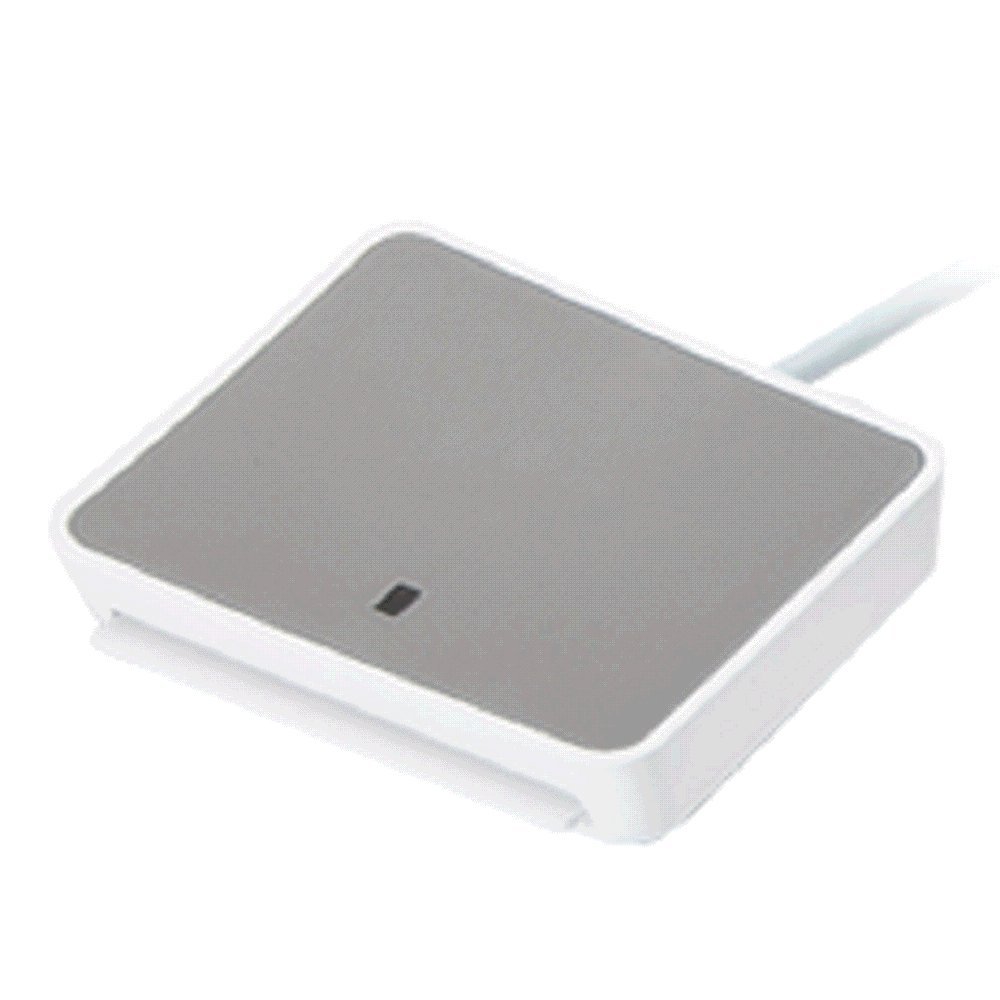
Here’s the good news: most CCID-compliant CAC readers will work with DoD portals. The reader itself doesn’t care what website you’re visiting — it just reads the certificates off your CAC and passes them to the browser. The compatibility issues people run into are almost always about middleware, browser configuration, or certificate installation, not the reader hardware.
That said, some readers are more reliable than others in practice. After years of troubleshooting access issues across multiple installations, I’ve seen clear patterns in which readers cause the fewest headaches.
Proven Readers for DoD Portal Access
SCR3310v2.0: The gold standard. This reader has been the default in government offices for years, and every DoD portal configuration guide assumes you’re using one. If you can only buy one reader for DoD access, this is it. Period.
Identiv uTrust 2700 R: Newer and slightly faster than the SCR3310. Fully CCID compliant, works great with all DoD portals I’ve tested. It’s becoming the new standard in a lot of offices as SCR3310s age out.
HID OMNIKEY 3121: Solid contact reader that works well with DoD sites. Compact design, good build quality. The drivers are well-maintained and Windows recognizes it instantly.
The Portal-Specific Gotchas
Probably should have led with this section, honestly. The reader is only one piece of the puzzle. Here’s what actually causes problems on specific DoD portals:
DTS (Defense Travel System): Picky about browser versions. Works best in Chrome or Edge with the DoD certificates installed properly. Your reader doesn’t matter if your certs are outdated.
OWA/Outlook Web Access (mail.mil): Requires the DoD root certificates AND intermediate certificates. I’ve seen people blame their reader when the real issue was missing cert chain files. Install the full InstallRoot bundle from militarycac.com and most OWA issues disappear.
MyPay: Generally works with any reader, but it will reject connections if your CAC certificates have expired. Check your cert dates before assuming your reader is broken.
RAPIDS/ID Card Office: Some of these systems use specific reader models hardcoded into their software. Don’t bring your own reader to a RAPIDS appointment expecting it to work — use whatever they have at the office.
Browser and Middleware Setup
That’s what makes understanding the full authentication stack endearing to us IT support people — the reader is just the hardware layer, but the software layer is where things actually break.
On Windows, make sure you have the latest DoD certificates installed. Go to militarycac.com and follow their step-by-step guides — they’re honestly better than any official DoD documentation I’ve seen. Make sure your browser is set to use smart card authentication and that the reader appears in Device Manager under “Smart card readers.”
On Mac, you’ll need to import the DoD certificates into Keychain Access. Safari works natively with CAC once the certs are in place. Chrome on Mac also works but requires a bit more configuration.
On Linux, you’ll need pcsc-lite, opensc, and the coolkey or cackey libraries. Firefox on Linux needs the security device configured manually in the preferences. It’s more setup work, but once it’s dialed in, it’s actually more stable than Windows in my experience.

Subscribe for Updates
Get the latest articles delivered to your inbox.
We respect your privacy. Unsubscribe anytime.