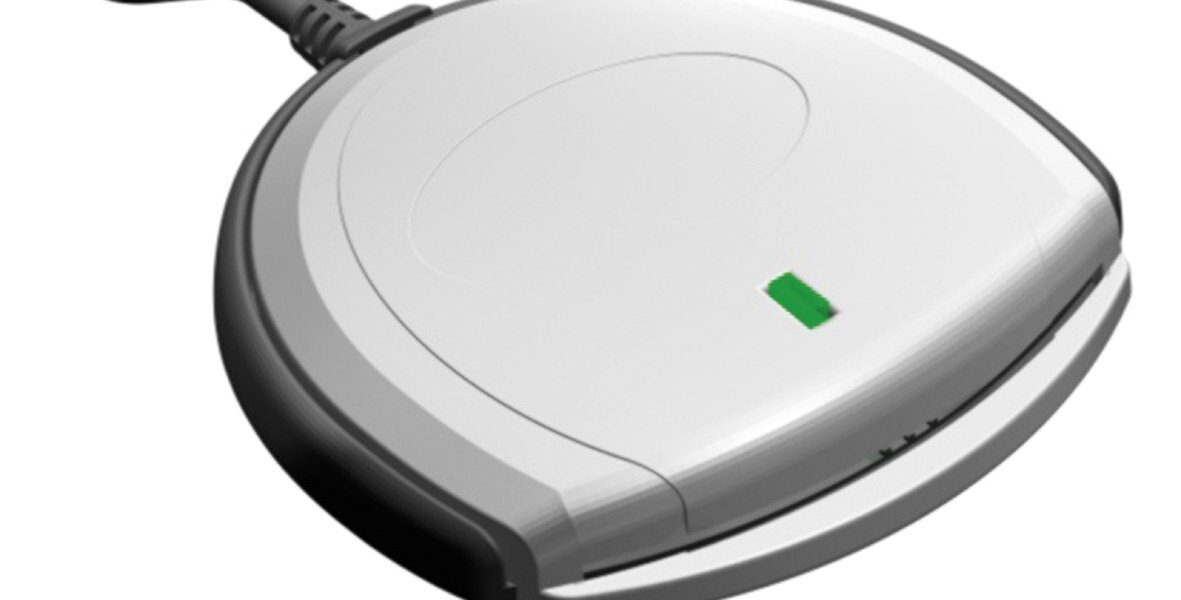
Secure CAC Reader Installation
Secure CAC Reader Installation
Installing a CAC (Common Access Card) reader properly is crucial for secure access to systems. Follow these steps for a smooth installation process.
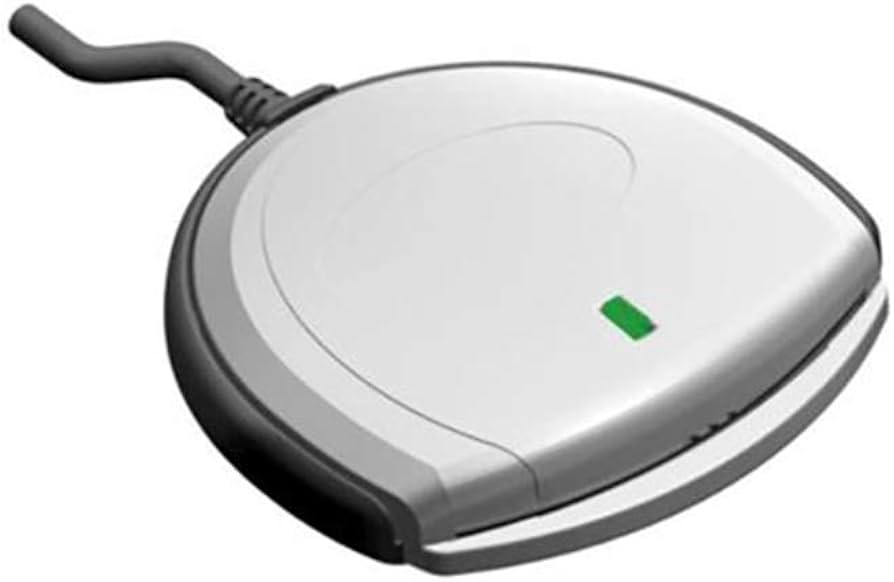
Requirements
Ensure you have the following components before starting:
- A CAC reader
- Appropriate drivers for your operating system
- A functioning USB port
- Your CAC card
Download and Install Drivers
Go to the manufacturer’s website for your CAC reader. Locate the drivers compatible with your operating system. Download the latest version available. After downloading, run the installation file. Follow the on-screen instructions to complete the installation.
Connect the CAC Reader
Plug the CAC reader into a USB port. The system should recognize the reader automatically. If not, ensure the drivers are installed correctly. Restart your computer if necessary.
Insert Your CAC Card
Once the reader is connected, insert your CAC card. The card should fit snugly without forcing it. Ensure the chip is facing the correct direction as specified by the reader’s instructions.
Configure Middleware
Middleware is necessary for the interaction between your CAC and system applications. For Windows, download and install ActivClient. For Mac, install Centrify Express or PKard. Follow the specific installation guides for these middleware applications. These steps usually involve straightforward installation wizards.
Verify Installation
Open a web browser and navigate to a CAC-enabled site, such as a government or military portal. When prompted, select your certificate and enter your PIN. If you gain access, the installation is successful.
Troubleshooting Common Issues
If the reader is not recognized, check the Device Manager on Windows or System Information on Mac. Look under the USB section for the CAC reader. Reinstall the driver if necessary. Ensure the CAC card is clean and not damaged.
For PIN-related issues, ensure your CAC card is active and has a valid certificate. If the card is locked, contact your IT support to unlock it. If the middleware is causing problems, reinstall it or seek help from support channels provided by the middleware developers.
Security Considerations
Always use a dedicated CAC reader for security reasons. Do not install any unnecessary software on the system that could compromise security. Regularly update drivers and middleware to protect against vulnerabilities.
“`
Recommended CAC Readers
Looking for a reliable CAC reader? Here are our top picks based on extensive testing and user feedback:
Best Overall: SAICOO USB CAC Reader
The SAICOO is the most popular CAC reader on Amazon, with thousands of positive reviews. Works with Windows, Mac, and Linux. Plug-and-play with no drivers needed for most systems.
Best USB-C: IOGEAR GSR205
For MacBooks and modern laptops with USB-C ports, the IOGEAR GSR205 is TAA compliant and works flawlessly with government systems. 3-year warranty included.
Best Portable: 5-in-1 Folding CAC Reader
Perfect for travel and remote work. This compact reader folds to fit on your keychain and supports both USB-A and USB-C connections plus SD card slots.
As an Amazon Associate, we earn from qualifying purchases at no additional cost to you.



Subscribe for Updates
Get the latest articles delivered to your inbox.
We respect your privacy. Unsubscribe anytime.