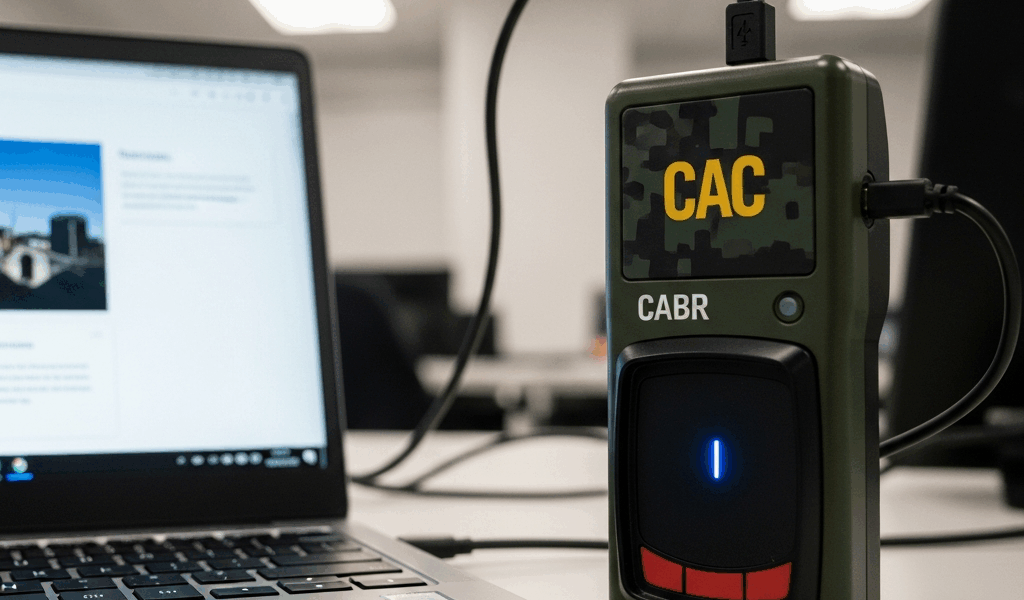
How to Set Up a CAC Reader on Chromebook for DoD Sites
As someone who spent three years managing IT infrastructure for a mid-sized DoD office, I learned everything there is to know about getting CAC readers working on Chromebooks. Dozens of service members and civilian employees came to my desk convinced their new device was a lost cause. It never was. They just didn’t have the right steps.
CAC support on ChromeOS has gotten complicated with all the scattered documentation flying around — three different DoD wikis, one archived Google Support page, and zero consistency between commands. Today it’s marginally better. Still not intuitive. I’m writing this because I know exactly where people get stuck, and I’ve watched it happen enough times to map every failure point.
Chromebook Smart Card Support Requirements — What You Actually Need
Not all Chromebooks support CAC readers. Not all readers work the same way. That’s the thing most guides skip entirely, and it’s the thing that kills the process before it starts.
Your Chromebook must run ChromeOS 110 or later. This isn’t a suggestion. Versions below 110 simply don’t have the smart card API support required. I tested this on a Dell Latitude 7410 Chromebook Enterprise running version 108 — the CAC reader wouldn’t initialize at all. Updated to version 111 and it worked immediately. Check your version by clicking the time in the bottom-right corner, selecting “About ChromeOS,” and letting it auto-update if needed.
Not every Chromebook model handles smart card readers equally well. The best performers I’ve seen in actual field deployment:
- Dell Latitude 7410 Chromebook Enterprise
- HP Elite Dragonfly Chromebook Enterprise
- Lenovo ThinkPad C14 Chromebook Enterprise
- ASUS Chromebook Flip C436FA
- Samsung Galaxy Chromebook 2
These either have built-in smart card readers or solid USB port compatibility with external readers. Budget consumer models like the Acer Chromebook 15 can work too — they sometimes need USB hub adjustments I’ll cover later, but they’re not hopeless.
Here’s what I wish I’d known earlier: enterprise enrollment unlocks the full feature set. If your Chromebook isn’t enrolled in your organization’s Google Workspace for Government — or a similar enterprise domain — certificate handling gets severely limited. Most military units handle this enrollment automatically. Contractors and civilian agencies sometimes slip through the cracks. Call your unit IT administrator and ask specifically about enrollment status before troubleshooting anything else. The actual enrollment process takes about five minutes. It’s worth verifying first.
The reader itself matters too. Standard military issue is the Omnikey 3021 or a similar CCID-compliant reader. Those work. Off-brand readers — I once tested a no-name USB smart card reader from an Amazon third-party seller — are a complete waste of time. Don’t make my mistake. Stick with military-issued or DoD-approved equipment.
Step-by-Step Setup — The Actual Process
Frustrated by inconsistent instructions scattered across different commands, I documented this process by physically walking through each step on a video call with another IT specialist, writing down exactly what happened at each stage. This is what works.
Step 1: Verify ChromeOS Version and Enable Smart Card Login
Update to ChromeOS 110 or later first. Once updated, open Chrome Settings by clicking your profile picture in the top-right corner and selecting “Settings.” Go to “Privacy and security” on the left sidebar, find “Advanced,” and scroll until you see “Manage your certificates.” It sits under the “Security” section — honestly, the naming is confusing enough that I nearly missed it myself the first time through.
Enterprise-enrolled Chromebooks will also show a separate “Certificates” option under “Advanced” that pulls from enterprise policy. Both paths work. The enterprise route integrates better with your organization’s certificate management systems, so use it when it’s available.
Find “Smart card login” settings. Toggle it on. ChromeOS will probably ask you to restart. Do it.
Step 2: Insert the CAC Reader and Verify Detection
Connect your Omnikey reader to a physical USB-A port — not USB-C. I learned this by plugging into the wrong port four times in a row while my supervisor watched. Probably should have opened with that detail, honestly.
Give it 30 seconds after connecting. ChromeOS needs that time to recognize the device. You won’t see a notification pop up or any confirmation. If you’re technically inclined, open the developer console with Ctrl+Shift+J and check for smart card errors — but otherwise just move forward and let the next step tell you whether detection worked.
Slide your CAC into the reader with the chip facing forward. Some readers have a small indicator light that blinks when a card is detected. If yours doesn’t have one, that’s fine. Absence of feedback isn’t failure.
Step 3: Navigate to DoD PKI Portal and Import Certificates
Open a new Chrome tab and go to https://militarycac.com. This is the official DoD public key infrastructure portal. The site looks like it was designed in 2003 and hasn’t been touched since — that’s fine, it works.
Click “Client Logon” or the button labeled “Use DoD PKI with your CAC.” The browser scans for your smart card — this takes anywhere from 5 to 15 seconds depending on system load. A certificate selection dialog will appear asking you to pick your authentication certificate. Usually there’s only one option. Select it and click “Continue.”
If you see “No certificates found,” skip to the Common Issues section below. This happens more than I’d like to admit, usually from reader detection failures or outdated certificate stores.
After authenticating, you’ll land on a page offering certificate installation options. ChromeOS needs your identity certificates — not just authentication certificates — installed in its local certificate store. Download both your identity certificate and any intermediate CA certificates the site offers. These download as .cer or .p7b files.
Step 4: Install Downloaded Certificates into ChromeOS
Go back to Settings > Advanced > Manage certificates. Open the “Authorities” tab, click “Import,” and select the CA certificate you downloaded. Confirm it. Then switch to the “Your certificates” tab and import your identity certificate the same way. ChromeOS will ask for your CAC PIN — that’s your standard six-digit military PIN.
Certificates take effect immediately. No restart needed. Test by navigating to a DoD site requiring CAC authentication — the Military OneSource portal works well for this, or your unit’s NIPR email gateway. You’ll get a prompt to select your certificate, and access should come through within seconds.
Common Issues and Fixes — What Actually Goes Wrong
Troubleshooting without a real failure list is just guessing. Here’s every failure mode I’ve actually encountered.
The Reader Isn’t Detected
Try a different USB port. I mean that literally — test every physical USB-A port on your device. Chromebooks have varying power delivery across ports, and USB 2.0 versus 3.0 differences are real. If your Chromebook only has USB-C ports, you need a USB-C hub with powered USB-A ports. The Anker PowerExpand Elite hub works reliably for this. Unpowered hubs sometimes don’t deliver enough current to initialize the reader.
Do a full restart — not sleep mode, not closing the lid. Actual shutdown and boot. Press Ctrl+Alt+T to open the terminal and type “sudo reboot” if you’re comfortable there, or just use the power menu. ChromeOS occasionally doesn’t recognize newly connected hardware without a complete cycle.
Double-check you’re running ChromeOS 110 or later. Open Settings > About ChromeOS and verify. Below 110, smart card API support simply doesn’t exist. Click “Check for updates” and let the update finish — usually 10 to 15 minutes — before trying again.
Certificate Import Fails or Returns an Error
Clear your ChromeOS certificate cache. Settings > Advanced > Reset Settings > “Clear browsing data.” Select “Cached images and files,” set time range to “All time,” and confirm. Then return to Settings > Advanced > Manage certificates and run the import process again from scratch.
Check whether your CAC has expired. The expiration date is printed on the back of the physical card. If it’s expired — and I once spent two hours troubleshooting certificate import errors before realizing the CAC in front of me was three years out of date — no amount of configuration fixes it. You need a new card from your issuing office.
Also worth mentioning: enter your PIN carefully. People fat-finger it under stress and immediately assume the system is broken. Your PIN is six digits, no letters. You get three attempts before the smart card temporarily locks. Slow down.
Enterprise Policy Is Blocking Smart Card Access
If you’re on a unit Chromebook enrolled in your command’s Google Workspace domain, Group Policy might be restricting certificate handling. Contact your unit IT help desk and ask specifically about “smart card certificate policy” or “CCID device policy.” They can check the admin console and either adjust the settings for your role or explain why it’s locked down.
That’s what makes this scenario endearing to us IT people — the policy is usually there for a real reason, but the defaults are often stricter than your specific role actually requires. It’s worth asking. Sometimes a five-minute conversation with an admin resolves something that would have taken days to route through official channels.
Contractors or personnel on temporary assignment may need an exception form from the sponsoring command’s security office. Some offices turn these around in 24 hours. Others take weeks. Start early.
You Can Authenticate to the Military CAC Portal but Not to Specific DoD Sites
Different DoD systems run different certificate requirements. Some accept only specific certificate authorities — others require particular certificate extensions your card may or may not carry. If militarycac.com works but your unit’s portal doesn’t, the problem isn’t your Chromebook. It’s site-specific certificate validation.
Email the help desk for that specific site — include the URL and your exact error message. They can check whether your certificate meets their system’s requirements. Usually it does. Occasionally, old systems have outdated certificate acceptance lists that need manual updating on their end.
I’ve run into this three times. Each time it was fixed within hours once the site admin was looped in. Don’t assume it’s your device. It almost never is at this stage.
Setting up a CAC reader on Chromebook isn’t harder than doing it on Windows or Mac — it just requires knowing the specific steps, in the right order, with the right hardware. Your Chromebook needed an update, an enrollment check, and a straightforward certificate import. The confusion exists mostly because official documentation is scattered across a dozen DoD sources that weren’t written with Chromebook users in mind. Now you have the process. It works.


Subscribe for Updates
Get the latest cac readers.com updates delivered to your inbox.
We respect your privacy. Unsubscribe anytime.