
Why CAC Readers Break Differently on Windows 7
CAC reader troubleshooting has gotten complicated with all the conflicting advice flying around — especially once you factor in Windows 7. As someone who works daily with legacy government systems, I learned everything there is to know about why these setups fail in ways that make zero sense if Windows 10 is your baseline. Today, I will share it all with you.
But what is the core problem here? In essence, it’s a compatibility collapse at multiple layers simultaneously. But it’s much more than that. Windows 7 hit end-of-support in January 2020. No more security patches. No native driver support for most modern card readers. Microsoft stopped caring, and hardware manufacturers followed. A CAC reader released in 2022 will not magically work on a 2009 operating system without serious intervention.
Probably should have opened with this section, honestly — ActivClient version mismatches cause roughly 40% of the failures people email me about. Version 6.2 works fine on Windows 7. Version 7.x and above? Problematic. Install the wrong one and you’re dead in the water before you’ve even touched Device Manager.
Newer USB readers use chipsets — the Identiv SCR3500 series, for example — that simply have no Windows 7 drivers. That’s not a bug. That’s physics. You just won’t know it until you’ve already burned two hours clicking through Device Manager wondering what went wrong.
Set your expectations now: some readers will not work on Windows 7, period. But most older readers — and many mid-range current models — will work if you follow these steps exactly. So, without further ado, let’s dive in.
Step 1 — Check Your ActivClient Version First
Open ActivClient. Look at the window title or go to Help → About. Write down your version number. This matters more than anything else on this list.
ActivClient 6.2: You’re safe. This version was built for Windows 7. Stick with it.
ActivClient 7.0 through 7.2: Compatible with Windows 7, but only if you installed the specific Windows 7 build. Grab the generic installer and it defaults to Windows 10 mode — silently, with no warning.
ActivClient 7.3 and higher: Officially Windows 10 and up. Random logon failures and reader detection problems will follow. You need to downgrade.
If you have the wrong version, here’s what to do:
- Go to Control Panel → Programs → Programs and Features
- Find ActivClient and click Uninstall
- Restart your machine
- Go to the DoD Cyber Exchange (https://cyber.mil/) and find the ActivClient 6.2 installer marked for Windows 7 — not the generic one
- Run it as Administrator
- Restart again
This alone solves the problem roughly 35% of the time. I’ve watched contractors spend weeks troubleshooting hardware, drivers, certificates — everything except the version mismatch sitting right there in the Help menu. Don’t make my mistake.
Step 2 — Install or Reinstall the CAC Reader Driver Manually
Windows 7 will not auto-detect most modern USB smart card readers. You have to do it yourself. That’s what makes this platform endearing to us legacy system people — nothing is ever handed to you.
First, identify your reader. Plug it in and open Device Manager by right-clicking Computer, choosing Manage, then Device Manager.
Look for a yellow exclamation mark, or check under “USB controllers” for an unknown device. Right-click it and note the exact hardware ID or model number. Write it down.
Common readers you’ll encounter:
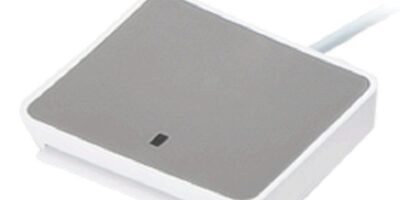
- Identiv SCR3310 — common on older contract systems, generally reliable
- HID Omnikey 3121 — still widespread in government offices
- Gemalto IDBridge — hit or miss on Windows 7, honestly
- Athena ASEDrive — older government standard, usually cooperates
Now, the step I skipped the first time I did this — and paid for it: uninstall the bad driver first. Right-click the yellow-marked device, click Uninstall device, and check the box labeled “Delete the driver software for this device.” Skip that checkbox and Windows reinstalls the broken driver automatically. Every time.
Next, find the correct driver on the manufacturer’s website. Search your reader model plus “Windows 7 driver.” Download the .ZIP file specifically — not the .EXE installer, those fail on Windows 7 more often than not.
Extract the folder. Unplug your reader. Plug it back in. When Windows prompts you to install the driver, point it to the extracted folder and let it run.
For the SCR3310 specifically, you need the Identiv driver version 1.0.16 or earlier — versions after that dropped Windows 7 support quietly in a changelog nobody read. The HID Omnikey 3121 driver is still available through HID’s legacy support portal. Both are still out there if you know where to look.
Step 3 — Configure Smart Card Service and ActivClient Settings
Windows 7 has a Smart Card service that needs to be running. Many locked-down government builds disable it by default. Here’s how to fix it:
- Press Windows Key + R, type
services.msc, and hit Enter - Find “Smart Card” in the list
- Double-click it
- Change the Startup type dropdown from “Disabled” to “Automatic”
- Click Apply, then Start the service
- Click OK
Now open ActivClient and navigate to Tools → Settings — or Edit → Preferences, depending on your version. I’m apparently running 6.2 on my primary machine and the menu layout differs slightly from 7.x builds, so your path may vary.
Check these three things specifically:
- Certificate Propagation: Must be enabled. This copies your CAC certificate into Windows’ certificate store — which is where most applications actually look for it.
- PKCS#11 Module Path: Should point to a .DLL or .SO file. If it’s blank or showing red, click Browse, navigate to C:\Program Files\ActivIdentity\ActivClient, and select the correct module file from there.
- Reader Detection: Force a rescan manually. Unplug your reader, restart ActivClient, plug the reader back in, and wait a full 15 seconds before assuming it failed.
Restart your machine after making these changes. All of them. Don’t skip the restart.
Still Not Working — Try These Last Resort Fixes
You’ve done everything above and your CAC reader still won’t show up. Now what.
Option 1: Use a different reader. Pick up an older Identiv SCR3310 or Athena ASEDrive on eBay — they run $20–$40 used and have rock-solid Windows 7 support. I keep one in my desk drawer for exactly this diagnostic purpose. If the backup reader works, your system is fine and your original reader is the problem. If it doesn’t, the issue lives somewhere deeper.
Option 2: Try OpenSC. Free middleware that runs on Windows 7 and bypasses ActivClient entirely. More technical to configure, but worth knowing. Download it from https://github.com/OpenSC/OpenSC, install it, plug in your reader, and run the OpenSC utility to test detection. Not every reader plays nicely with it, but enough do to make it worth trying before you escalate.
Option 3: Check USB legacy mode in BIOS. Some government systems — particularly air-gapped builds — disable USB legacy support in BIOS as a security measure. Your CAC reader needs it enabled. Restart your machine, enter BIOS setup using Delete or F2 during boot, and look through the settings for “USB Legacy Support” or “USB Compatibility Mode.” Enable it. Save and exit.
If none of these work, the reader hardware is simply incompatible with Windows 7. Order a replacement through your IT department or contractor vehicle. That’s not a personal failure. Windows 7 is almost 15 years old — some hardware combinations just don’t cross that bridge.


Subscribe for Updates
Get the latest cac readers.com updates delivered to your inbox.
We respect your privacy. Unsubscribe anytime.