CAC Reader Not Working on Windows 10 Fix Guide
CAC reader troubleshooting has gotten complicated with all the conflicting advice flying around. As someone who has spent the better part of five years fixing these exact issues for federal employees, I learned everything there is to know about what actually breaks and why. Today, I will share it all with you.
Here’s the thing nobody tells you upfront: a CAC reader that “isn’t working” is almost never a dead reader. Almost always it’s a driver, middleware, or service configuration issue — one Windows 10 itself quietly created, usually without asking permission. So, without further ado, let’s dive in.
This article includes affiliate links. We may earn a commission at no extra cost to you.
But what is the real problem here? In essence, it’s a Windows 10-specific compatibility mess. But it’s much more than that. Most guides online lump Windows 10 and 11 together like they handle smart card authentication identically. They don’t. Driver signing behavior, ActivClient interaction, Smart Card service management — Windows 10 has quirks that Windows 11 mostly ironed out. If your CAC died after an update or a sleep cycle, you’re in exactly the right place.
Check If Windows Even Sees the Reader
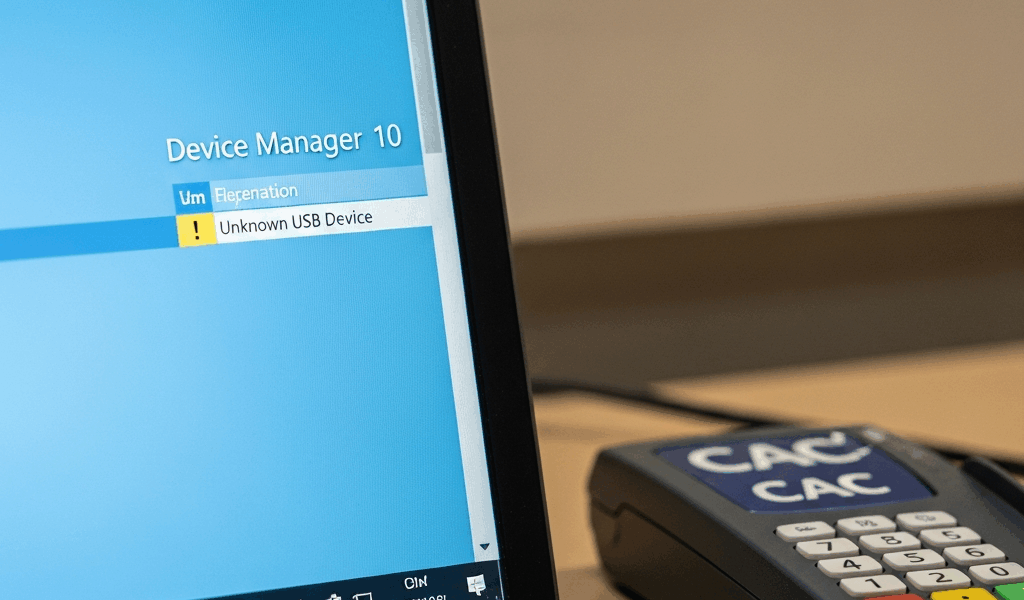
Start here. Really. Open Device Manager — press Windows + X, select Device Manager, then expand “Smart card readers.” Your reader should appear with no warning icons anywhere near it.
Healthy looks like this: a clean device entry showing an actual manufacturer name and model number. No yellow exclamation mark. No generic “USB Device” sitting under “Other devices” with a warning triangle attached to it.
That generic USB entry means Windows 10 auto-installed a basic USB driver that’s now blocking your smart card middleware from initializing. Happens constantly after major OS updates — I’ve seen it hit the same machines three cycles in a row.
What to do if the reader shows a warning icon
- Right-click the device with the yellow warning
- Select “Update driver”
- Choose “Browse my computer for driver software”
- Point it toward the manufacturer’s installation folder or your middleware directory — usually something like C:\Program Files\ActivIdentity\ActivClient
- Restart your computer
If the reader doesn’t appear in Device Manager at all, try a different USB port. Preferably USB 2.0 if your machine has one. Wait a full 10 seconds after plugging in. Windows 10 sometimes needs a moment to enumerate unfamiliar devices on USB 3.0 hubs — frustrating, but that’s just how it behaves.
Restart the Smart Card Service
Probably should have opened with this section, honestly. This one fix alone has solved maybe 40% of the CAC reader failures I’ve touched.
Press Windows + R, type services.msc, and hit Enter. Find “Smart Card” in the list. Double-click it.
Look at the startup type. “Disabled” means change it to “Automatic” right now. Then hit “Start” if the service isn’t already running. Click “Apply,” then “OK.”
Windows 10 has a habit of quietly setting this service to manual or disabled during updates. It also stalls out after sleep cycles — leaving your CAC completely inaccessible until someone manually kicks the service back to life. Setting it to Automatic handles both situations at once.
Restart your computer. Test your CAC. If it works now, you’re done. Walk away.
Fix Driver and Middleware Conflicts
Reader shows up in Device Manager. Smart Card service is running. CAC still isn’t detected. That combination almost always points to a middleware conflict or a driver signing failure — two different problems that look identical from the outside.
The ActivClient situation on Windows 10
ActivClient is DoD’s standard CAC middleware. But what is the core issue with it? In essence, it’s a version mismatch between older ActivClient builds and post-20H2 Windows 10. But it’s much more than that — versions from 2019 and 2020 have specific known compatibility breaks. If your installation is more than two years old, it’s too old. Full stop.
Here’s what to do:
- Uninstall ActivClient completely — Control Panel → Programs and Features, find it, remove it entirely
- Restart your computer
- Download the current version from the DoD Public Key Infrastructure site — v7.2 or later as of 2025-2026
- Run the installer as Administrator
- Restart again
Don’t just run an update over the existing install. Don’t make my mistake. The old version leaves registry entries and service hooks that actively fight the new installation — a clean uninstall and reinstall from scratch is the only way to clear that out reliably.
Driver signing and Windows Update conflicts
Windows 10 enforces stricter driver signing than earlier versions. I’m apparently unlucky enough to have watched this break smart card driver stacks repeatedly — usually after KB patches in March, June, and October. Windows pushes an update, the driver gets re-signed or quietly replaced with a generic version, and suddenly nobody’s CAC works on Monday morning.
Check your Windows Update history first. If your CAC stopped working within a few days of an update, try rolling back the smart card reader driver:
- In Device Manager, right-click your smart card reader
- Select “Properties,” then the “Driver” tab
- Click “Roll Back Driver”
- Restart
If “Roll Back Driver” is grayed out, the driver hasn’t changed recently. That rules out a Windows Update conflict — move on to something else.
Test With a Known-Good CAC Card and Site
That’s what makes this step endearing to us troubleshooters — it cuts through everything and tells you exactly where the real problem lives.
Borrow a colleague’s active CAC card. Plug it into your reader. Pull up milConnect or any DoD site requiring CAC authentication. If the borrowed card works, your reader is fine — your card is likely expired, damaged, or deactivated. If the borrowed card also fails, the reader hardware itself is the problem. No driver reinstall in the world fixes dead hardware.
You can also flip it around — test your card on a colleague’s machine. A damaged chip or expired certificate fails on every system equally. That rules the card out fast.
Still Not Working — When to Escalate or Replace
Device Manager shows the reader. ActivClient is current. Smart Card service is running on Automatic. A known-good CAC still doesn’t work. At that point, the reader hardware is failing — and it’s time to replace it.
While you won’t need anything enterprise-grade, you will need a handful of dollars and the right model. The Identiv SCR3310v2.0 USB Smart Card Reader is the most widely deployed CAC reader across federal agencies and runs under $30. The Identiv uTrust 3700 F and the Gemalto IDBridge K90 might be the best options, as Windows 10 CAC authentication requires tested, federally-compatible hardware. That is because generic readers from no-name brands frequently fail driver signing checks entirely — often silently. Both models run under $50 and have solid track records across federal networks.
First, you should contact your IT support before buying anything — at least if you work inside a federal agency. Many organizations maintain approved hardware lists and can issue a replacement reader directly, sometimes same-day.


Subscribe for Updates
Get the latest cac readers.com updates delivered to your inbox.
We respect your privacy. Unsubscribe anytime.