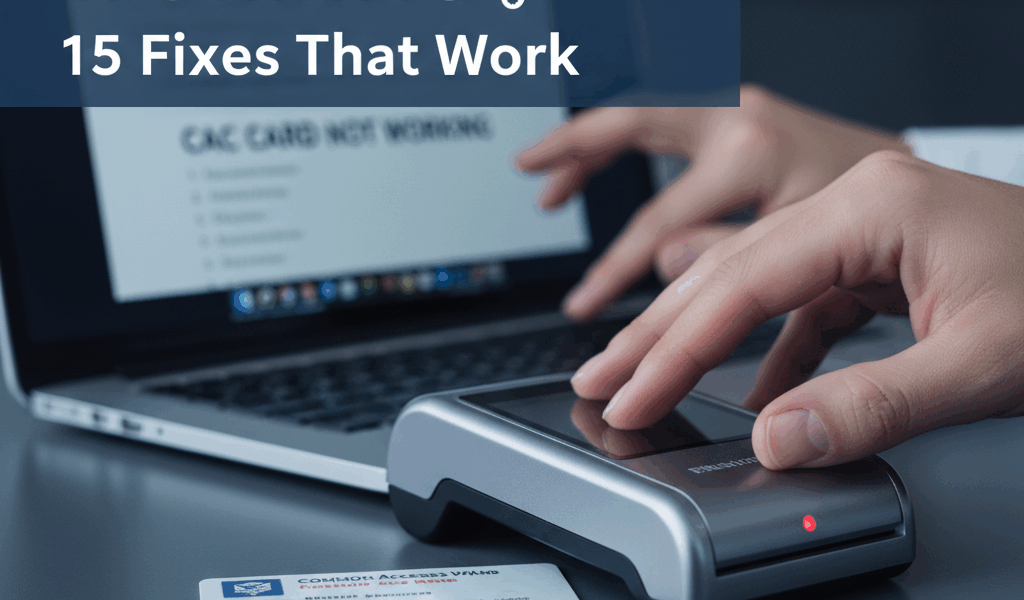
Why Your CAC Card Stopped Working (And How to Fix It Fast)
CAC card troubleshooting has gotten complicated with all the different OS versions, middleware updates, and hardware configurations flying around. As someone who’s been the first phone call when someone gets locked out of their workstation since the early GWOT days, I learned everything there is to know about diagnosing and fixing CAC problems fast. Today, I will share it all with you.
Quick Diagnosis: What Kind of Problem Are You Having?
Before you start trying random fixes, figure out which bucket your issue falls into. This saves a ton of time.
- Physical Issues: Card won’t insert, reader doesn’t light up, visible chip damage
- PIN Problems: Locked PIN, forgotten PIN, “incorrect PIN” when you know it’s right
- Certificate Errors: “No valid certificates,” expired certs, trust errors
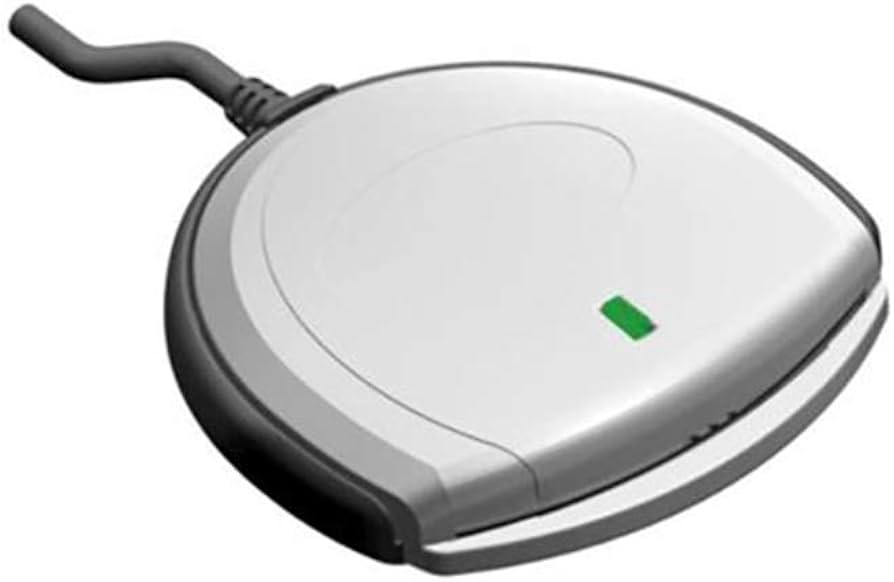
- Reader Issues: Reader not detected, driver problems, wrong driver loaded
- System Issues: Browser errors, middleware crashes, OS conflicts
Fix #1: CAC Reader Not Detected
Symptoms: Your computer doesn’t know the reader exists.
Probably should have led with this section, honestly. This is the single most common issue I see.
- Try a different USB port — and skip the hub, plug directly into the computer
- Restart your computer with the reader already connected
- Check Device Manager (Windows) or System Information (Mac) to see if the reader shows up at all
- Download latest drivers from the manufacturer’s website
- Test with a different reader if you can borrow one
Here’s a tip from the trenches: USB 3.0 ports (the ones with blue plastic inside) cause compatibility issues with some older readers. Try a USB 2.0 port first.
Fix #2: PIN Is Locked
Symptoms: “PIN is locked” error, usually after a few wrong attempts.
- You’ll need to visit your nearest ID card office (RAPIDS site) with two forms of ID
- Some units allow PIN reset via verified identity proofing — ask your S6
- The process usually takes 10-15 minutes once you’re at the counter
Prevention tip: after 3 wrong PIN attempts, stop. Walk away, think about your PIN, and come back. Don’t keep guessing — you’ll lock yourself out and then you’re driving to the RAPIDS office instead of working.
Fix #3: Certificate Errors in Browser
Symptoms: “No client certificate,” “Certificate not trusted,” or that fun ERR_BAD_SSL_CLIENT_AUTH_CERT error.
That’s what makes certificate troubleshooting endearing to us IT types — once you understand the cert chain, you can fix most of these in under five minutes.
- Install (or reinstall) DoD root certificates from Cyber.mil PKI/PKE
- Clear your browser cache and certificates: Settings, Privacy, Clear browsing data
- Verify the certs actually installed by checking your browser’s certificate manager
- Update ActivClient or whatever middleware your shop uses to the latest version
- Follow our complete certificate installation guide if you need a walkthrough
Fix #4: Card Won’t Insert Into Reader
Symptoms: Physical resistance when you try to slide the card in.
- Check the orientation — the gold chip needs to face a specific direction depending on your reader model
- Remove any protective sleeve you might have on the card
- Look inside the reader slot for debris, dust, or a paper clip someone dropped in there (yes, I’ve seen it)
- Hit the slot with compressed air
- Try a different reader to rule out a bent or warped card
Fix #5: “Smart Card Service Not Running” (Windows)
Symptoms: Windows pops an error about the smart card service.
- Press Windows + R, type
services.msc - Find “Smart Card” in the list
- Right-click, hit Start
- Set Startup type to Automatic so it doesn’t happen again
- Restart the computer to make sure it sticks
Fix #6: Expired Certificates on a Valid CAC
Symptoms: Your CAC hasn’t expired, but you’re getting certificate errors anyway.
This trips people up all the time. Your CAC card has an expiration date, but the digital certificates on the card can expire separately — sometimes months before the card itself expires.
- Check your certificate expiration dates in ActivClient or your OS certificate viewer
- If certs are expired or within 30 days of expiring, visit a RAPIDS site to get them renewed
- Update the DoD root certificates on your computer too
- Make sure your system clock is correct — certificate validation is time-sensitive, and a wrong date/time will cause failures
More details in our CAC expiration and renewal guide.
Fix #7: Works on Some Sites But Not Others
Symptoms: You can get into MyPay but not OWA, or vice versa.
- Clear your SSL state: Control Panel, Internet Options, Content tab, Clear SSL state
- Enable TLS 1.2 in Internet Options, Advanced tab
- Check if the problem site requires specific certificates you don’t have
- Try a different browser — Edge, Chrome, and Firefox all handle CAC auth differently
- Disable browser extensions that might be interfering with the auth handshake
Fix #8: Mac-Specific CAC Problems
- Install CACKey or OpenSC middleware
- Enable smart card pairing in macOS settings
- Import DoD certificates into Keychain Access
- Set each DoD Root CA to “Always Trust”
- See our full Mac CAC setup guide for step-by-step details
Fix #9: ActivClient/Middleware Crashes
- Uninstall the current version completely
- Restart your computer (don’t skip this)
- Download the latest version from your official IT portal
- Install with administrator rights
- Run as administrator after installation
Fix #10: Damaged or Scratched CAC Chip
- Gently clean the gold chip with a soft, dry microfiber cloth
- Try the card in multiple different readers
- If the chip is visibly scratched, pitted, or cracked, the card needs replacement
- Request an emergency replacement at your nearest RAPIDS site
- Bring two forms of ID to speed things up
Fix #11: Email Certificate Problems
Symptoms: Can’t send encrypted or signed emails.
- Verify the email certificate is actually on your CAC (check in ActivClient)
- Import the email certificate into Outlook or your email client
- Check that the email cert hasn’t expired independently of the card
- Configure your email client for S/MIME
- See our military email setup guide
Fix #12: Group Policy Blocking CAC Access
Symptoms: CAC works at home but not on your government computer.
- Contact your unit’s IT help desk — this is a policy issue, not a hardware issue
- Your admin may need to whitelist your CAC certificates
- Verify you’re on the correct network (NIPR vs SIPR)
- Check if a firewall is blocking certificate validation traffic
Fix #13: VPN Won’t Connect With CAC
- Make sure your VPN client actually supports CAC authentication
- Install all DoD certificates before trying to connect
- When prompted for a certificate, choose the authentication cert — not the email cert
- Connect your reader and insert your CAC before launching the VPN client
- Check with your S6/IT for any VPN-specific configuration requirements
Fix #14: Too Many Certificates, Don’t Know Which to Pick
Symptoms: The browser shows you a wall of certificates and you have no idea which one to select.
- Look for the one with your name in LAST.FIRST.MIDDLE.EDIPI format
- For websites: use the “Authentication” certificate
- For email: use the “Email Encryption” certificate
- For signing documents: use the “Digital Signature” certificate
- Remove old or expired certificates from your system to reduce clutter
Fix #15: Windows Hello/Biometrics Interfering
- Temporarily disable Windows Hello
- Go to Settings, Accounts, Sign-in options
- Turn off facial recognition and fingerprint during CAC use
- Use PIN or password login instead
- You can re-enable biometrics after your CAC session
When to Just Get a Replacement Card
Sometimes the card is the problem and no amount of troubleshooting will fix it. Get a replacement if:
- The chip is visibly cracked, scratched, or damaged
- The card body is bent or warped
- It’s expiring within 30 days
- It fails on every reader you try (test at least 2-3 different ones)
- Your name or rank has changed
Visit your nearest RAPIDS site with two forms of ID. Takes about 15-30 minutes.
Essential Resources
- DoD Certificates: public.cyber.mil/pki-pke/
- RAPIDS Locator: idco.dmdc.osd.mil/idco/
- ActivClient Downloads: Contact your unit S6/IT support
- Certificate Status Check: crl.gds.disa.mil
Keep Your CAC Working: Prevention Tips
- Protect the chip: Store your CAC in a protective sleeve when it’s not in a reader
- Keep software updated: Middleware and certificates go stale, so check quarterly
- Memorize your PIN: Write it down if you must, but store it somewhere separate from the card — never in your wallet
- Watch expiration dates: Start the renewal process 60-90 days before expiration
- Test before you need it: Verify CAC access works before a deadline, not during one
- Have a backup reader: A $15 spare reader in your desk drawer saves hours of frustration
Still Not Working?
If you’ve worked through all 15 fixes and nothing helps:
- Call your unit’s IT help desk or S6 shop
- Visit your nearest RAPIDS ID card office
- Call the DoD Enterprise Service Desk at 1-844-347-1850
- Check if there’s a system-wide outage affecting CAC authentication (happens more often than you’d think)
For more troubleshooting, check our guides on common CAC issues and fixing certificate errors.
Recommended CAC Equipment & Guides
Having the right gear makes CAC access way more reliable. Here are our most useful guides:
- Best CAC Card Readers 2025 – USB-C vs USB-A comparison with verified Amazon products
- Complete CAC Home Office Setup – Equipment checklist including readers, hubs, and docking stations
- Best USB-C CAC Readers – Future-proof readers for modern laptops and MacBooks
- CAC Mobile Readers for iPhone & Android – Access military email from your phone
- Best Laptops for CAC Access – Remote work laptops with CAC compatibility
Recommended CAC Readers
If your reader is the problem, here are the ones I’ve had the best luck with over the years:
Best Overall: SAICOO USB CAC Reader
The most popular CAC reader on Amazon for a reason. Thousands of positive reviews, works on Windows, Mac, and Linux, and it’s plug-and-play on most systems. Hard to go wrong here.
Best USB-C: IOGEAR GSR205
For MacBooks and newer laptops with only USB-C ports. TAA compliant for government procurement, 3-year warranty, and it works flawlessly with military systems. Worth the premium if you need USB-C.
Best Portable: 5-in-1 Folding CAC Reader
Folds down to keychain size, supports USB-A and USB-C plus SD card slots. Perfect for travelers and as a backup reader. At under $20, grab a couple.
As an Amazon Associate, we earn from qualifying purchases at no additional cost to you.




Subscribe for Updates
Get the latest articles delivered to your inbox.
We respect your privacy. Unsubscribe anytime.