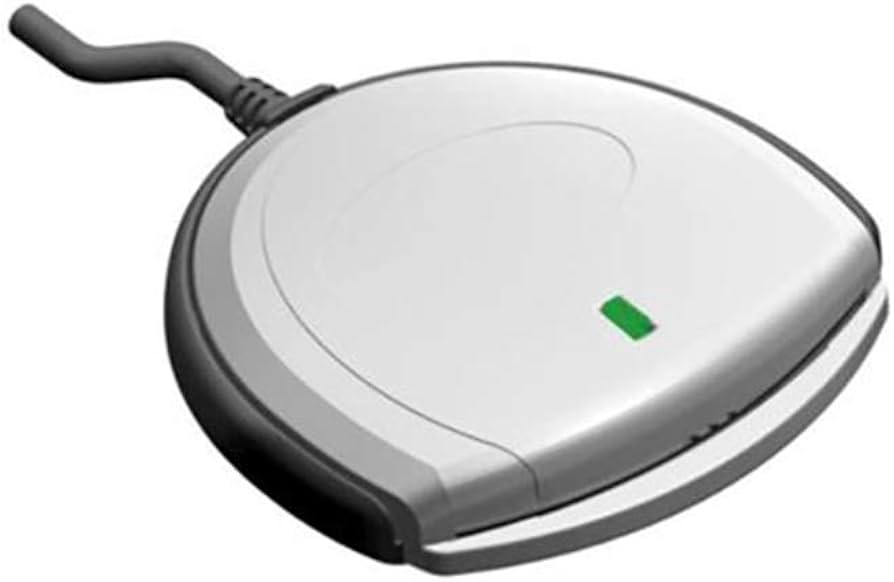
When a CAC reader is not working, identify the first layer that fails: USB/Bluetooth connection, reader detection, card detection, certificate visibility, or the website/application login. Changing drivers, certificates and browser settings all at once makes the problem harder to isolate and can create new security issues.
Use this cross-platform decision tree before installing software or replacing hardware. If you use a government-managed computer, stop where local policy requires and use your help desk’s procedure.
CAC reader troubleshooting decision tree
| Observed result | Likely layer | Next safe check |
|---|---|---|
| No light, sound or device event when connected | Port, cable, adapter, power or reader hardware | Reconnect directly and test an approved alternate port |
| Computer detects a USB/Bluetooth device but not a smart-card reader | Reader driver or unsupported device path | Check OS device information and the manufacturer support matrix |
| Reader appears, but inserting the CAC changes nothing | Card seating, contacts, reader slot or smart-card service | Reinsert once and test another approved reader or computer |
| Certificates are visible, but one website fails | Browser, application, target service or account | Test another approved CAC-enabled service |
| Every service rejects a current certificate | Card, PIN, certificate, trust or account issue | Contact the issuing/help-desk authority with the exact error |
1. Protect the CAC and endpoint first
- Do not share, store or type the CAC PIN outside the trusted authentication prompt.
- Do not install unofficial “CAC fixer,” middleware, driver or certificate packages.
- Do not disable antivirus, Secure Boot, browser certificate validation or organization policy to make a reader work.
- Do not edit the registry, delete certificates or remove managed software unless authorized instructions require it.
- Remove the CAC when troubleshooting is finished.
2. Check the physical reader path
- Disconnect the reader and inspect the plug, cable, adapter and card slot for damage.
- Reconnect it directly to a known supported port rather than an unpowered hub.
- If the reader has a removable cable, confirm both ends are fully seated.
- Insert the CAC in the orientation shown by the reader manufacturer.
- Observe only useful evidence: device sound, status light, operating-system event or error message.
A status light proves power or activity, not successful certificate authentication. A reader may be detected while the card, middleware or website still fails.
3. Confirm that the operating system sees the reader
Windows
Windows 10 and 11 include a smart-card architecture with Plug and Play support. Check Device Manager for the reader’s actual status and error code. Microsoft explains that compatible readers and cards can use inbox components or vendor minidrivers; that does not mean every reader needs a downloaded driver.
If Windows 11 is the problem, continue with our safe Windows 11 CAC reader diagnostic. If the explicit failure is driver installation, use the separate Windows 11 driver-installation guide.
macOS
Apple provides built-in PIV smart-card support through CryptoTokenKit on current macOS versions. Confirm that the reader manufacturer supports your macOS version and connection. Do not add legacy middleware automatically; older token frameworks may conflict with current built-in support.
iPhone, iPad and Android
Mobile support depends on device, OS, reader, application and organizational approval. Apple documents native PIV/CCID support on iOS 16 and iPadOS 16.1 or later, while Android implementations vary. Use our mobile CAC compatibility guide rather than desktop driver instructions.
4. Separate reader detection from card detection
If the operating system sees the reader but does not react when the CAC is inserted, remove and reinsert the card once. Avoid scraping or using liquids on the chip. If policy permits, test the same CAC in another known-working approved reader and test another current CAC in the original reader.
| Test result | What it suggests |
|---|---|
| Your CAC fails in multiple known-working readers | Card, certificate or issuing-office issue is more likely |
| Multiple current CACs fail in one reader | Reader, connection or local software issue is more likely |
| Reader and card work on another managed computer | Original endpoint configuration is more likely |
| Only one website fails | Target service, browser or account is more likely than reader hardware |
5. Check the smart-card service and certificates
On Windows, the Smart Card service and related components mediate access to readers and cards. Microsoft provides administrator troubleshooting tools, including smart-card event logging and certificate inspection. On a managed machine, collect evidence rather than changing services or registry settings yourself.
On macOS, Apple documents commands that administrators can use to list smart cards and inspect CryptoTokenKit behavior. Those commands are diagnostic tools, not instructions to disable tokens or remove managed configuration.
If certificates are visible, note their purpose and expiration date without exporting private keys or posting screenshots containing identity details. Authentication, signing and encryption certificates are not interchangeable.
6. Test the target service separately
- Use the browser or managed app identified by the service owner.
- Try another approved CAC-enabled service to determine whether the failure is site-specific.
- Record the exact URL, time, certificate chosen and full error text.
- Check the service’s status or support notice.
- Contact the service help desk when the reader and certificates work elsewhere.
Installing root certificates is not a universal response to every browser error. Use only the official PKI repository and the procedure supplied by your organization. Never bypass a certificate warning to reach a military or government login page.
7. Handle PIN and card problems correctly
Stop guessing if the PIN is uncertain. Repeated failed attempts can lock the card. A locked CAC, expired certificate, damaged chip or identity-record problem requires the authorized card-issuing or support process; reader software cannot repair it.
Do not send a CAC image, certificate details, PIN or personal identity information to a reader seller or an unofficial support forum.
What not to do
- Do not roll back Windows or pause security updates merely because a blog says updates “break CAC readers.”
- Do not disable USB power management globally before establishing a port-power problem.
- Do not install ActivClient or other middleware unless your card, OS and organization require it.
- Do not delete registry entries or certificate stores as a first step.
- Do not assume a new reader fixes a website, account or certificate failure.
Information to collect before contacting support
- Computer or mobile device model and OS version
- Reader manufacturer and exact model
- Connection type and adapter/hub, if used
- Whether the OS sees the reader
- Whether inserting the CAC changes reader status
- Whether certificates are visible
- Exact service and full error message
- Whether the same CAC and reader work on another approved endpoint
Frequently asked questions
Why is my CAC reader not working?
The failure can be at the physical connection, reader driver, card interface, smart-card service, certificate, browser, application, account or target-service layer. Find the first failed layer before changing software.
Do CAC readers need drivers?
Some use operating-system inbox support; others require a manufacturer component. Check the exact model and OS. Do not download drivers from an aggregator.
Should I reinstall ActivClient?
Only if your organization and workflow require that middleware and the evidence points to it. Modern operating systems can support many PIV/CAC functions without legacy middleware.
When should I replace the reader?
Replacement is reasonable when multiple current cards fail in that reader, the same cards work in another approved reader, and the original reader also fails on another supported endpoint.
Official technical references
- Microsoft: Windows Smart Card Technical Reference
- Microsoft: Smart Card Reader Devices Design Guide
- Apple: smart-card integration and built-in PIV support
- DoD Cyber Exchange: PKI and PKE resources
Technical guidance checked August 2026. Local policy, the reader manufacturer and the target service control.
If the hardware itself is unreliable or uses the wrong connector, compare our current CAC reader compatibility and buying guide.
New to the hardware? Start with our beginner CAC reader setup and home-use guide before choosing middleware or changing drivers.



Subscribe for Updates
Get the latest cac readers.com updates delivered to your inbox.
We respect your privacy. Unsubscribe anytime.