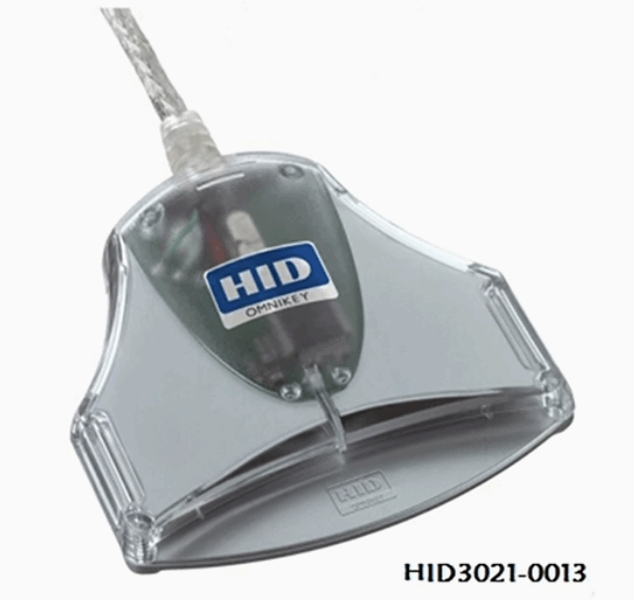
CAC reader not working has gotten complicated with all the different configurations and OS versions flying around. As someone who’s been the first call when someone can’t log in since about 2008, I learned everything there is to know about fixing these problems fast. Today, I will share it all with you.

The 60-Second Fixes
Before you do anything complicated, try these. They solve probably 70% of the tickets I get.
Pull your card and reinsert it. All the way out. Wait five seconds. Put it back in slowly, making sure the chip faces the right direction. Sometimes the gold contacts don’t seat properly, especially if you jammed the card in while distracted. I’ve fixed more “broken” readers with this one trick than any other troubleshooting step.
Try a different USB port. Unplug the reader entirely and move it to another port. Skip USB hubs — go directly into the computer. Front panel ports on desktops are notorious for power issues. Try a port on the back if the front ones aren’t working.
Close your browser completely and reopen it. And I mean completely — check your system tray for hidden browser processes. Browsers cache failed authentication attempts, and sometimes the only fix is a full restart. Don’t just close the tab, close every window.
Software Fixes
Restart the Smart Card Services
That’s what makes knowing about Windows services endearing to us help desk folks — it’s the fix that makes you look like a wizard when it works in 30 seconds.
Press Windows + R, type services.msc, hit Enter. Find “Smart Card” in the list, right-click, Restart. Do the same for “Smart Card Device Enumeration Service” and “Certificate Propagation.” These services manage the communication between your reader and Windows, and they hang up more often than they should.
Update or Reinstall Drivers
Right-click the Start button, open Device Manager, expand “Smart card readers.” If your reader shows up with a yellow warning triangle, that’s your problem right there. Right-click, Update driver, Search automatically. If that doesn’t fix it, uninstall the device completely, unplug the reader, wait 10 seconds, plug it back in, and let Windows rediscover it from scratch.
Reinstall Your Middleware
If your shop uses ActivClient, it can get corrupted. Go to Control Panel, Programs and Features, find ActivClient, uninstall it, restart your computer, install the latest version from your IT portal, and restart again. Yes, two restarts. ActivClient is picky about clean installation states.
Certificate Fixes
Probably should have led with this section, honestly. A huge percentage of “reader not working” issues are actually certificate problems, not reader problems. The reader is working fine — it’s the certificates that are messed up.
Clear the certificate cache by opening Command Prompt as Administrator and running:
certutil -urlcache * delete
certutil -setreg chain\ChainCacheResyncFiletime @now
Then restart your browser. This forces Windows to re-read your certificates from the card instead of using potentially stale cached copies.
When the browser asks you to select a certificate, make sure you’re picking the right one. For email and most DoD websites, choose the “Email” certificate. Some systems want the “ID” certificate. If you see certificates with red warnings or expiration notices, your card might need a certificate update at the ID card office.
Clear your browser data too. In Chrome or Edge, Ctrl+Shift+Delete, select cookies and cached images, clear. In Firefox, same shortcut, select cookies and cache, clear.
Hardware Fixes
The gold chip on your CAC picks up fingerprint oils, dust, and grime over time. Wipe it with a dry microfiber cloth. For stubborn residue, barely dampen the cloth with isopropyl alcohol and let the card dry completely before reinserting.
Blow out the reader’s card slot with compressed air. Never stick anything metal in there. If you want to be thorough, smart card cleaning cards exist — they’re basically thin cards with a slightly abrasive surface that cleans the reader’s internal contacts when you insert and remove them a few times.
Check your CAC for physical damage. Cracks across the chip area, a bent or warped card body, scratched gold contacts, or layers separating (delamination) all mean the card itself is failing. No amount of troubleshooting fixes physical damage — you need a new card from your ID card office.
Windows 11 Specifics
Windows 11 changed some smart card behavior. Make sure your system is fully updated through Settings, Windows Update. Some older readers need updated drivers that specifically support Windows 11. If you upgraded from Windows 10 and your reader stopped working, the driver might need a fresh install.
Mac Specifics
macOS does things differently. Install the latest DoD PKE certificate bundle. Check System Preferences, Security & Privacy, Smart Card. Safari generally works best for DoD sites on Mac — Chrome works too but needs more configuration.
When the Reader Is Actually Dead
If nothing above works, your reader might genuinely be broken. Signs of hardware failure: no LED light when plugged in, reader doesn’t appear in Device Manager at all, it only works at certain angles (loose USB connector), or your card works perfectly fine in someone else’s reader. At that point, get a replacement from your IT shop or order one through your unit’s supply chain.


Subscribe for Updates
Get the latest cac readers.com updates delivered to your inbox.
We respect your privacy. Unsubscribe anytime.