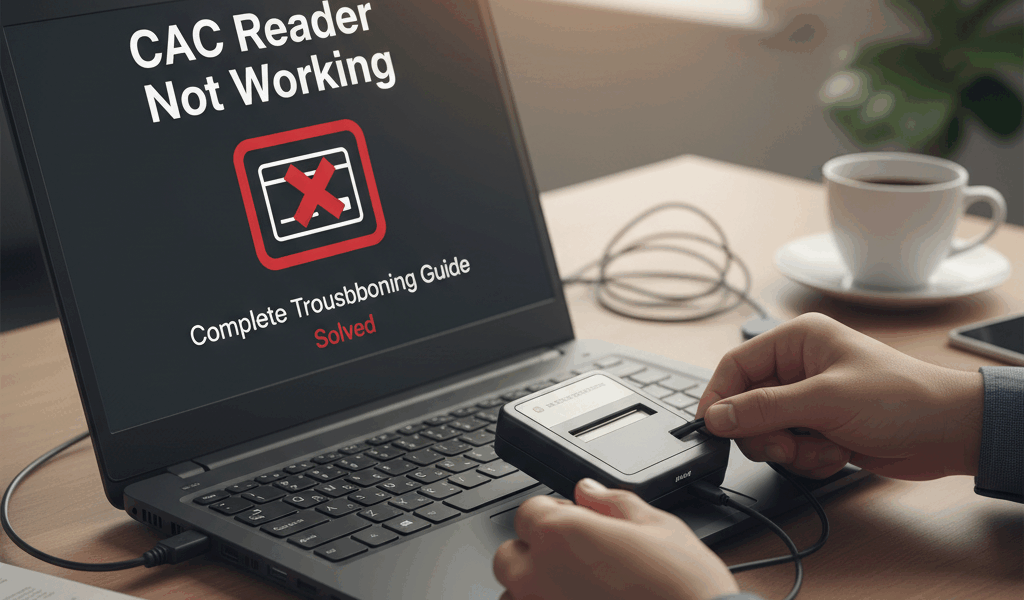
CAC reader troubleshooting has gotten complicated with all the different operating systems and browser combinations flying around. As someone who spent a decade in IT support helping military personnel get their CAC readers working, I learned everything there is to know about these issues. Today, I will share it all with you.
Here’s the truth: most CAC problems aren’t actually the reader. It’s the software, the certificates, or user error. I’ve seen maybe 5% of “broken readers” actually be broken. The rest just needed the right fix.
Quick Diagnostic Checklist
Before diving into the weeds, run through this. Seriously, 80% of problems get solved here:
- Is the CAC reader actually plugged into a working USB port?
- Have you tried a different USB port?
- Is your CAC card inserted correctly (chip side up, photo facing you)?
- Is your CAC card expired? Check the date on the front
- Have you restarted your computer recently?
- Is your CAC middleware (ActivClient/Tumbleweed) up to date?
- Have you tried a different browser?
Problem 1: Computer Doesn’t Recognize the Reader
What You’re Seeing:
- No light or LED on the reader when plugged in
- Computer makes no sound when reader is inserted
- Reader doesn’t show up in Device Manager (Windows) or System Information (Mac)
What to Do:
Step 1: Try Different USB Ports
USB ports fail more often than people realize. Try different ports, and go directly into the computer rather than through a hub. Hubs often don’t provide enough power.
Step 2: Check for Physical Damage
Look at your reader. Bent pins? Cracks? Loose connections? The folding mechanism on portable readers wears out over time—that hinge has a finite lifespan.
Step 3: Test on Another Computer
This tells you whether the problem is your reader or your computer. If it works elsewhere, your computer’s USB drivers or ports are the issue.
Step 4: Update USB Drivers (Windows)
Open Device Manager, find your CAC reader under “Smart Card Readers,” right-click, and select “Update Driver.” Probably should have led with this section, honestly—it fixes more problems than people expect.
If Nothing Works:
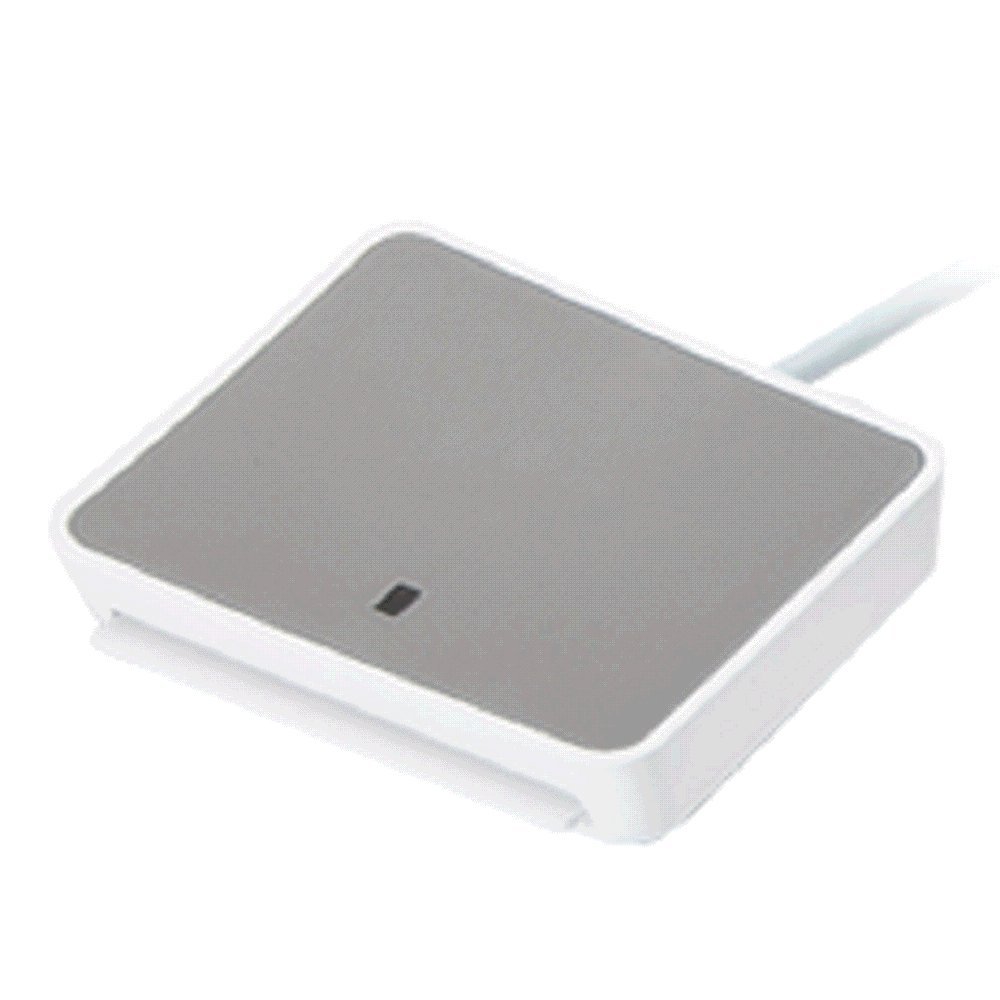
Your reader may actually be dead. Here are reliable replacements:
$(create_button “B075ZN7FD3”)
$(create_button “B002N3KEIG”)
Problem 2: “No Certificates Found” Error
What You’re Seeing:
- Reader is recognized, but “No certificates found” when trying to log in
- Certificate selection window is empty
- Can’t access email or secure sites
That’s what makes this error frustrating for us IT folks—the hardware works fine but the software stack is broken somewhere.
For Windows Users:
Step 1: Reinstall DoD Certificates
- Go to militarycac.com/dodcerts.htm
- Download “InstallRoot 5.9” (or latest version)
- Run as Administrator—not optional
- Select “DoD PKI Only”
- Restart computer
Step 2: Restart ActivClient Service
- Press Windows + R, type “services.msc”
- Find “ActivClient Smart Card Service”
- Right-click → Restart
- Try your CAC card again
Step 3: Clear Browser Certificates Cache
Chrome: Settings → Privacy → Clear Browsing Data → Cached images and files
Firefox: Options → Privacy → Certificates → View Certificates → Delete all
Edge: Settings → Privacy → Clear browsing data → Cached data
For Mac Users:
Step 1: Verify Java is Installed
Go to java.com, download latest Java for Mac, install and restart. Mac doesn’t include Java by default anymore.
Step 2: Install DoD Certificates in Keychain
Download DoD certs from militarycac.com, double-click each .cer file, add to “System” keychain, set each to “Always Trust”.
Step 3: Verify CACKey is Running
Open Activity Monitor, search for “CACKey”. If not running, reinstall from cackey.rkeene.org.
Problem 3: “Certificate Not Valid” Error
What You’re Seeing:
- You can see certificates, but they’re marked as invalid
- Browser shows security warnings
- Access denied even with correct PIN
What to Do:
Step 1: Check System Date and Time
I’m not kidding. Incorrect system time is the number one cause of certificate validation errors. Your computer thinks the certificate is from the future or already expired because its clock is wrong. Make sure date and time are accurate and set to auto-sync.
Step 2: Update DoD Root Certificates
Old root certificates expire. Download and install the latest from militarycac.com or disa.mil.
Step 3: Check CAC Card Expiration
Look at your CAC card. The expiration date is printed right on it. If it’s expired, contact your local RAPIDS/DEERS site for renewal. No amount of troubleshooting fixes an expired card.
Problem 4: PIN Entry Problems
What You’re Seeing:
- You’re certain you’re entering the correct PIN, but it’s rejected
- PIN works at work but not at home (or vice versa)
- Card locks after 3 attempts
Common PIN Entry Mistakes:
- NumLock: Make sure it’s ON if using number pad
- Caps Lock: Some systems are case-sensitive
- Leading Zeros: Don’t forget them
- Keyboard Layout: Verify US keyboard layout
If Your Card is Locked:
After 3 failed PIN attempts, your CAC locks. There’s no way to unlock it remotely—you must visit a RAPIDS/DEERS site. Period. No exceptions.
Problem 5: Works at Work, Not at Home
This is the most common complaint I got. And the answer is almost always one of three things:
1. Missing Middleware Software
Your work computer has ActivClient or Tumbleweed pre-installed. Your home computer doesn’t. Install it:
- Windows: ActivClient from militarycac.com
- Mac: CACKey from cackey.rkeene.org
- Linux: OpenSC or CoolKey packages
2. Missing DoD Root Certificates
Government computers have them pre-installed. Home computers need manual installation from militarycac.com/dodcerts.htm.
3. Network/Proxy Settings
Some .mil sites require you to be on a DoD network or VPN. Verify you’re accessing approved sites for home use.
Problem 6: Slow or Intermittent Recognition
What You’re Seeing:
- Reader takes 30+ seconds to recognize card
- Sometimes works, sometimes doesn’t
- Need to remove and reinsert card multiple times
What to Do:
Clean Your CAC Card
Soft, lint-free cloth on the chip. Dirt and skin oils interfere with the connection.
Clean the Reader
Compressed air to blow out dust. Don’t stick anything in the slot.
Check USB Power
USB hubs often don’t provide enough power. Try a direct motherboard port.
Replace Aging Reader
CAC readers wear out. The contact pins can bend or corrode. If yours is 2+ years old and having issues, it’s probably time:
$(create_button “B075ZN7FD3”)
$(create_button “B0BXVZS8BL”)
Problem 7: Mac-Specific Issues
Safari Won’t Recognize Certificates: Try Firefox instead. Safari has known issues with CAC authentication on some macOS versions.
“Java Not Found” Error: Download from java.com. Mac doesn’t include Java by default anymore.
M1/M2 Mac Compatibility: Use ARM-compatible software. Older ActivClient doesn’t work on Apple Silicon. CACKey does.
Best CAC Reader for Mac:
$(create_button “B0BXVZS8BL”)
Preventive Maintenance
Keep Your Reader Working:
- Don’t force the card in
- Insert chip side up, photo facing you
- Remove card when not in use
- Keep reader in a protective case when traveling
- Avoid extreme temperatures
- Don’t pull on the USB cable to remove it
Keep Your CAC Card Working:
- Store in a protective sleeve
- Don’t bend or flex the card
- Keep away from magnets
- Clean chip regularly
- Don’t punch holes in it (yes, people do this)
When to Contact IT Support
Call your organization’s help desk if:
- You’ve tried everything here without success
- Multiple different readers don’t work with your card
- Your card is locked and needs unlocking
- You suspect your card has been compromised
- You need access to specific .mil resources
Recommended Replacement Readers
If troubleshooting doesn’t solve it, you need a new reader:
Best Overall:
$(create_button “B075ZN7FD3”)
Most Reliable:
$(create_button “B002N3KEIG”)
Best for Modern Macs:
$(create_button “B0BXVZS8BL”)
Additional Resources
- MilitaryCAC.com: Comprehensive setup guides and downloads
- DISA PKI: Official DoD PKI information
- DoD Cyber Exchange: Security guidance and certificate downloads
- Your Local RAPIDS Site: Card issues, PIN resets, and renewals
Most CAC problems can be fixed with this guide. If you’ve worked through everything and still have issues, the problem may be your CAC card itself. Contact your local RAPIDS/DEERS office for card diagnostics.
Recommended CAC Readers
Looking for a reliable CAC reader? Here are our top picks:
Best Overall: SAICOO USB CAC Reader
Most popular on Amazon with thousands of reviews. Works with Windows, Mac, and Linux. Plug-and-play.
Best USB-C: IOGEAR GSR205
For MacBooks and modern laptops. TAA compliant. 3-year warranty.
Best Portable: 5-in-1 Folding CAC Reader
Perfect for travel. Folds small, supports USB-A and USB-C.
As an Amazon Associate, we earn from qualifying purchases at no additional cost to you.

Subscribe for Updates
Get the latest cac readers.com updates delivered to your inbox.
We respect your privacy. Unsubscribe anytime.