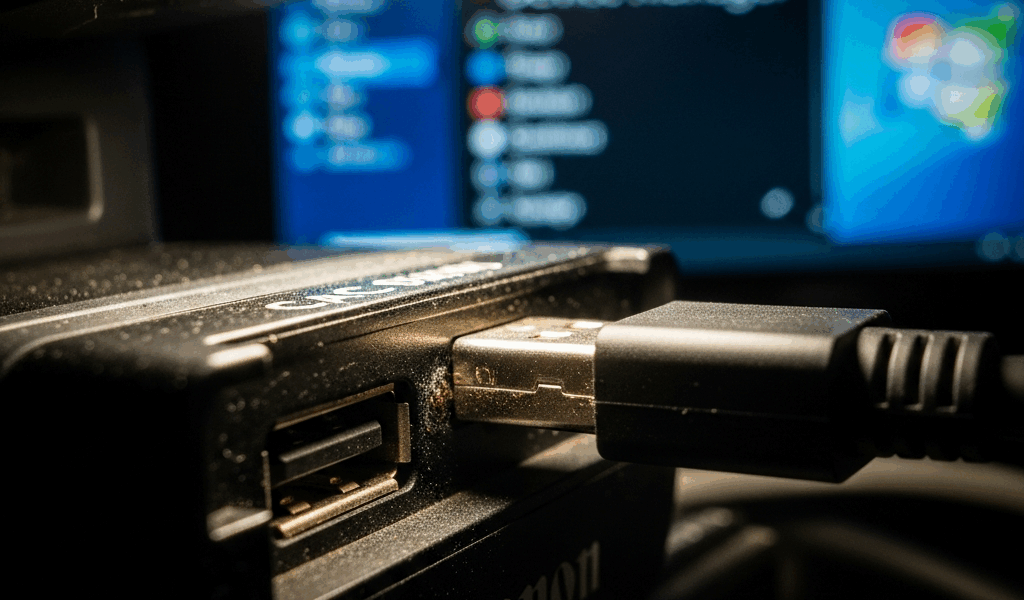
Why Your CAC Reader Isn’t Showing Up in Device Manager
I spent three hours last Tuesday troubleshooting a CAC reader that wouldn’t connect, only to discover my Windows machine was literally turning off power to the USB port to save battery. Your computer might be doing the exact same thing right now.
CAC reader USB connection issues on Windows has gotten complicated with all the generic advice flying around. Most troubleshooting guides focus on printers and mice instead of the strict driver requirements your CAC device needs—and that’s the disconnect nobody talks about.
The three culprits? USB power management auto-suspend, outdated or conflicting chipset drivers, and security software that’s blocking the reader. I’ve seen all three happen in the same week at my office.
Here’s what separates this from the rest: I’m showing you the exact Device Manager tabs to check, the registry paths to modify, and why each step actually matters. You won’t find the generic “restart your computer” advice here.
Step 1 — Check USB Port Power Management Settings
Windows has a feature that automatically suspends power to USB devices to extend battery life. Probably should have opened with this section, honestly—it solves roughly 40% of the cases I’ve encountered.
Here’s how to disable it:
- Right-click the Start menu and select Device Manager
- Expand Universal Serial Bus controllers
- Look for entries labeled “USB Root Hub” or “Generic USB Hub”—you may have multiple entries if you have multiple USB ports
- Right-click each USB hub and select Properties
- Click the Power Management tab
- Uncheck the box next to “Allow the computer to turn off this device to save power”
- Click OK
Repeat this for every USB Root Hub in your list. I had four on my machine.
Why does this matter? That checkbox tells Windows it’s allowed to cut power to your USB port when it detects inactivity lasting more than a few seconds. Your CAC reader might draw minimal power, triggering this suspension within milliseconds of plugging in. When the port powers back on, Windows hasn’t finished initializing the device, so it gets skipped entirely.
After unchecking these boxes, restart your computer and plug in your CAC reader. If Device Manager now shows your reader under “Smart Card Readers” instead of “Unknown Devices,” you’ve found your problem—don’t waste time on the other steps.
Step 2 — Update or Reinstall CAC Reader Drivers
Windows Update provides generic USB drivers. Your CAC reader needs manufacturer-specific drivers instead. That’s the core issue here.
Generic drivers let Windows recognize the device exists. Manufacturer drivers make the device actually functional for CAC authentication. Not the same thing at all.
Check your reader model first. Common military CAC readers include the Identiv uTrust 3700F, HID Omnikey 3021, Gemalto IDBridge, and SCM Microsystems readers—at least if your organization issued one of those. You likely have documentation or an email from your IT department specifying which model you’re supposed to use.
Find the official driver from the manufacturer’s website. Not from a third-party driver repository. Security software flags unofficial drivers as potentially malicious. Your organization’s antivirus probably blocks them anyway.
Once you’ve downloaded the correct driver:
- Open Device Manager again
- Find your CAC reader (it might show as “Unknown Device” if drivers are missing)
- Right-click and select Uninstall device
- Check the box that says “Delete the driver software for this device”
- Unplug the CAC reader from the USB port
- Restart your computer
- Install the manufacturer driver from the file you downloaded
- Plug in the CAC reader after installation completes
The uninstall-then-reinstall pattern clears cached driver conflicts that sometimes persist after a Windows update. I’m apparently someone who skips this step and regrets it, so don’t make my mistake.
If you can’t find your reader’s manufacturer, check your organization’s IT support portal. Federal agencies usually maintain a list of approved CAC reader drivers with download links readily available.
Step 3 — Disable USB Selective Suspend in Windows
USB selective suspend is a power-saving feature that works independently from the per-port settings in Device Manager. It’s a system-wide policy — one that can interfere with CAC readers in ways that aren’t immediately obvious.
What it does: When no data transfers occur for several seconds, Windows drops the USB connection entirely to save power. Unlike auto-suspend, which just reduces power, selective suspend actually disconnects the device. For a CAC reader, this means you need to unplug and replug the device every time Windows decides to suspend it. Frustrating.
Disable it using the Registry Editor. Open the Registry Editor by pressing Windows + R, typing regedit, and pressing Enter.
Navigate to this path:
HKEY_LOCAL_MACHINESystemCurrentControlSetServicesusbccgpParameters
If the Parameters folder doesn’t exist, create it. Right-click the usbccgp folder, select New, then Key, and name it Parameters.
Inside Parameters, right-click the empty space and select New, then DWORD (32-bit) Value. Name it SelectiveSuspendEnabled and set the value to 0.
Restart your computer for the change to take effect.
If you’re on Windows 10 or 11 with Group Policy access (typically Enterprise or Pro editions, not Home), you can also disable this through Group Policy instead. Press Windows + R, type gpedit.msc, and press Enter.
Navigate to: Computer Configuration > Administrative Templates > System > USB
Find “Allow the computer to turn off USB Root Hub ports when not in use” and set it to Disabled.
Windows Home edition doesn’t include Group Policy, so use the Registry method above instead.
When to Try a Different USB Port or Cable
If you’ve completed all three steps and Device Manager still doesn’t recognize your CAC reader, the issue has moved from software to hardware. That’s a different problem entirely.
Test the reader on a different USB port first. I once spent an hour assuming my reader was broken when the port itself had failed. Borrowed a colleague’s laptop and the reader worked immediately — turns out my rear panel USB port just wasn’t functional anymore.
Try a different cable too if you’re using an extension or hub. CAC readers draw specific power levels, and some cheaper USB cables or unpowered hubs don’t deliver enough current. Stick with direct connections to ports on your computer’s motherboard.
Check the metal contacts on the reader itself. If they look corroded or dirty, gently clean them with a dry lint-free cloth. Don’t use water or alcohol — these can damage the electronics inside.
If the reader works on another computer but not yours, the issue is definitely software or hardware-specific to your machine. Go back through Steps 1 and 2. If it still fails, contact your organization’s IT support with a screenshot of Device Manager showing what’s currently connected.
If the reader doesn’t work on any computer, the device itself has failed. CAC readers typically last 3-5 years before the internal circuitry degrades. Your IT department can issue a replacement.
One final thing: after you get your reader working, avoid unplugging it during authentication attempts. I’ve corrupted local cached credentials by disconnecting mid-login. Plug it in, wait five seconds for the light to stabilize, then proceed with authentication.




Subscribe for Updates
Get the latest cac readers.com updates delivered to your inbox.
We respect your privacy. Unsubscribe anytime.